
Lab 10: How to Troubleshoot “Connected but No Internet”
Lab Goal
In this lab, you will troubleshoot one of the most common networking problems: a device says it is connected, but the internet does not work.
This is a perfect capstone lab because it uses many of the skills from the earlier networking labs. You will check physical connection, Wi-Fi or Ethernet status, IP address, DHCP, default gateway, DNS, ping results, traceroute results, and basic service reachability.
The goal is not to randomly fix your internet. The goal is to follow a clean troubleshooting process. You will learn how to narrow the problem down instead of guessing. By the end of this lab, you should be able to tell whether a “connected but no internet” issue is likely related to the local device, Wi-Fi, Ethernet, DHCP, gateway, DNS, router, modem, ISP, or destination website.
Before You Start: Use Your Networking Notebook
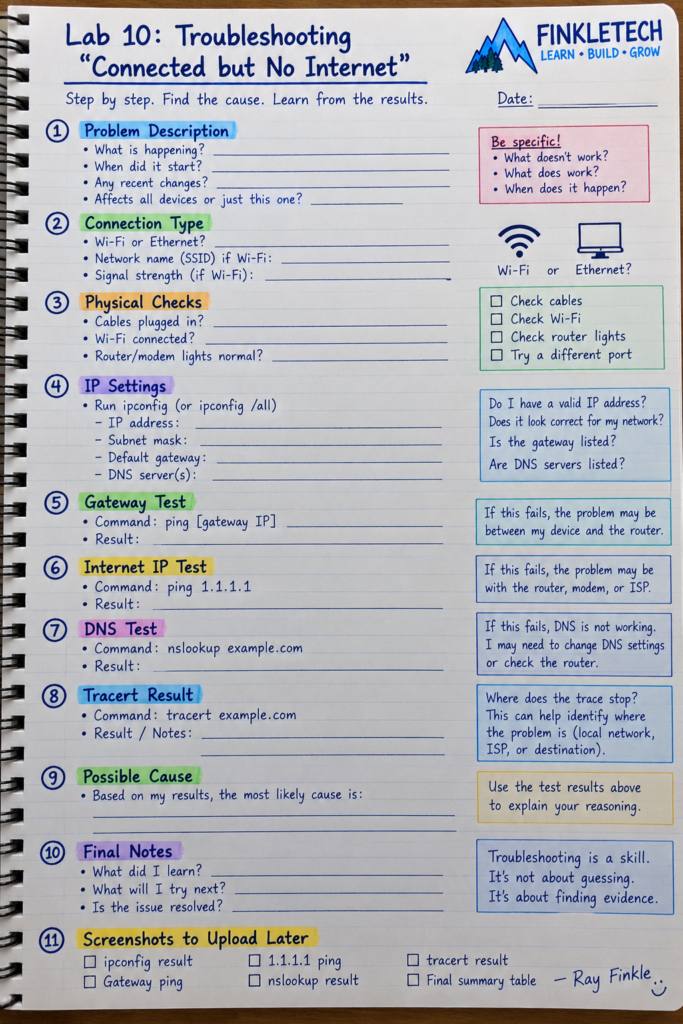
Open your networking notebook to a fresh page and write:
Lab 10: Troubleshooting Connected but No Internet
Create sections for:
- problem description
- connection type
- physical checks
- IP settings
- gateway test
- internet IP test
- DNS test
- tracert result
- possible cause
- final notes
- screenshots to upload later
This lab is where your notebook really earns its place. When troubleshooting, your brain will want to jump around. The notebook forces you to slow down and record evidence.
Write your results as if you were helping someone else understand the problem. Do not just write “failed.” Write what failed and what it suggests. For example: “Gateway ping failed, so the problem may be between my computer and the router.” That is much more useful than a random pile of command output.
Why This Lab Matters
“Connected but no internet” is one of the most common complaints in home networking and IT support. It is also one of the most misunderstood.
A device can be connected to Wi-Fi but still lack internet access. A computer can have a valid local IP address but fail DNS. A device can reach the router but not the wider internet. A browser can fail while basic ping tests still work. Ethernet can show a link light while DHCP fails. These are different problems, but users often describe all of them the same way: “The internet is broken.”
For Network+ study, this lab matters because it teaches structured troubleshooting. The best technicians do not guess first. They collect evidence. They move from the local device outward. They ask: does the adapter work, does the device have an IP address, can it reach the gateway, can it reach the internet by IP, can it resolve names, and can it reach the service it needs?
This lab turns troubleshooting into a repeatable process.
Quick Concept Refresher: Connected Does Not Always Mean Working
When your computer says it is connected, that usually means it has some kind of network connection. It might be connected to Wi-Fi. It might have an Ethernet link. It might even have a local IP address.
But that does not guarantee full internet access.
A working internet connection usually depends on several pieces working together:
- physical or wireless connection
- valid IP address
- correct subnet mask
- default gateway
- DHCP, unless static settings are used
- DNS resolution
- router/modem connectivity
- ISP connectivity
- destination service availability
If any one of those pieces fails, the user may experience “no internet.”
The technician’s job is to find where the chain breaks.
Tools Needed
You will need:
- Windows laptop or desktop
- Wi-Fi or Ethernet connection
- Command Prompt
- PowerShell
- your networking notebook
- screenshot tool such as Snipping Tool
- optional Ethernet cable
- optional second device, such as phone or tablet
- optional access to router admin page
- optional Wireshark
You do not need special equipment for the basic version of this lab. A normal home network is enough.
Safety and Privacy Note Before Publishing Screenshots
Before publishing screenshots, review them carefully. Troubleshooting screenshots may show IP addresses, DNS servers, router addresses, device names, Wi-Fi names, or other private details.
Blur or crop:
- MAC addresses
- public IP addresses
- personal device names
- router labels
- Wi-Fi names if private
- admin pages
- serial numbers
- any unrelated browser tabs or desktop information
Your final public page should teach the method without exposing your home network.
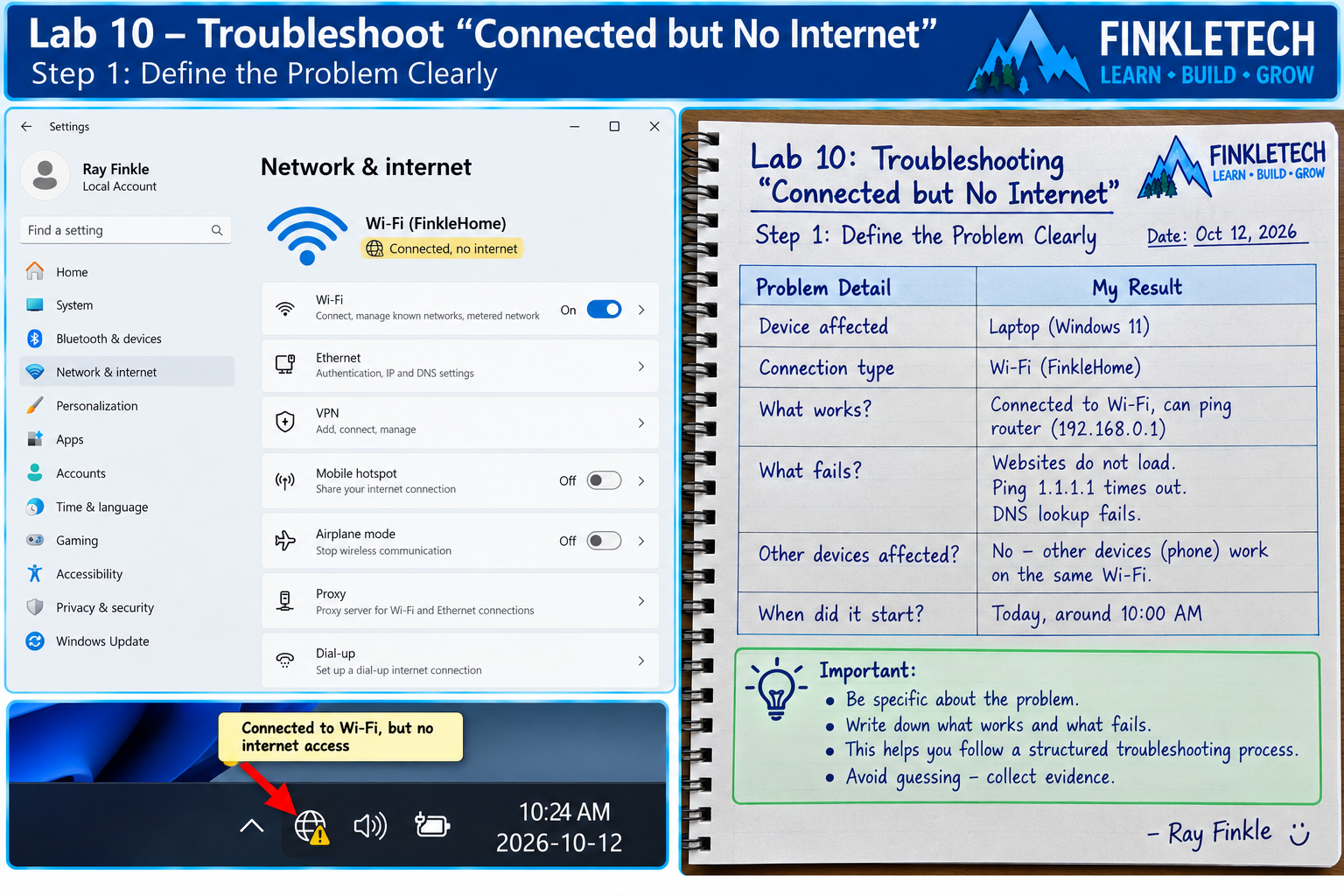
Step 1: Define the Problem Clearly
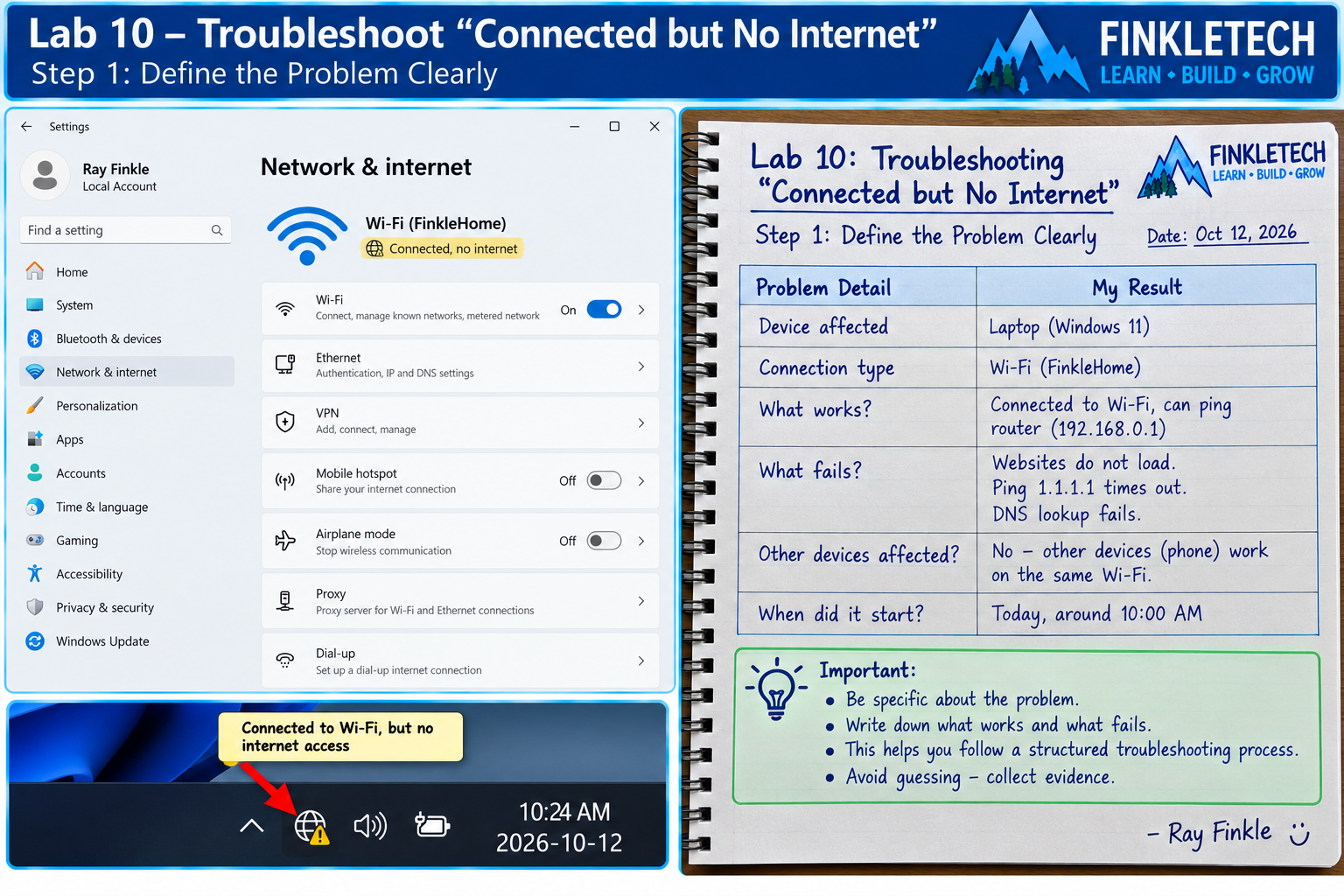
Before running commands, write down the problem in plain English.
Do not write only:
“My internet does not work.”
Be more specific:
“My laptop is connected to Wi-Fi, but websites do not load.”
Or:
“My Ethernet cable is plugged in and link lights are on, but I cannot reach websites.”
Or:
“My phone works on Wi-Fi, but my laptop does not.”
A clear problem statement helps you avoid bad troubleshooting.
In your notebook, write:
| Problem Detail | My Result |
|---|---|
| Device affected | [Laptop/Desktop/Phone/etc.] |
| Connection type | [Wi-Fi/Ethernet] |
| What works? | [Insert result] |
| What fails? | [Insert result] |
| Other devices affected? | [Yes/No/Unsure] |
| When did it start? | [Insert result] |
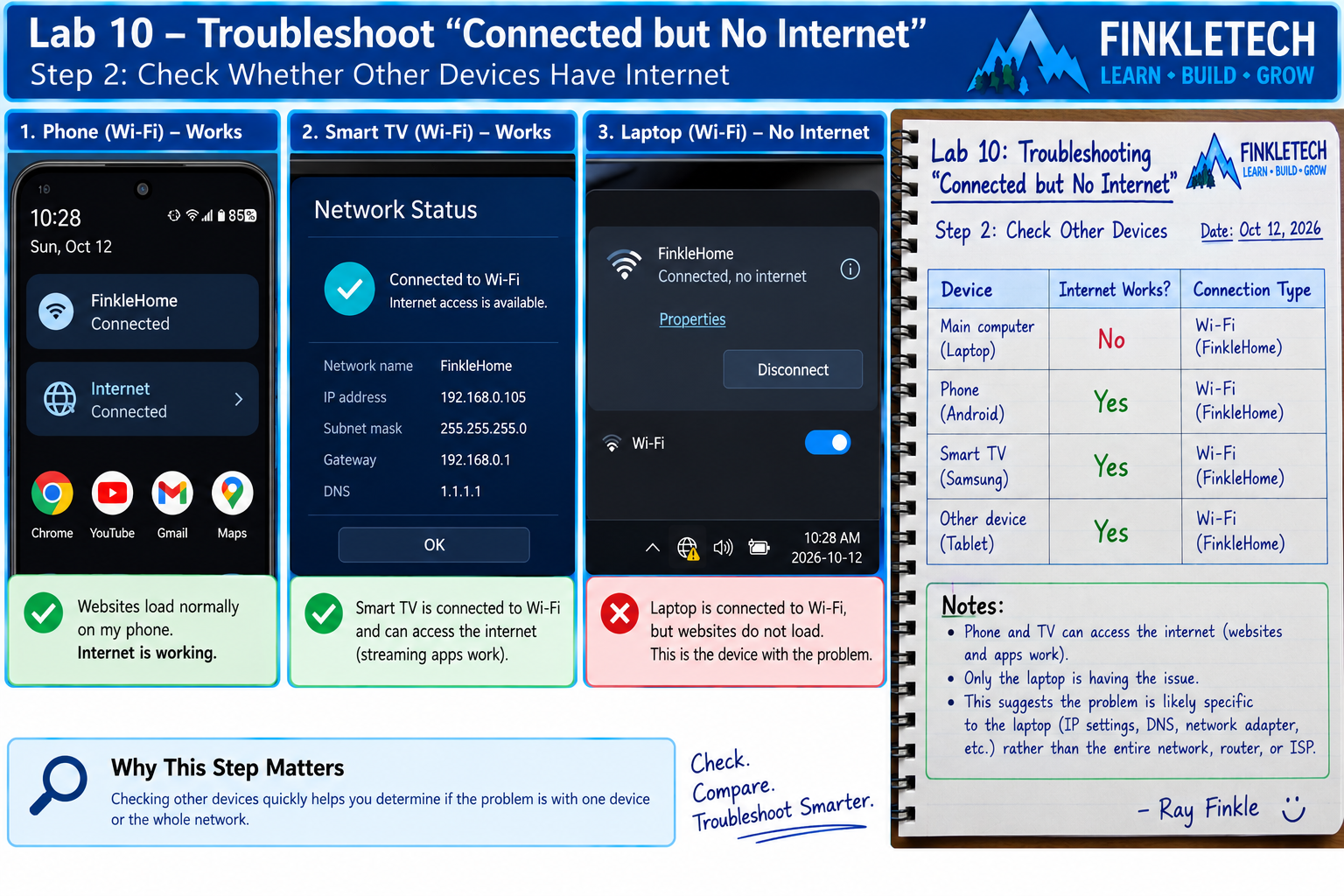
Step 2: Check Whether Other Devices Have Internet
Before digging into one computer, check another device on the same network.
Use your phone, tablet, another laptop, or smart TV. Make sure it is connected to the same Wi-Fi or network.
If other devices work, the problem may be specific to the original device. If all devices fail, the issue may involve the router, modem, ISP, DNS service, or broader network.
In your notebook, record:
| Device | Internet Works? | Connection Type |
|---|---|---|
| Main computer | [Yes/No] | [Wi-Fi/Ethernet] |
| Phone / second device | [Yes/No] | [Wi-Fi] |
| Other device | [Yes/No] | [Insert result] |
This step matters because it quickly separates “one-device problem” from “whole-network problem.”
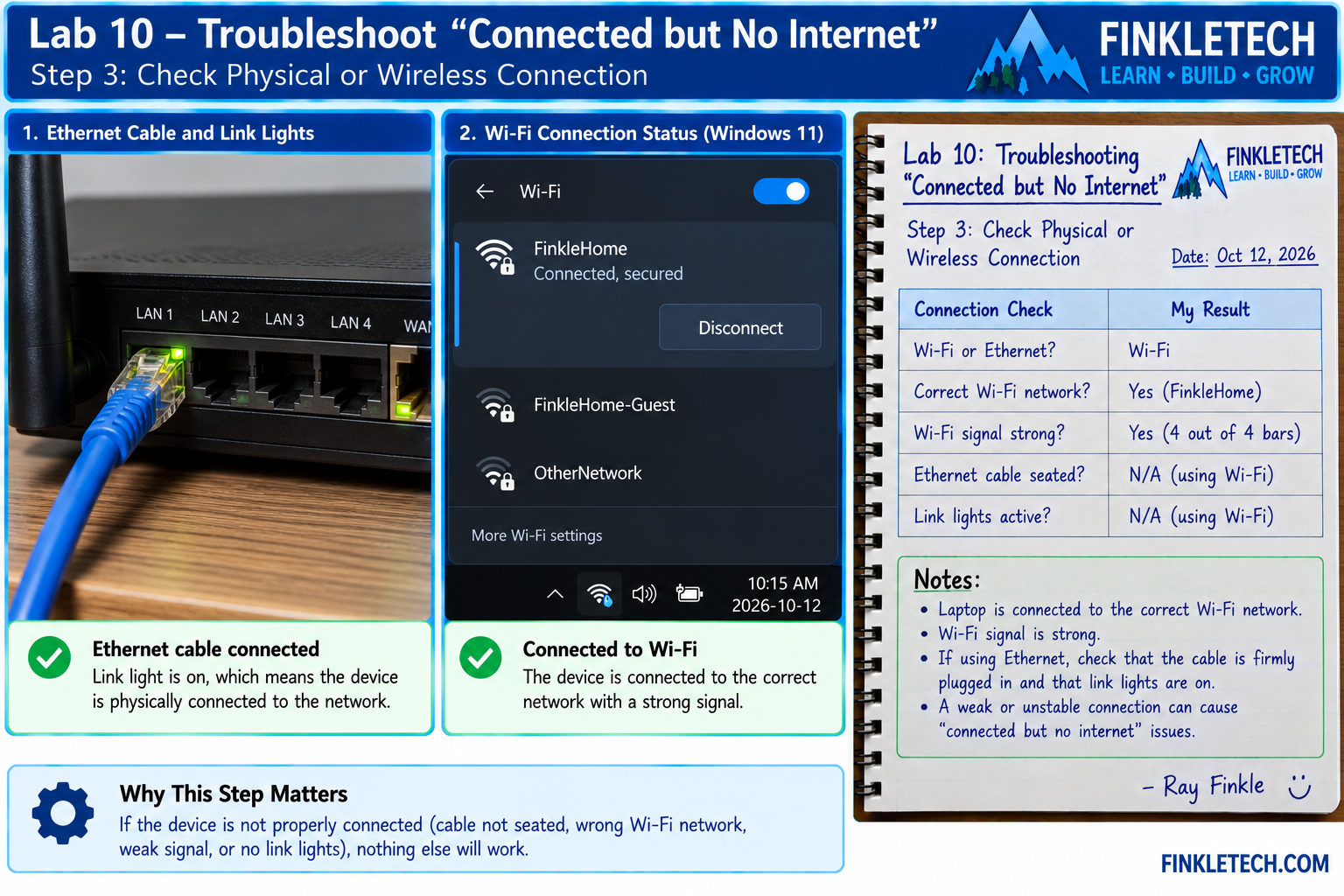
Step 3: Check Physical or Wireless Connection
If you are using Ethernet, check the cable and link lights. Make sure the cable is firmly plugged into the computer and router or switch. Look for link lights on the port.
If you are using Wi-Fi, check whether you are connected to the correct network. Look at signal strength. If the signal is weak, move closer to the router for testing.
Do not skip this step. It feels basic, but physical and wireless connection problems are common.
In your notebook, write:
| Connection Check | My Result |
|---|---|
| Wi-Fi or Ethernet? | [Insert result] |
| Correct Wi-Fi network? | [Yes/No/Not applicable] |
| Wi-Fi signal strong? | [Yes/No/Not applicable] |
| Ethernet cable seated? | [Yes/No/Not applicable] |
| Link lights active? | [Yes/No/Not applicable] |
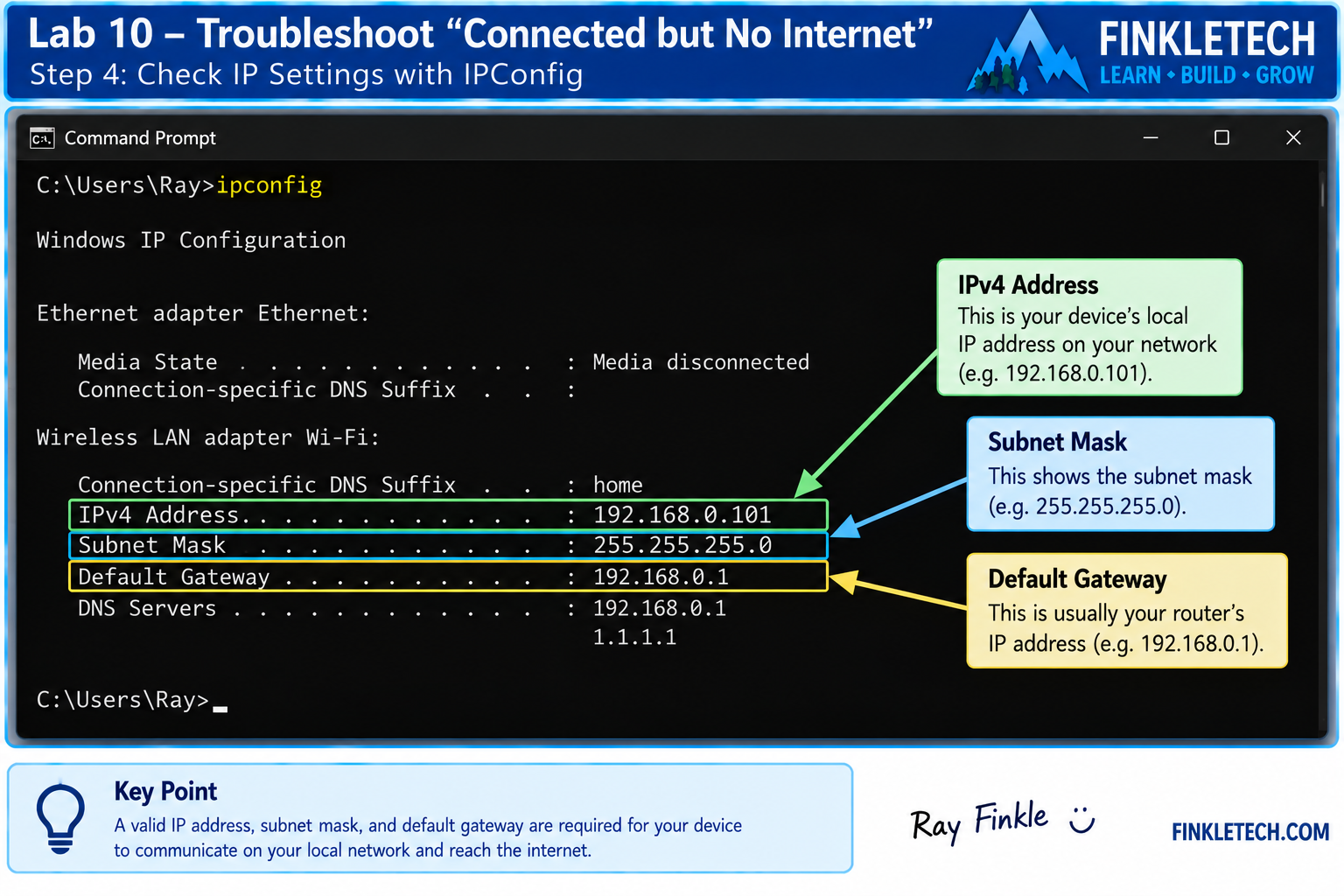
Step 4: Check IP Settings with IPConfig
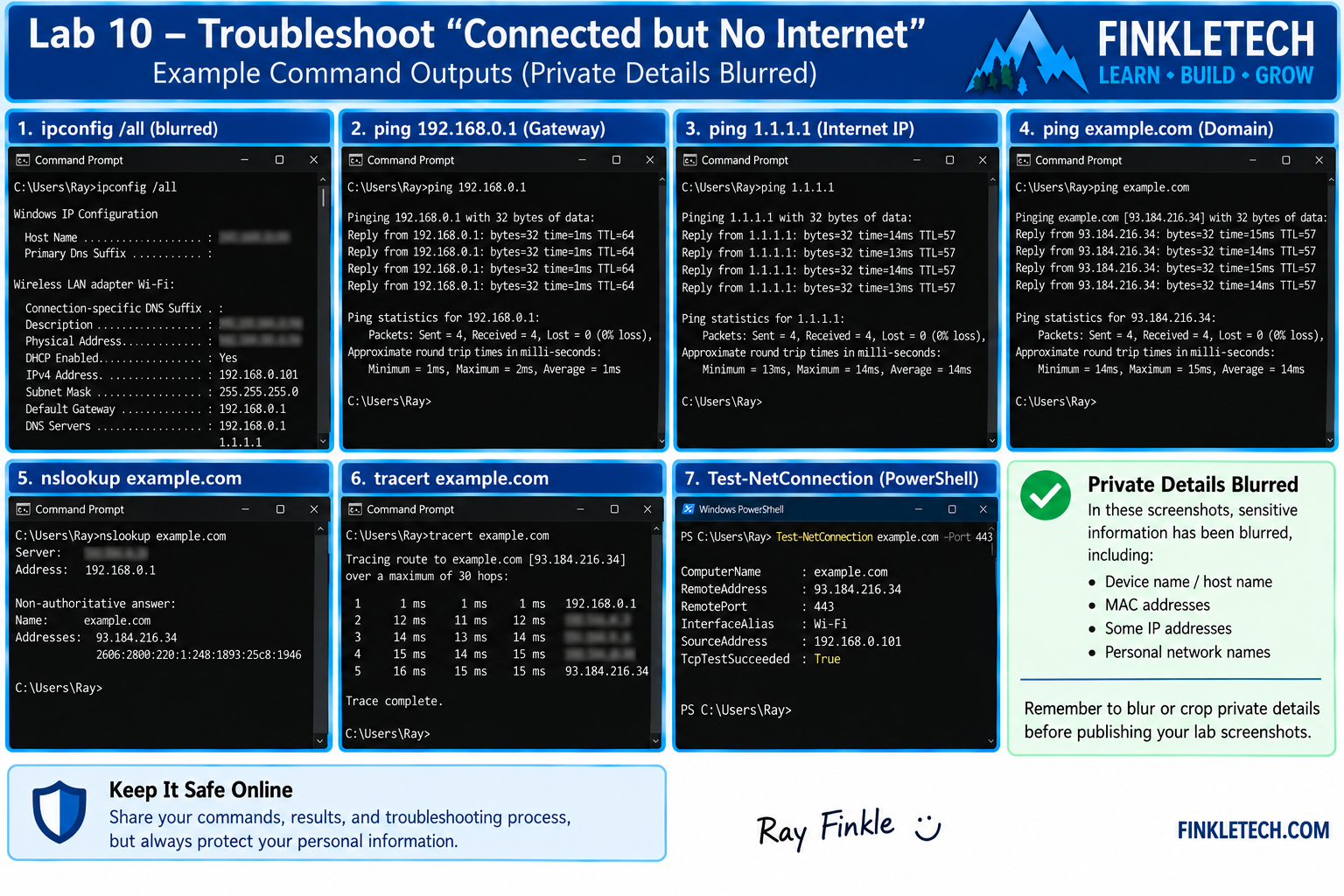
Open Command Prompt.
Run:
ipconfig
Find your active adapter.
Write down:
- IPv4 Address
- Subnet Mask
- Default Gateway
In your notebook, create this table:
| Setting | My Result | Looks Normal? |
|---|---|---|
| IPv4 Address | [Insert result] | [Yes/No] |
| Subnet Mask | [Insert result] | [Yes/No] |
| Default Gateway | [Insert result] | [Yes/No] |
If your IPv4 address starts with 169.254, that is an important clue. It usually means Windows did not receive a valid DHCP address. In that case, the problem may involve DHCP, the router, the adapter, Wi-Fi, Ethernet, or local network connection.
If the default gateway is missing, your computer may not know where to send traffic outside the local network.
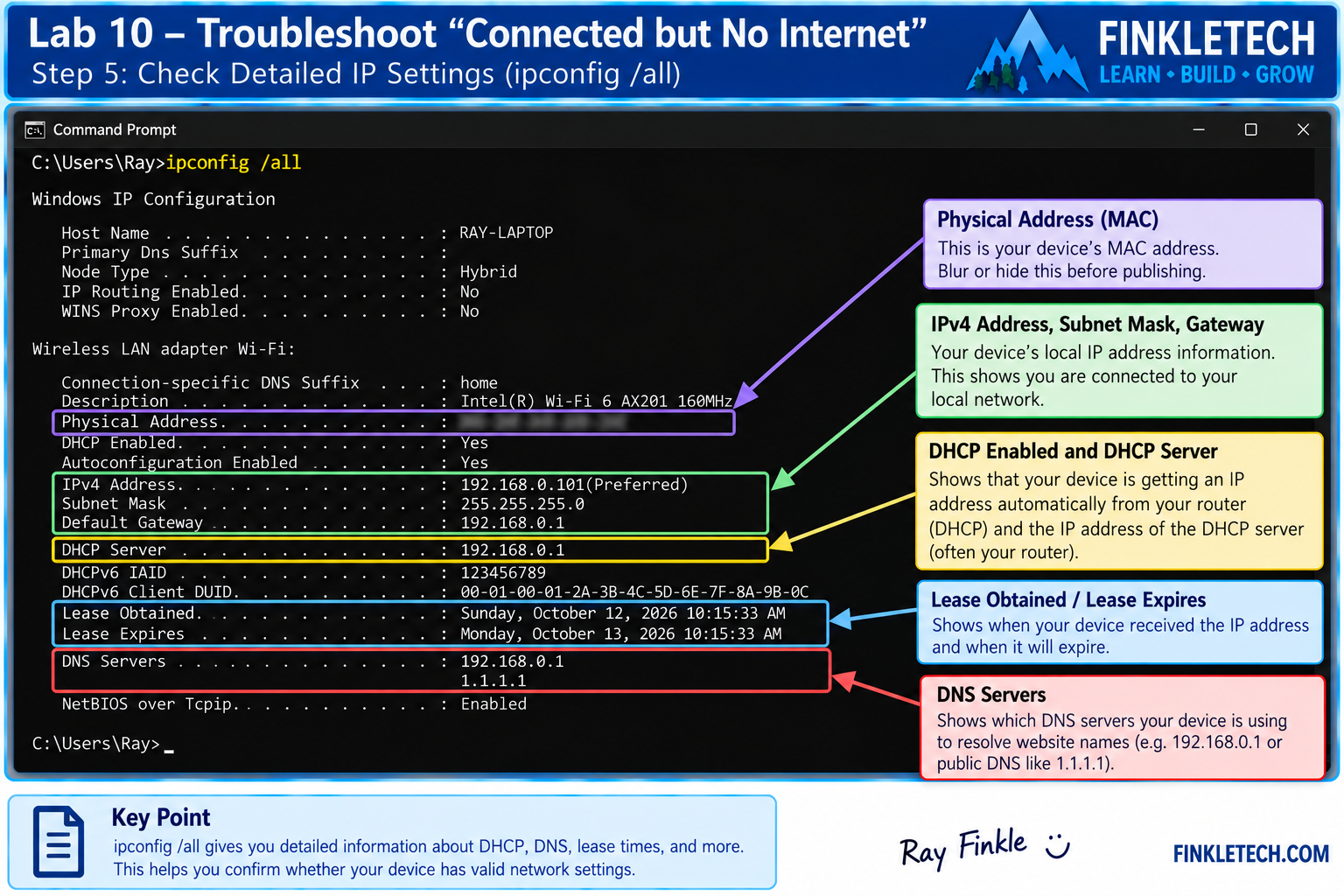
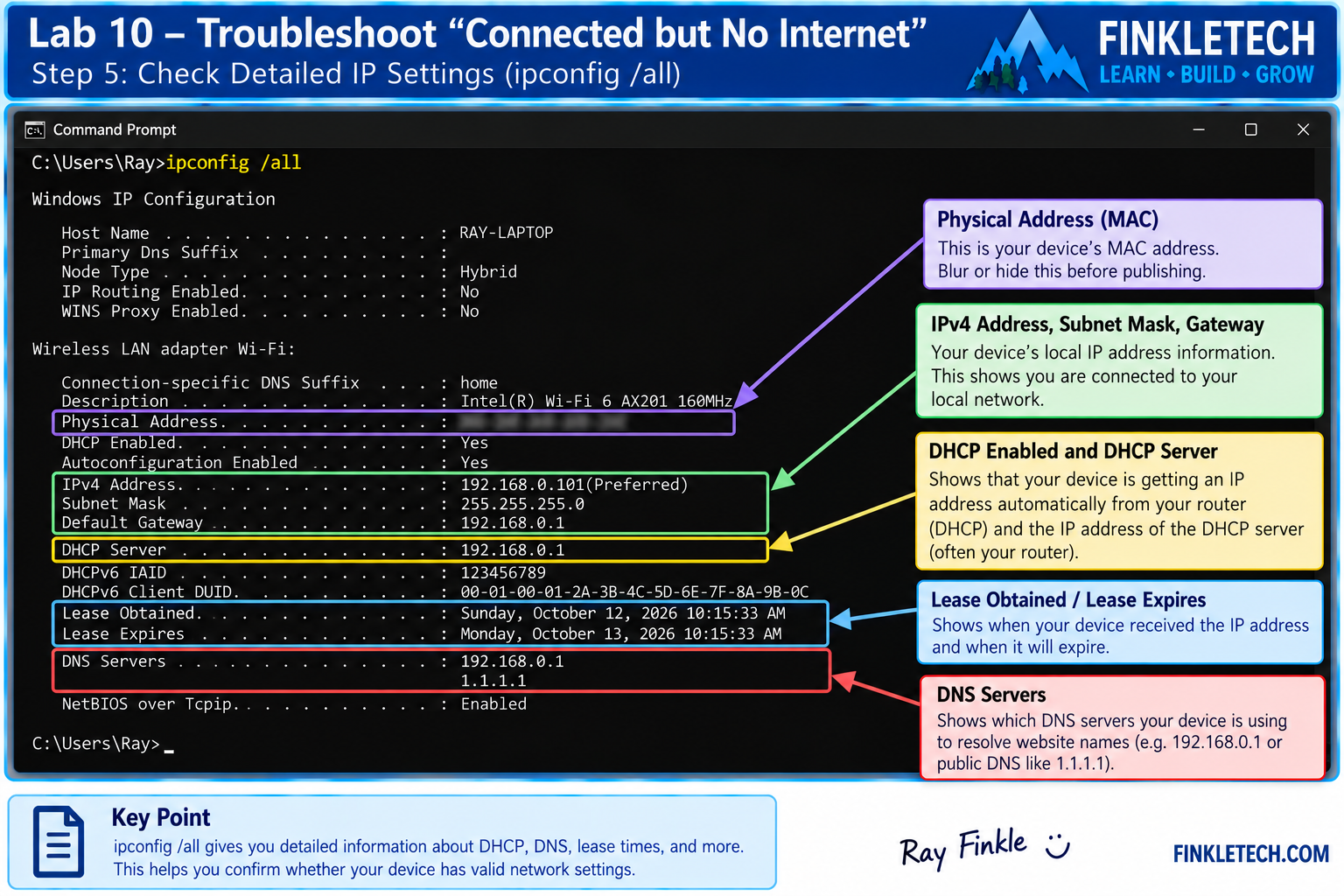
Step 5: Check Detailed IP Settings
Now run:
ipconfig /all
Look for:
- DHCP Enabled
- DHCP Server
- DNS Servers
- Lease Obtained
- Lease Expires
- Physical Address
In your notebook, record:
| Detail | My Result |
|---|---|
| DHCP Enabled | [Yes/No] |
| DHCP Server | [Insert result] |
| DNS Server 1 | [Insert result] |
| DNS Server 2 | [Insert result if shown] |
| Lease Obtained | [Insert result] |
| Lease Expires | [Insert result] |
If DHCP is enabled and the computer has a normal IP address, DHCP probably worked. If DHCP is enabled but the address is 169.254.x.x, DHCP likely failed.
Step 6: Ping the Loopback Address
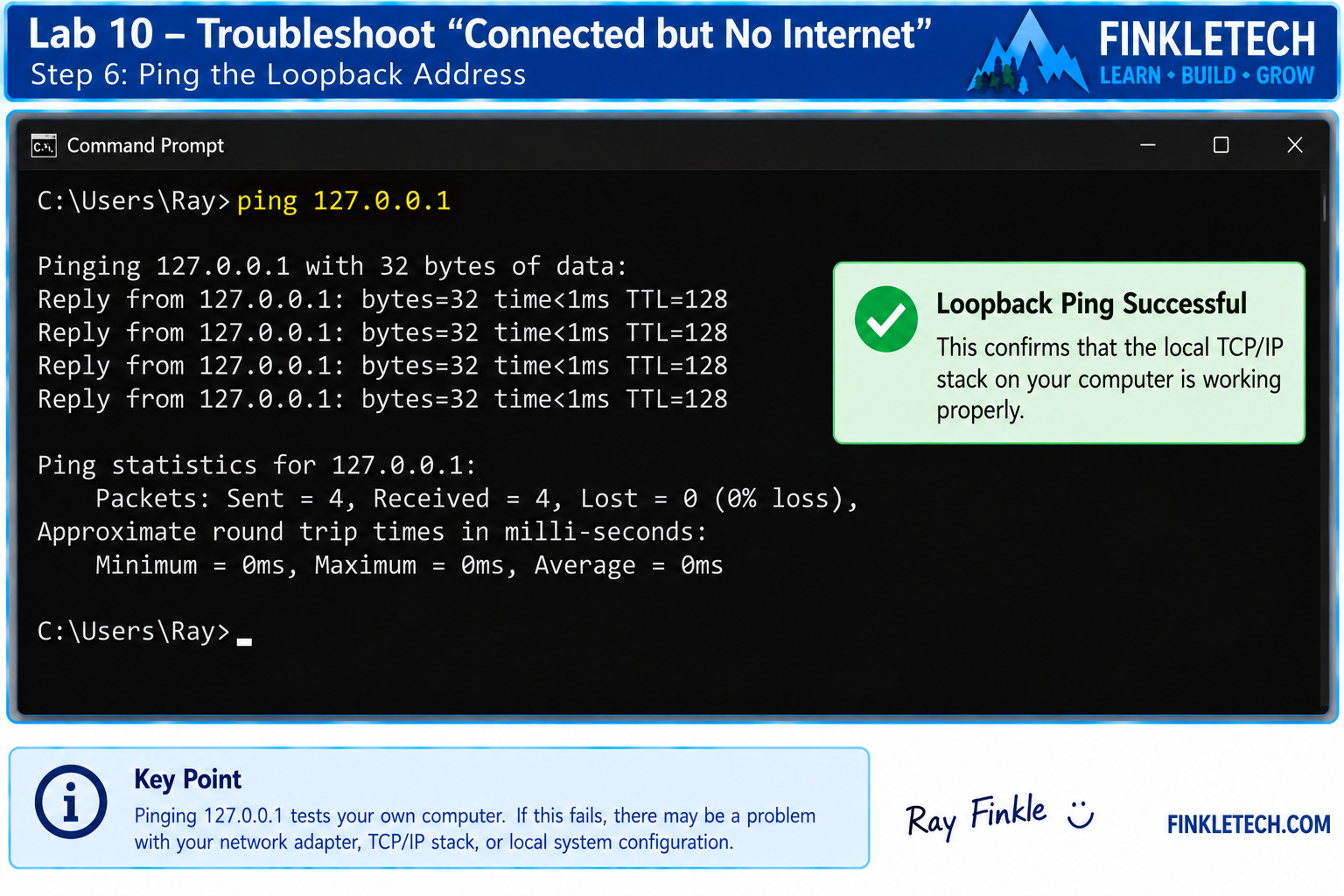
Run:
ping 127.0.0.1
This tests the local TCP/IP stack on your own computer.
In your notebook, write:
| Test | Result | Meaning |
|---|---|---|
| ping 127.0.0.1 | [Success/Fail] | Tests local TCP/IP stack |
If this fails, the problem is very local to the computer. That is not the most common situation, but it is important to know.
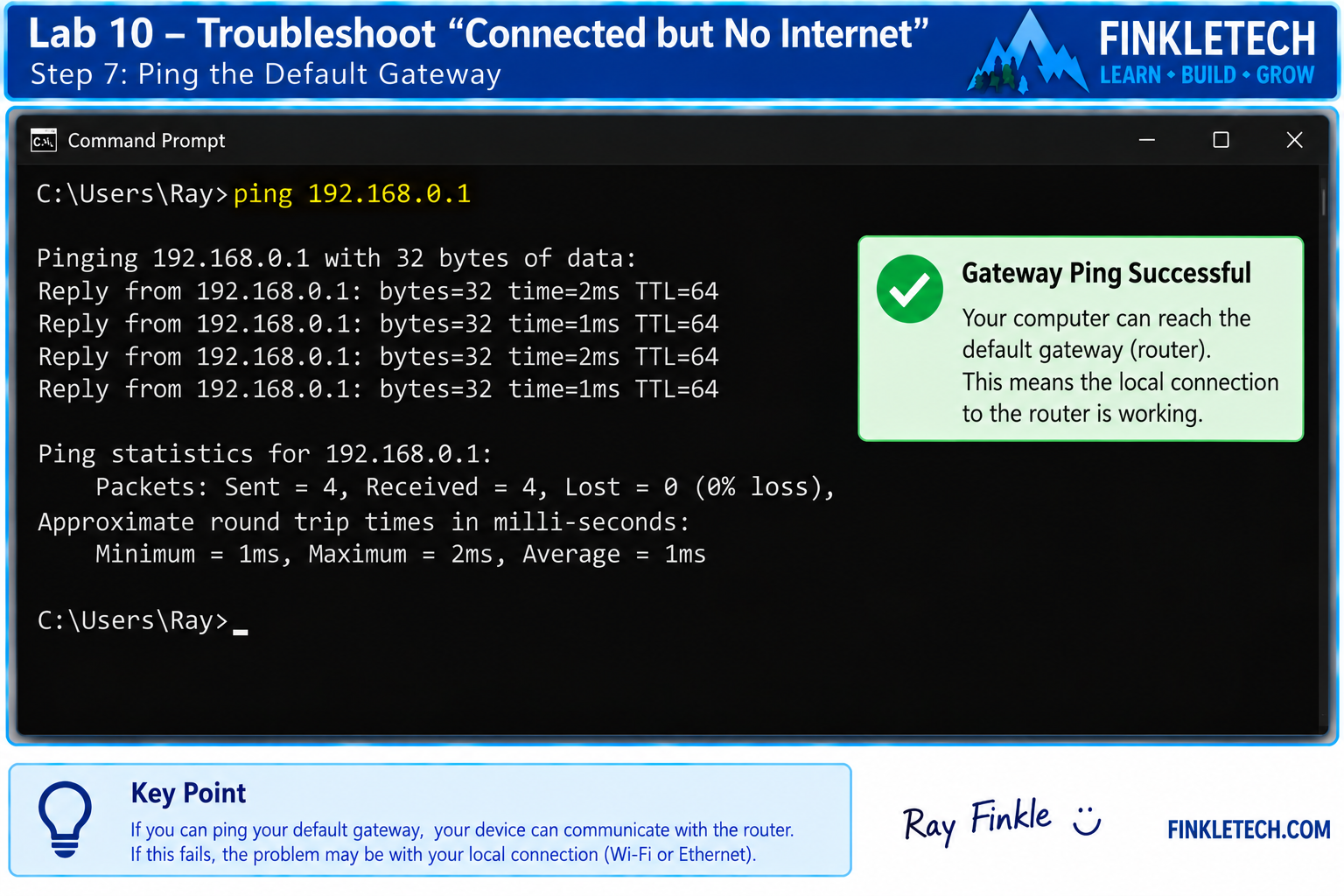
Step 7: Ping the Default Gateway
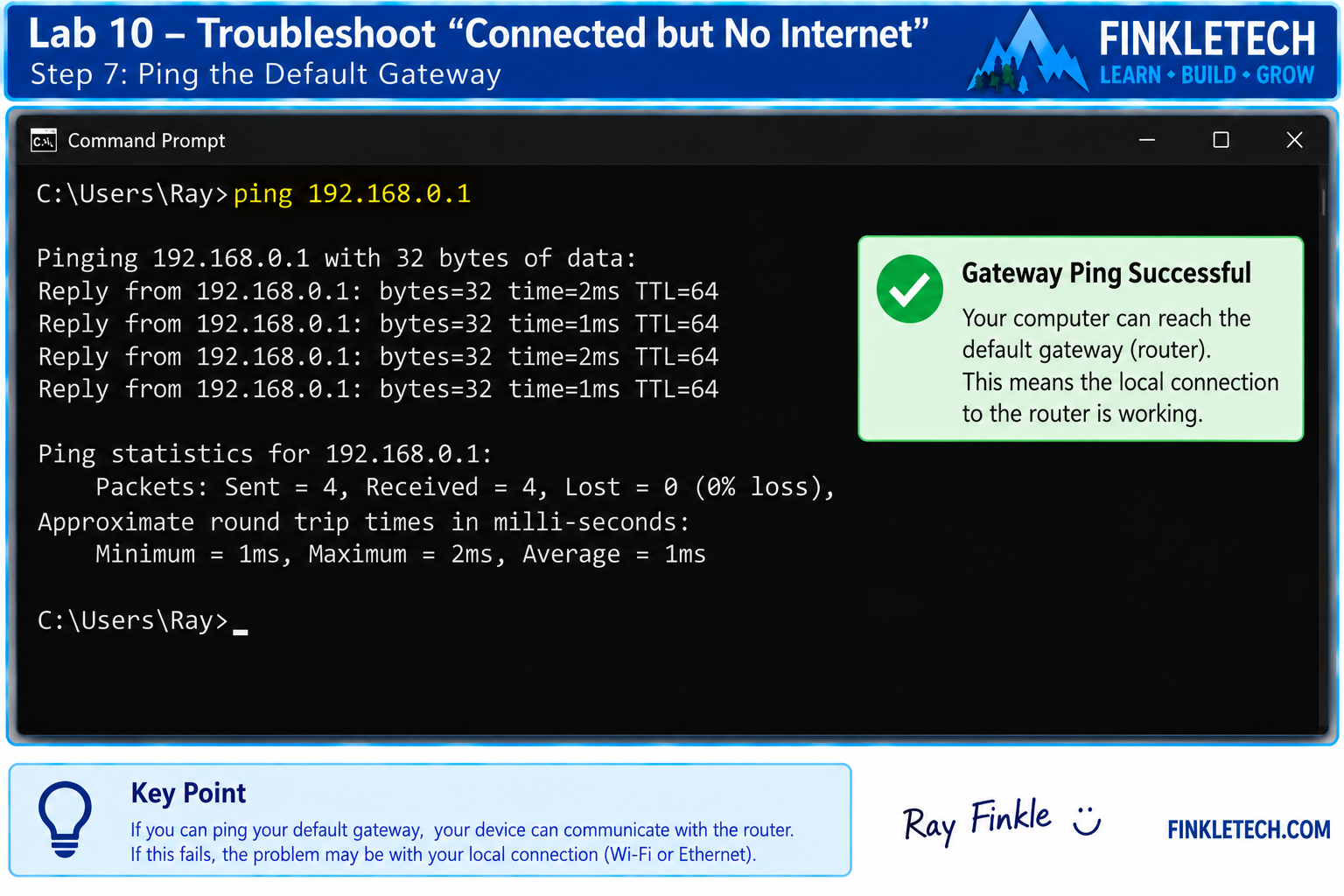
Now ping your default gateway.
Example:
ping 192.168.1.1
Use your own default gateway from ipconfig.
In your notebook, write:
| Test | Result | Meaning |
|---|---|---|
| ping default gateway | [Success/Fail] | Tests communication with router |
If this fails, your computer may not be communicating properly with the router. Check Wi-Fi, Ethernet cable, link lights, adapter status, IP settings, firewall behavior, or router connection.
If this works, your computer can likely reach the router.
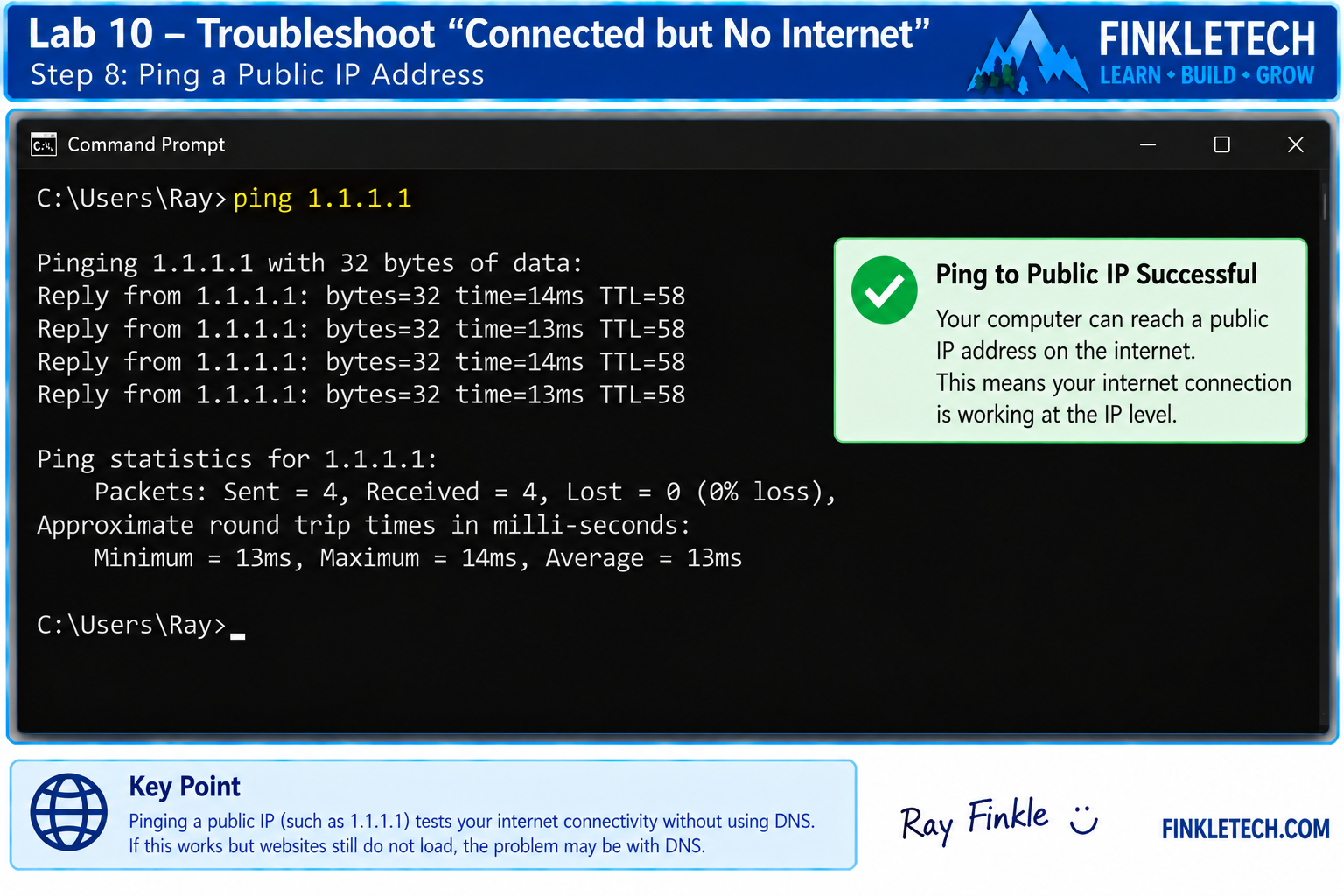
Step 8: Ping a Public IP Address
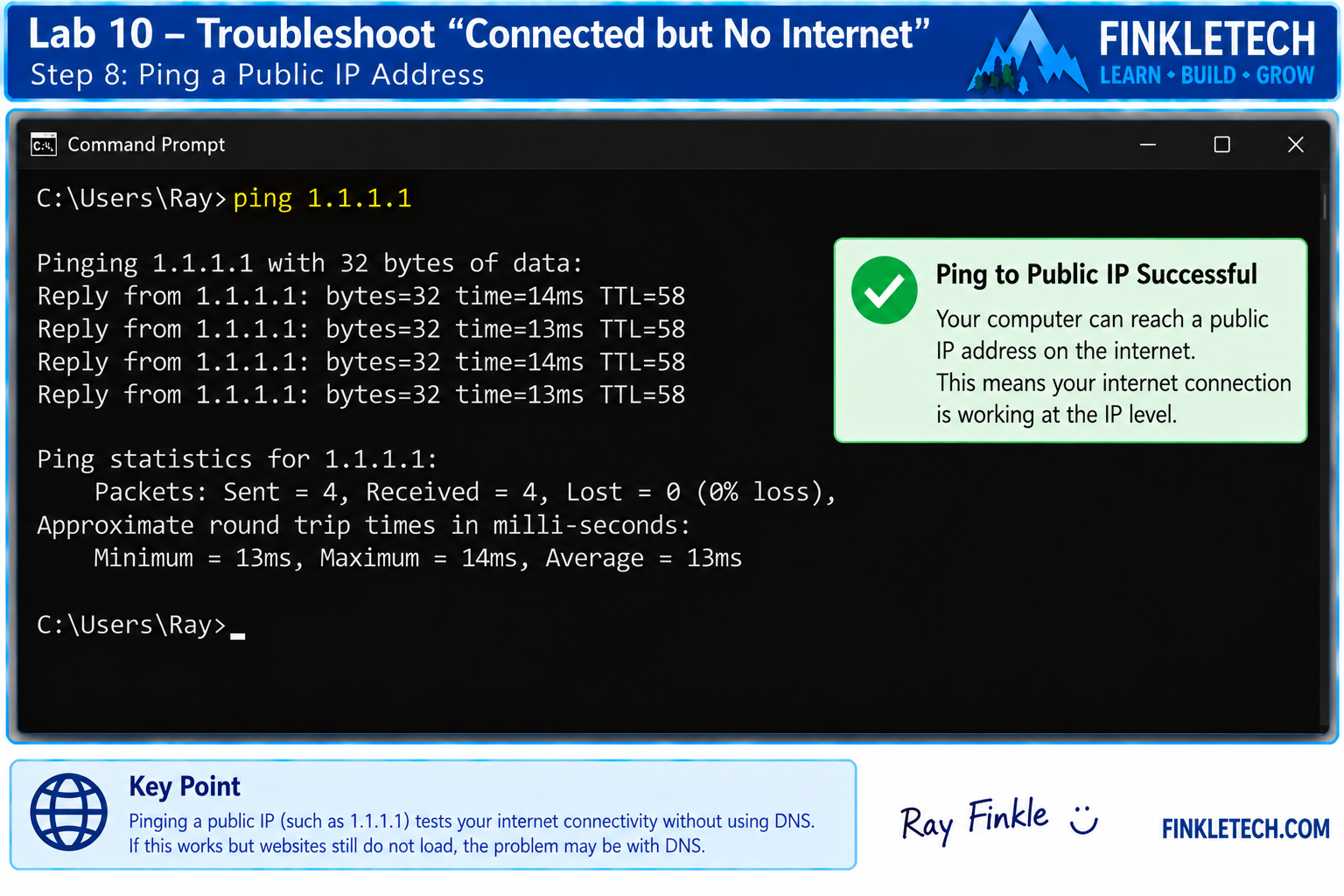
Now test internet connectivity without DNS.
Run:
ping 1.1.1.1
You can also use another known public IP for testing.
In your notebook, record:
| Test | Result | Meaning |
|---|---|---|
| ping public IP | [Success/Fail] | Tests internet reachability without DNS |
If you can ping the default gateway but cannot ping a public IP, the local network may be working, but the problem may be beyond your device. It could involve the router, modem, ISP, upstream connection, or firewall rules.
Step 9: Test DNS with a Domain Name
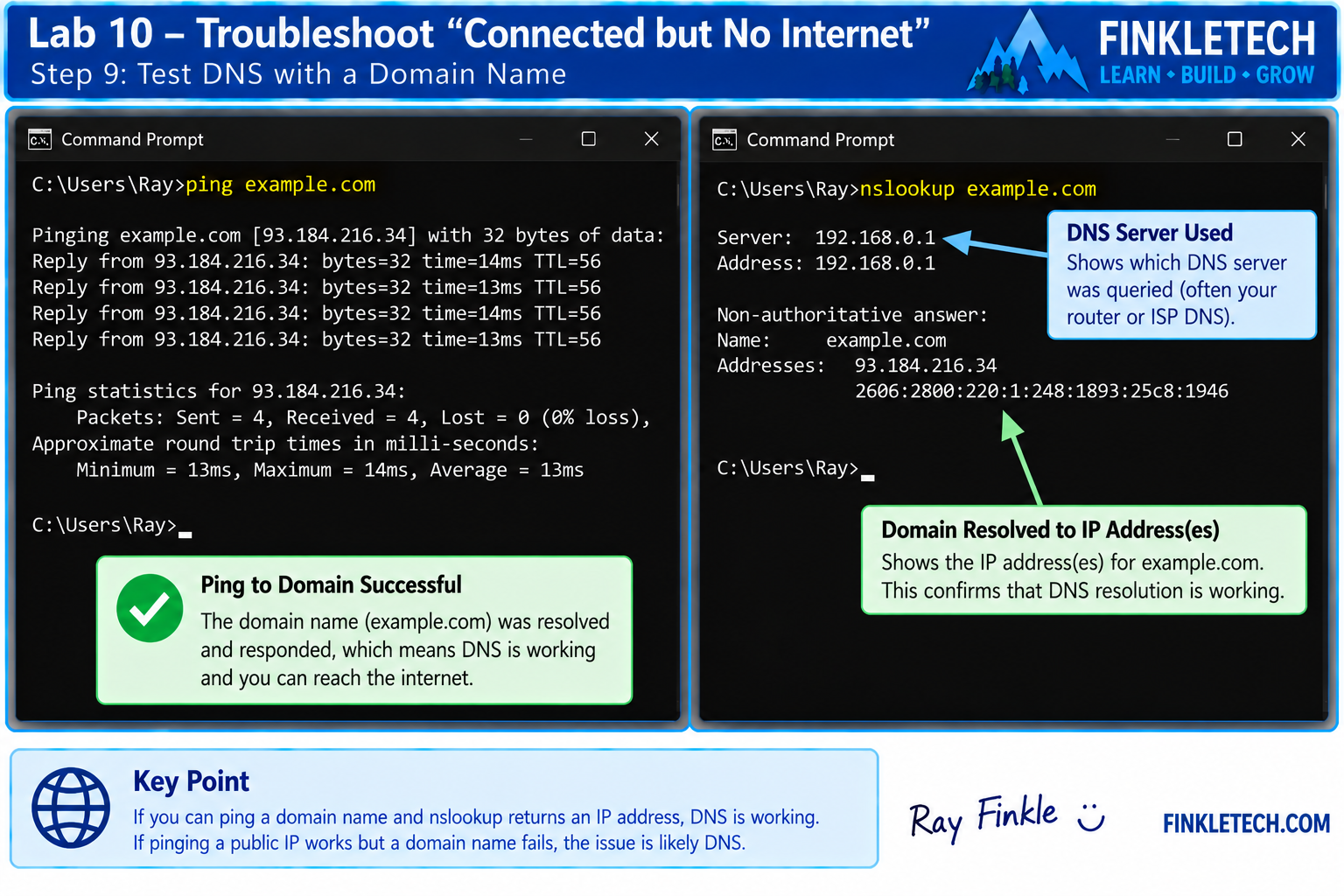
Now run:
ping example.com
Then run:
nslookup example.com
In your notebook, create this table:
| DNS Test | Result | Meaning |
|---|---|---|
| ping example.com | [Success/Fail] | Tests name resolution plus reachability |
| nslookup example.com | [Success/Fail] | Tests DNS resolution more directly |
If pinging 1.1.1.1 works but nslookup example.com fails, DNS is a strong suspect.
If nslookup works but the website still does not load, the problem may not be basic DNS. It could involve browser issues, HTTPS, firewall rules, the website itself, or another application-layer issue.
Step 10: Trace the Route
Run:
tracert example.com
This shows the path traffic takes toward the destination.
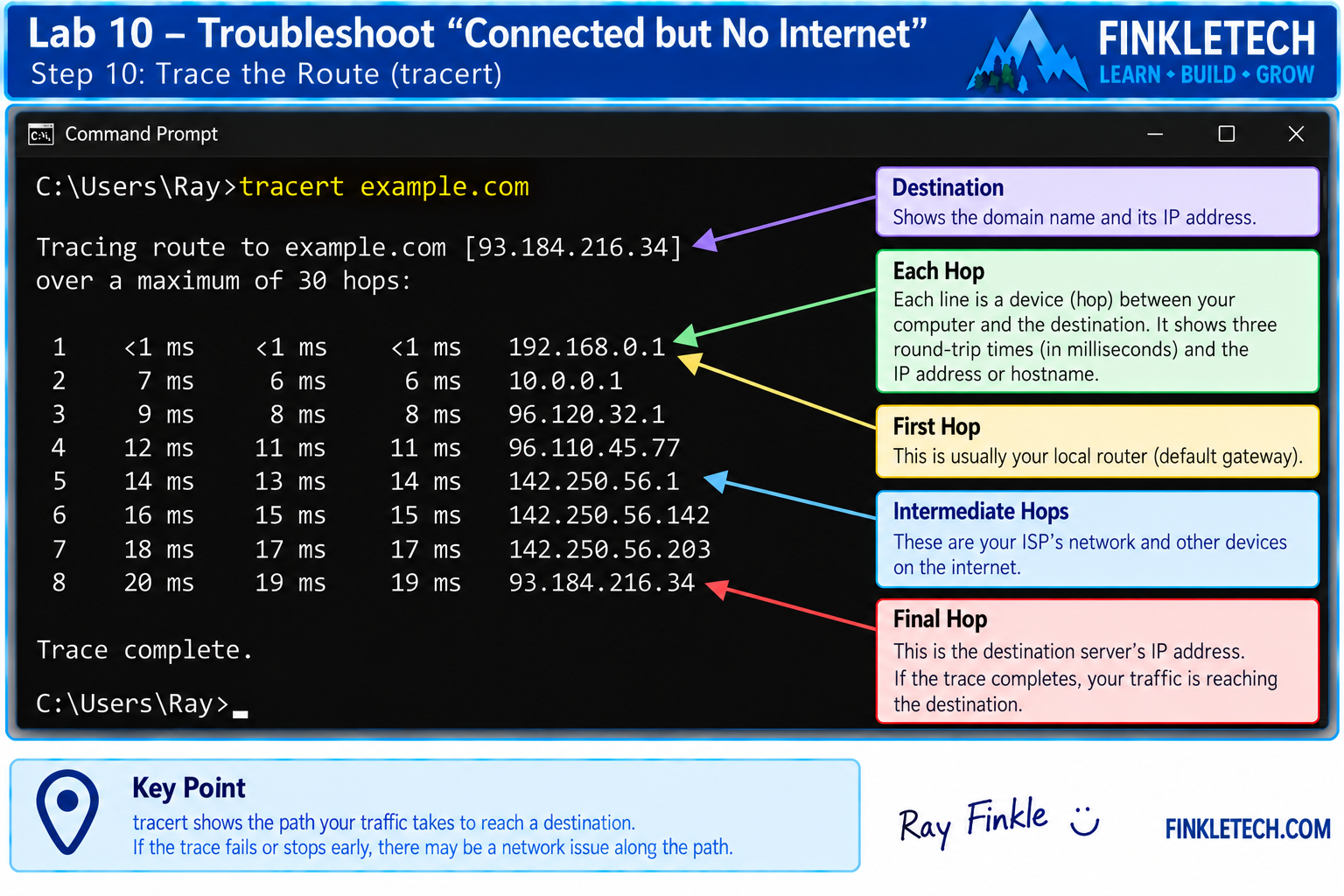
In your notebook, record:
| Tracert Detail | My Result |
|---|---|
| First hop | [Insert result] |
| Did traffic leave local network? | [Yes/No/Unsure] |
| Where did it stop? | [Insert result] |
| Any timeouts? | [Yes/No] |
Do not overreact to asterisks. Some routers do not respond to traceroute probes. Look for the overall pattern.
If the route stops immediately at or near your router, the issue may be local or ISP-related. If it goes many hops and then fails, the destination or intermediate network may be the issue.
Step 11: Test Port 443
Open PowerShell.
Run:
Test-NetConnection example.com -Port 443
Port 443 is commonly used for HTTPS.
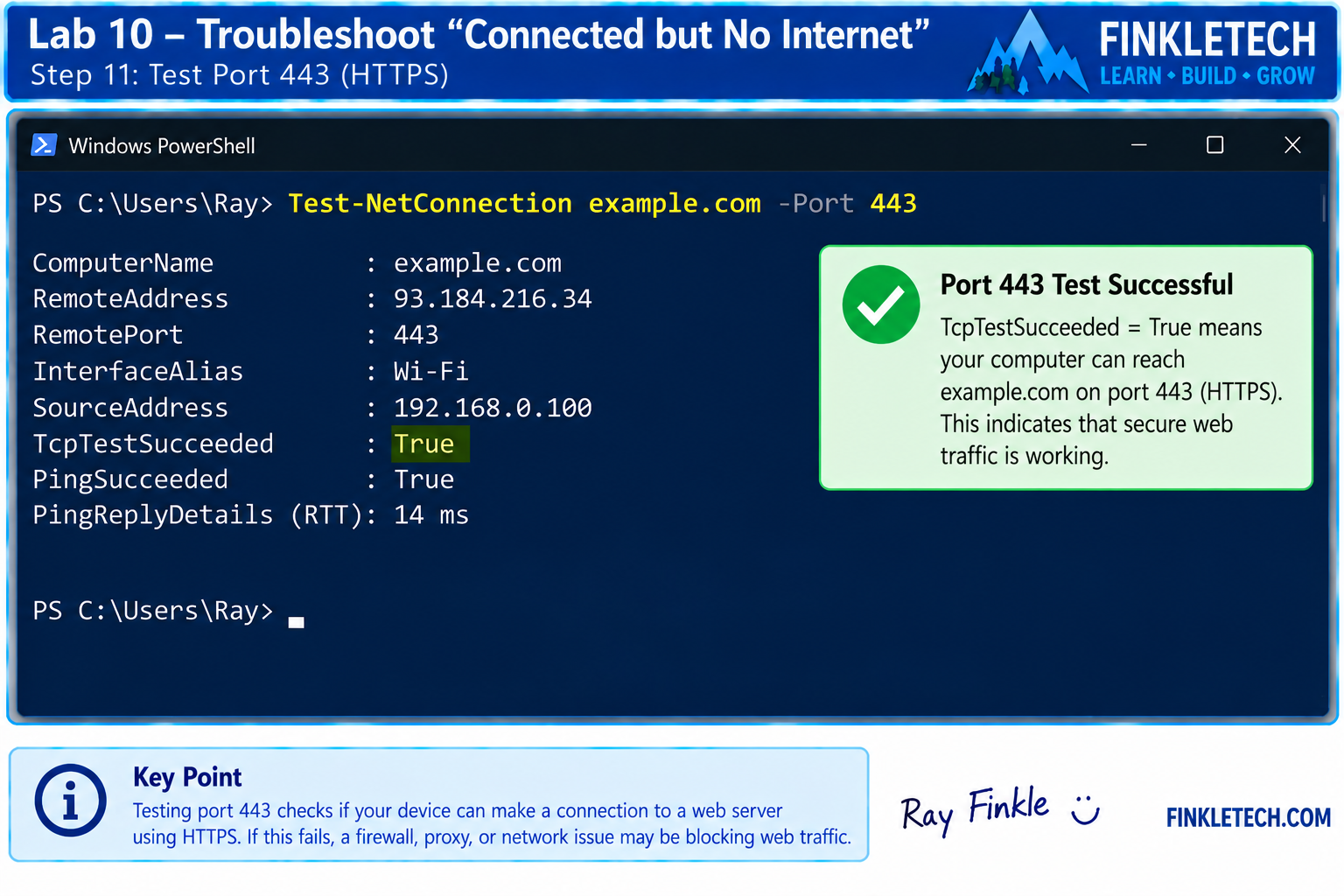
In your notebook, record:
| Port Test | My Result |
|---|---|
| Destination | example.com |
| Port | 443 |
| TcpTestSucceeded | [True/False] |
| What this suggests | [Insert explanation] |
If DNS works and port 443 works, basic secure web connectivity is likely available. If port 443 fails while other tests work, the issue may involve firewall, destination service, or network filtering.
Step 12: Build Your Troubleshooting Decision Table
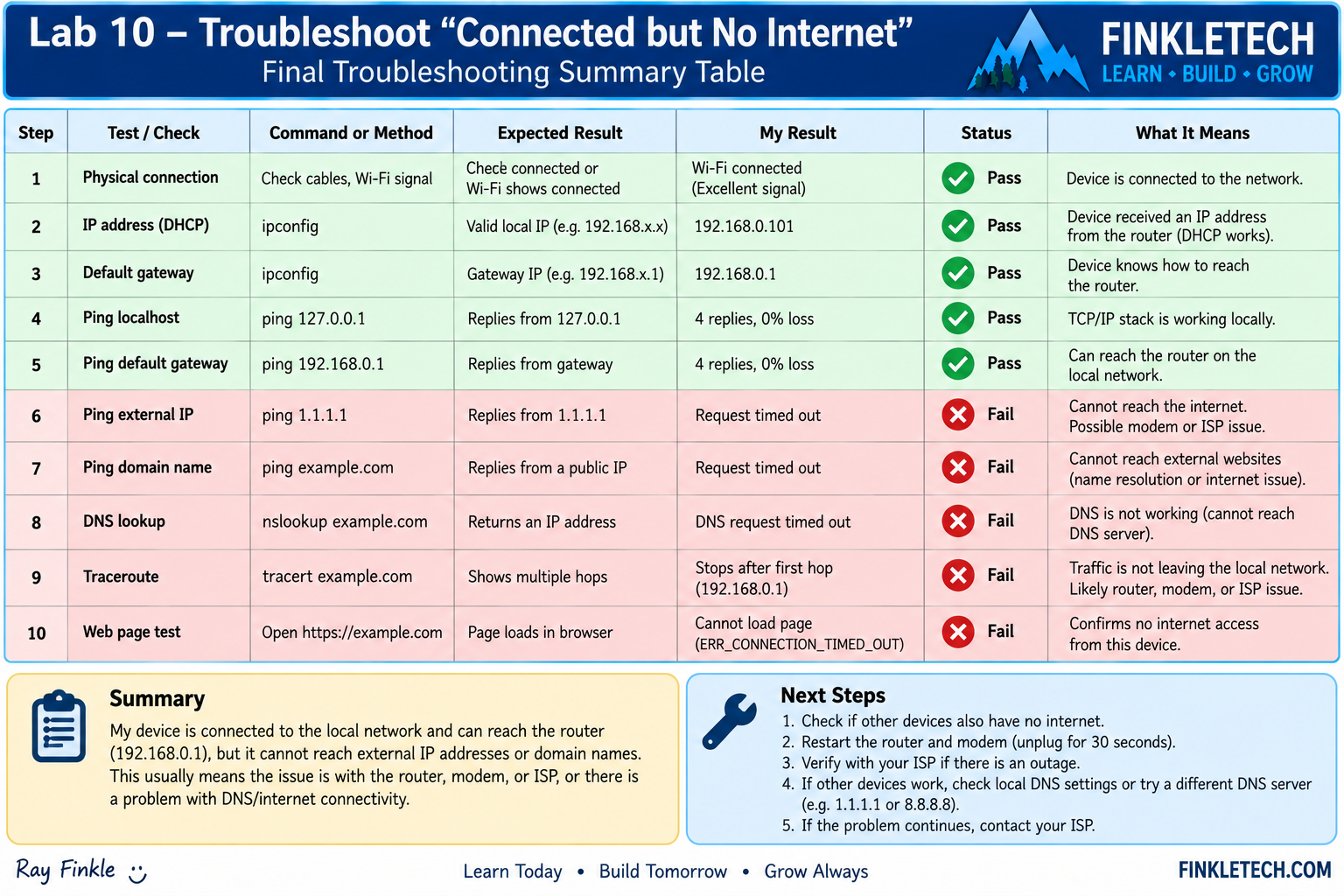
Now combine the results.
Use this table:
| Test | Pass or Fail | What It Suggests |
|---|---|---|
| Other devices work | [Pass/Fail] | Helps identify device-specific vs network-wide issue |
| Physical/Wi-Fi check | [Pass/Fail] | Tests connection path |
| Valid IP address | [Pass/Fail] | Tests basic IP configuration |
| Default gateway present | [Pass/Fail] | Router path available |
| DHCP appears normal | [Pass/Fail] | Automatic addressing likely worked |
| Ping loopback | [Pass/Fail] | Local TCP/IP stack |
| Ping gateway | [Pass/Fail] | Local router reachability |
| Ping public IP | [Pass/Fail] | Internet reachability without DNS |
| NSLookup | [Pass/Fail] | DNS resolution |
| Tracert | [Pass/Fail] | Route/path clues |
| Port 443 test | [Pass/Fail] | HTTPS service reachability |
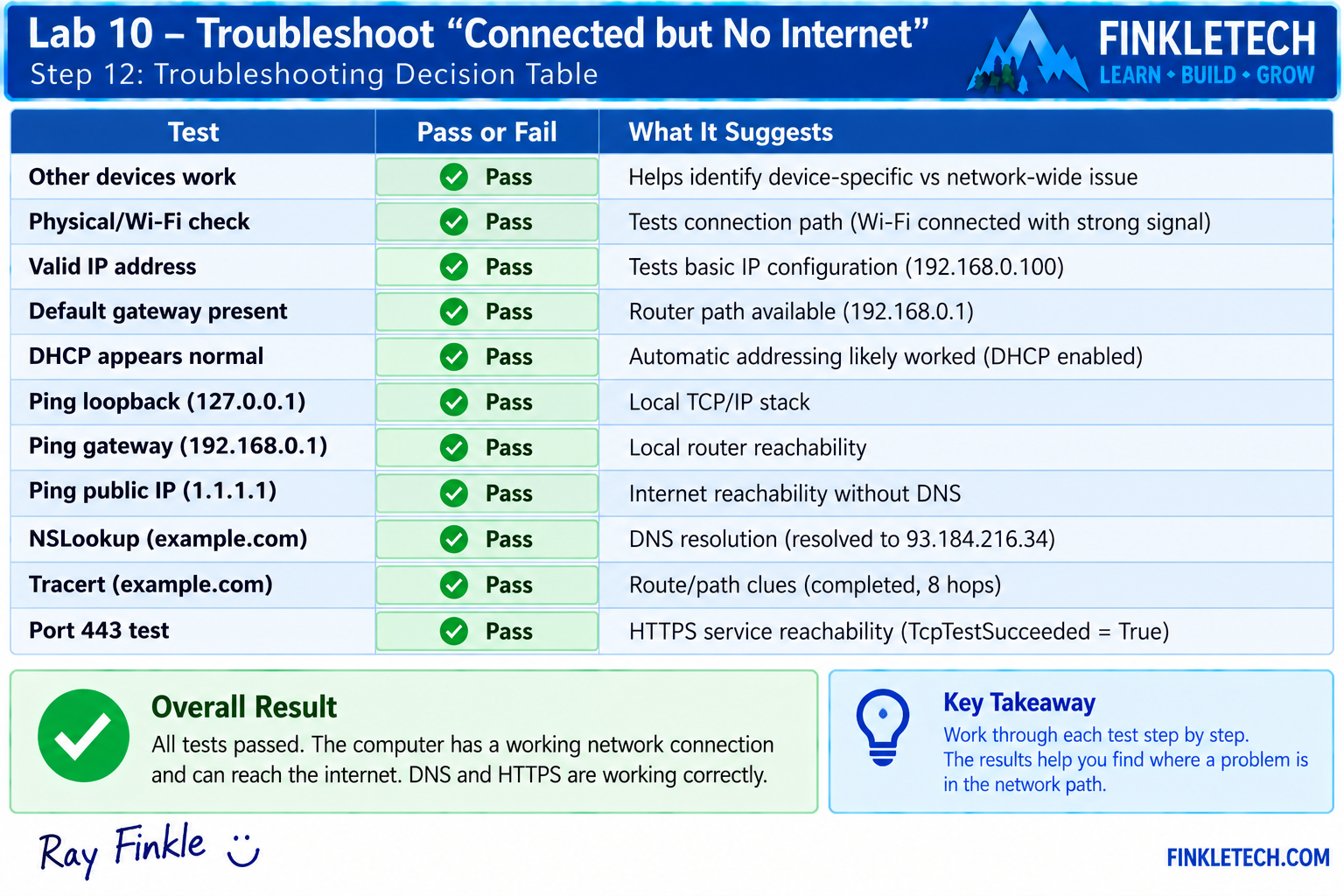
This table is the heart of the lab. It turns scattered commands into a diagnosis.
Step 13: Interpret Common Patterns
Use these patterns to guide your thinking.
If only one device fails but other devices work, the problem is likely on that device. Check adapter status, IP settings, DNS settings, firewall, browser, VPN, or driver issues.
If all devices fail, the problem may involve the router, modem, ISP, or shared DNS settings.
If the computer has a 169.254 address, DHCP likely failed. Check connection to the router, DHCP service, Wi-Fi, Ethernet, or adapter settings.
If there is no default gateway, the computer may not know where to send internet-bound traffic.
If gateway ping fails, the problem may be between your computer and the router.
If gateway ping works but public IP ping fails, the issue may be beyond the local device.
If public IP ping works but DNS fails, DNS is a strong suspect.
If DNS works but websites still fail, check browser, HTTPS, firewall, proxy, VPN, or destination service issues.
This is how you stop guessing.
Step 14: Optional Safe Fixes to Try
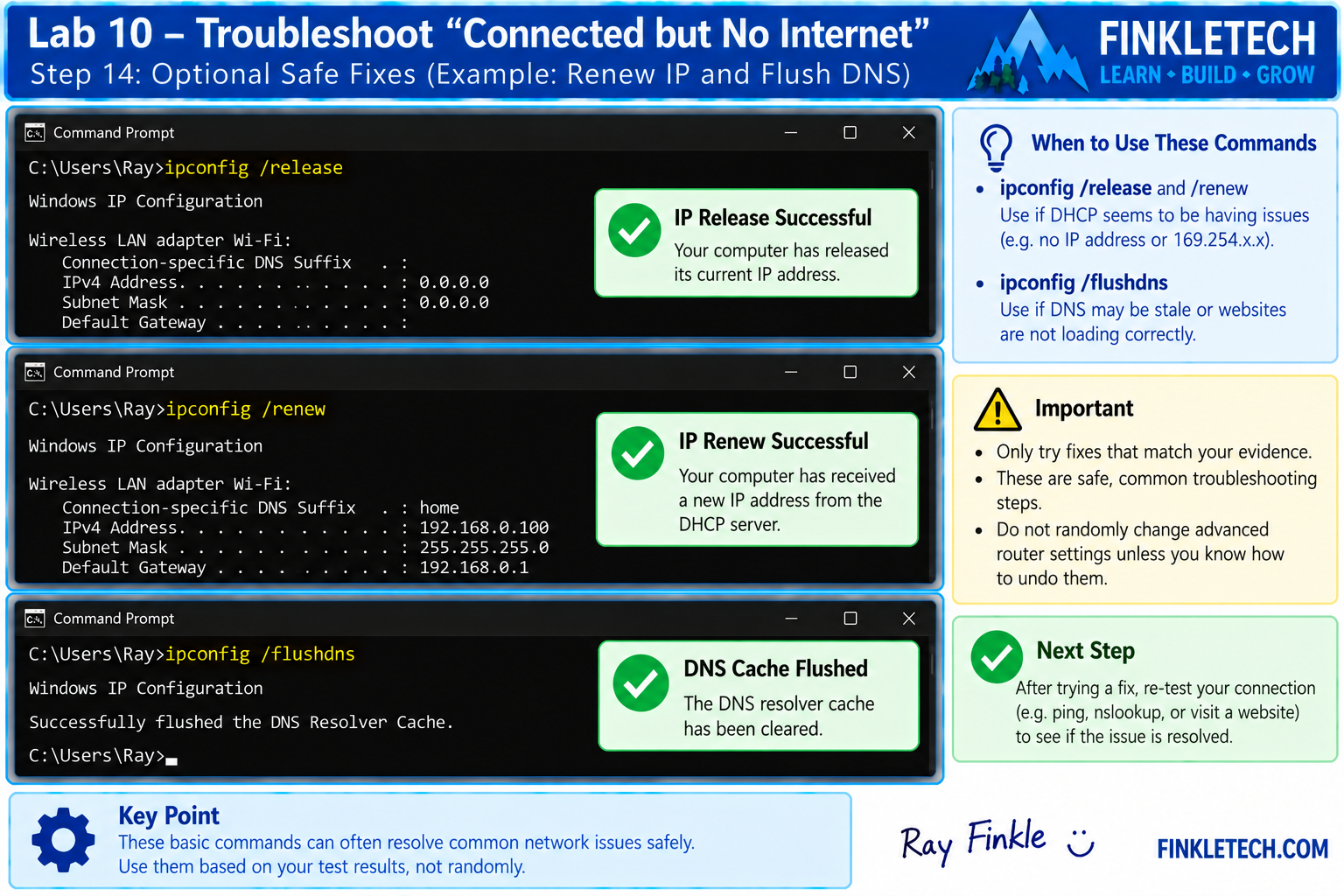
Only try fixes that match your evidence.
If Wi-Fi signal is weak, move closer to the router.
If Ethernet link lights are off, reseat the cable or try another cable.
If DHCP seems broken, try:
ipconfig /release
Then:
ipconfig /renew
If DNS cache may be stale, try:
ipconfig /flushdns
If the adapter seems stuck, disable and re-enable Wi-Fi or Ethernet from Windows settings.
If one device fails and others work, restart the affected device.
If all devices fail, restart the router/modem only if appropriate and safe to do so.
Do not randomly change advanced router settings unless you know how to undo them.
Step 15: Write Your Lab Notes
Use this section after completing the lab.
My FinkleTech Lab Notes
For this lab, I tested a “connected but no internet” troubleshooting workflow using my [laptop/desktop] connected through [Wi-Fi/Ethernet]. I started by checking whether other devices had internet access, then inspected my connection type, IP settings, DHCP status, default gateway, DNS servers, and basic connectivity.
I used ipconfig, ipconfig /all, ping, nslookup, tracert, and Test-NetConnection to narrow down where the problem appeared. My results showed that [insert your summary: local device issue / DNS issue / gateway issue / ISP issue / no issue found during practice].
One thing I noticed during this lab was [insert what stood out]. This helped me understand that “connected but no internet” is not one single problem. It is a symptom that can point to several different layers of the network.
What Your Results Mean
If every test passed, your network was likely working during the lab. That is still useful. You practiced the workflow and created a baseline for what normal results look like.
If some tests failed, the pattern matters more than the failure itself. A failed DNS test means something different from a failed gateway ping. A missing default gateway means something different from a blocked ping to a public server.
This is the main lesson of the lab: troubleshooting is about narrowing the fault domain. You are trying to determine whether the issue is local, wireless, wired, IP-related, DHCP-related, DNS-related, router-related, ISP-related, or application-related.
A beginner guesses. A technician follows the evidence.
Common Problems
If your computer is connected to Wi-Fi but has no valid IP address, check DHCP and reconnect to the network.
If your computer has an IP address but no default gateway, check adapter settings and DHCP.
If you can reach the gateway but not the internet, check the router, modem, ISP, or upstream connectivity.
If you can reach a public IP but not domain names, check DNS.
If only one browser fails but other internet apps work, the problem may be browser-specific.
If a VPN is active, disconnecting it temporarily may help with testing if it is safe to do so.
If you are troubleshooting someone else’s network, ask permission before changing settings or restarting equipment.
Network+ Concepts Practiced
This lab practices several important Network+ concepts:
- troubleshooting methodology
- physical connection checks
- wired vs wireless troubleshooting
- IP addressing
- DHCP
- default gateway
- DNS
- ICMP and ping
- traceroute / tracert
- port 443 testing
- local vs network-wide issues
- device-specific troubleshooting
- router and ISP boundary thinking
- documentation
- evidence-based diagnosis
The main skill is learning to move through the network logically. Start with the device, then the adapter, then IP settings, then gateway, then internet reachability, then DNS, then service-level testing.
Mini Review Questions
Use these questions after the lab to check your understanding.
- Why does “connected” not always mean “internet is working”?
- Why should you check another device on the same network?
- What does a
169.254IP address often suggest? - What does the default gateway usually represent?
- What does it suggest if you can ping a public IP but cannot resolve a domain name?
- What command tests DNS resolution directly?
- Why is
Test-NetConnection example.com -Port 443useful? - Why should troubleshooting results be recorded in a table?
Short Answers
- A device can be connected to Wi-Fi or Ethernet but still lack valid IP settings, DNS, gateway access, or internet reachability.
- Checking another device helps determine whether the problem is device-specific or network-wide.
- A
169.254address often suggests DHCP failed. - The default gateway usually represents the router used to reach other networks.
- DNS is a likely issue.
nslookuptests DNS resolution directly.- It tests whether the computer can reach a destination using TCP port 443, commonly used for HTTPS.
- A table turns scattered test results into a clear troubleshooting pattern.