
Lab 3: How DHCP Works on a Real Home Network
Lab Goal
In this lab, you will learn how DHCP works by observing it on your own computer and home network. You will check whether DHCP is enabled, identify your DHCP server, record your current IP address, release your IP address, renew it, and compare the results.
DHCP stands for Dynamic Host Configuration Protocol. It is the service that automatically gives devices their network settings. Without DHCP, you would often need to manually configure an IP address, subnet mask, default gateway, and DNS server on every computer, phone, tablet, smart TV, and printer. That would get annoying very quickly.
By the end of this lab, you should understand what DHCP does, why it matters, what a DHCP lease is, and how DHCP problems can cause network issues. You should also have screenshots and notes showing your own device receiving network information from your router or DHCP server.
[Insert screenshot here: Your final DHCP results table or notebook page showing DHCP settings before and after the lab.]
Before You Start: Use Your Networking Notebook
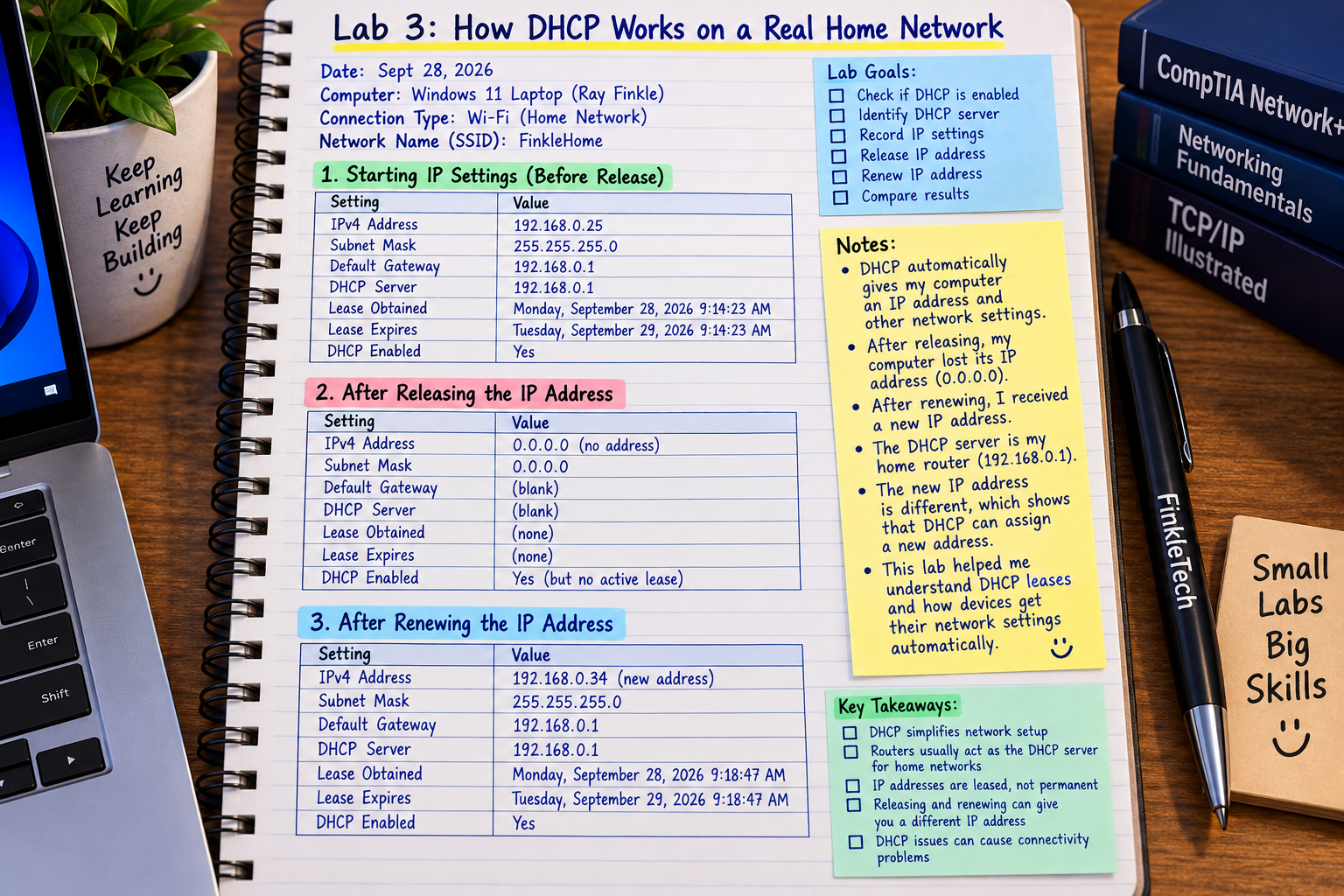
Before running any commands, open your networking notebook to a fresh page. Write the title:
Lab 3: How DHCP Works on a Real Home Network
Under the title, create a section for your starting IP settings, a section for your released IP settings, and a section for your renewed IP settings. This is important because DHCP is easier to understand when you compare before-and-after results.
Your notebook should include:
- the date of the lab
- the computer you used
- whether you were connected by Wi-Fi or Ethernet
- your starting IPv4 address
- your DHCP server
- your lease obtained time
- your lease expiration time
- what happened after releasing the IP address
- what happened after renewing the IP address
- anything that surprised or confused you
This notebook habit is not just for show. If you are studying for Network+, writing these values down helps turn the command output into something you actually remember. You are training yourself to think like a technician, not just a test taker.
Important Warning Before Running Release and Renew
This lab uses the commands ipconfig /release and ipconfig /renew. These are normal Windows networking commands, but they can temporarily interrupt your network connection.
Do not run this lab while you are in an online meeting, uploading something important, taking a test, downloading a large file, or doing anything that requires a stable connection. Save your work first.
When you run ipconfig /release, your computer may temporarily lose its IP address and internet access. When you run ipconfig /renew, your computer asks the DHCP server for network settings again. In most home networks, the connection comes back quickly. If it does not, restarting Wi-Fi, unplugging and reconnecting Ethernet, or restarting the computer usually fixes it.
Why This Lab Matters
DHCP is one of those networking topics that sounds boring until something breaks. When DHCP works properly, nobody thinks about it. Your laptop connects to Wi-Fi, gets an IP address, and starts working. Your phone joins the network. Your smart TV streams video. Everything feels automatic.
But when DHCP fails, devices may not get valid network settings. A Windows computer might assign itself an address starting with 169.254, which usually means it could not receive a proper DHCP address. A device might connect to Wi-Fi but still have no internet. A printer might disappear from the network. A laptop might work on one network but not another.
For Network+ study, DHCP connects to several important concepts: IP addressing, default gateways, DNS settings, leases, client-server communication, troubleshooting, and network services. This lab lets you see DHCP in action instead of only memorizing what the acronym means.
Quick Concept Refresher: What DHCP Actually Does
DHCP automatically assigns network settings to devices. In a typical home network, your router acts as the DHCP server. Your laptop, phone, desktop, tablet, and other devices act as DHCP clients.
When your computer joins the network, it asks for network configuration. The DHCP server responds with information the device needs, usually including an IP address, subnet mask, default gateway, DNS server, and lease time.
A DHCP lease is the amount of time a device is allowed to use a specific IP address. The device does not own the address forever. It leases it. When the lease is close to expiring, the device can renew the lease and keep using the address, assuming the DHCP server allows it.
This system keeps networks easier to manage. Instead of manually assigning addresses to every device, DHCP handles the process automatically.
What You Will Learn
In this lab, you will inspect DHCP settings on your computer and watch what happens when you release and renew your IP address.
You will learn how to identify whether DHCP is enabled, where to find the DHCP server address, what lease times look like, and how to tell whether your computer received settings automatically. You will also practice reading command output carefully, which is a major real-world troubleshooting skill.
The goal is not just to run commands. The goal is to understand what changed, what stayed the same, and what those results mean.
Tools Needed
You only need basic tools for this lab.
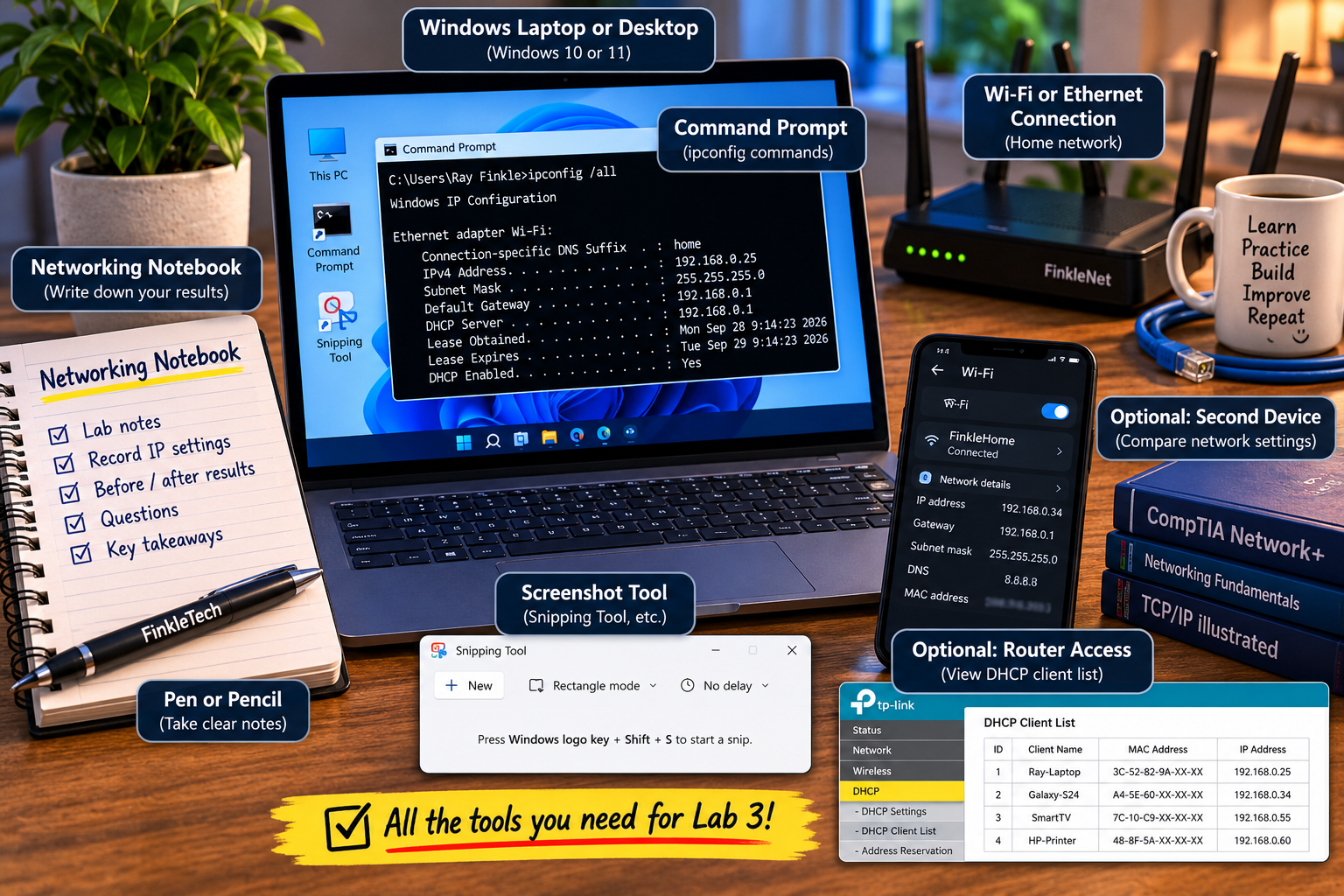
You will need:
- a Windows laptop or desktop
- Wi-Fi or Ethernet connection
- Command Prompt or PowerShell
- your networking notebook
- screenshot tool such as Snipping Tool
- optional router admin access
- optional second device for comparison
If you have router admin access, you may be able to view the DHCP client list. That is useful, but not required. You can complete the main lab from Windows alone.
Safety and Privacy Note Before Publishing Screenshots
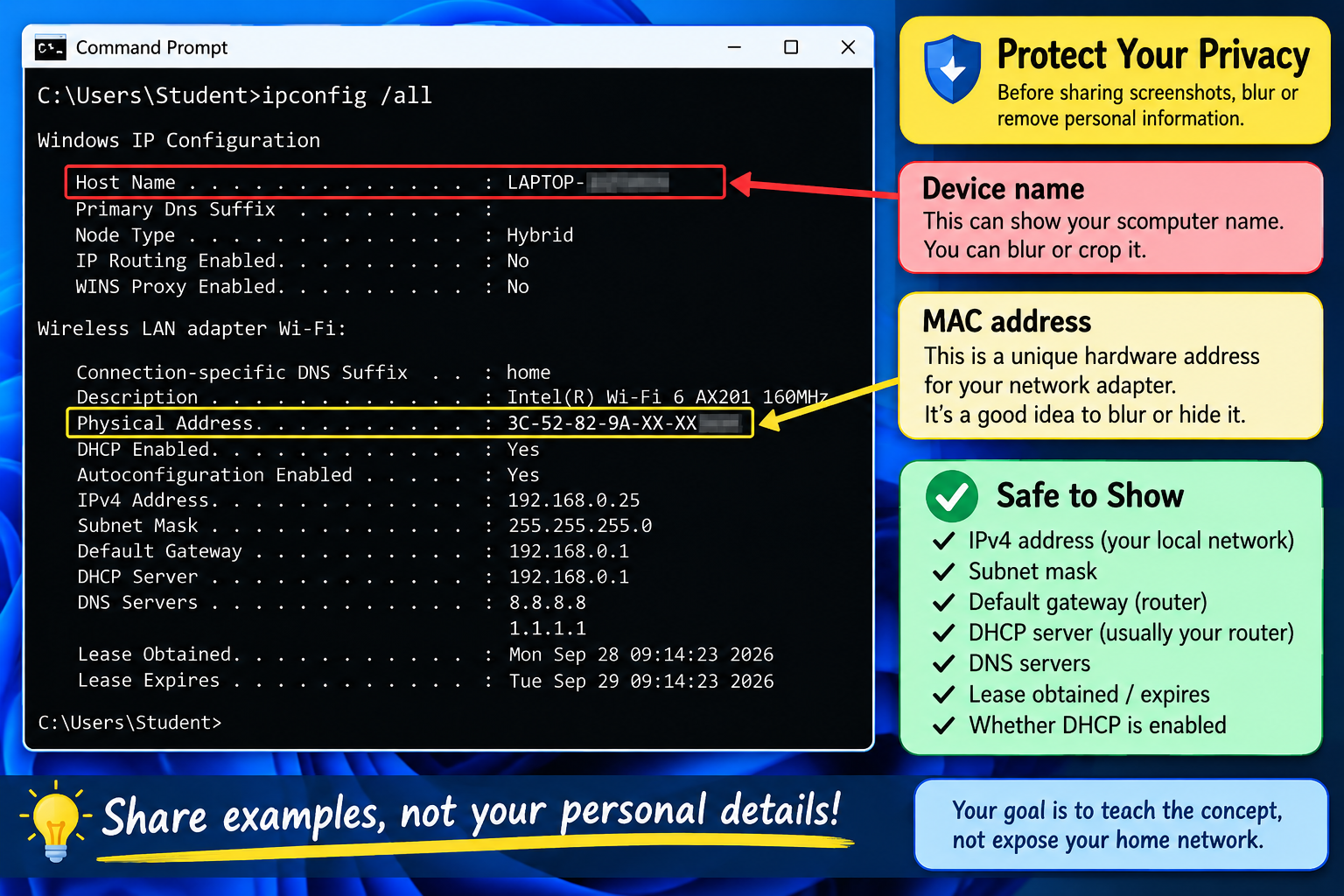
Before uploading screenshots to your website, check them carefully. DHCP screenshots can reveal device names, MAC addresses, local IP addresses, router information, DNS suffixes, or other network details.
Blur or crop anything that feels too specific. You do not need to publish your full MAC address, router serial number, public IP address, Wi-Fi name, or personal device names.
It is fine to show educational examples, but keep the public version clean. Your goal is to teach the concept, not expose your home network.
Step 1: Check Your Current DHCP Settings
Open Command Prompt.
Run this command:
ipconfig /all
Find your active network adapter. If you are on Wi-Fi, look for the wireless adapter. If you are using an Ethernet cable, look for the Ethernet adapter.
Write down the following in your networking notebook:
- IPv4 Address
- Subnet Mask
- Default Gateway
- DHCP Enabled
- DHCP Server
- DNS Servers
- Lease Obtained
- Lease Expires
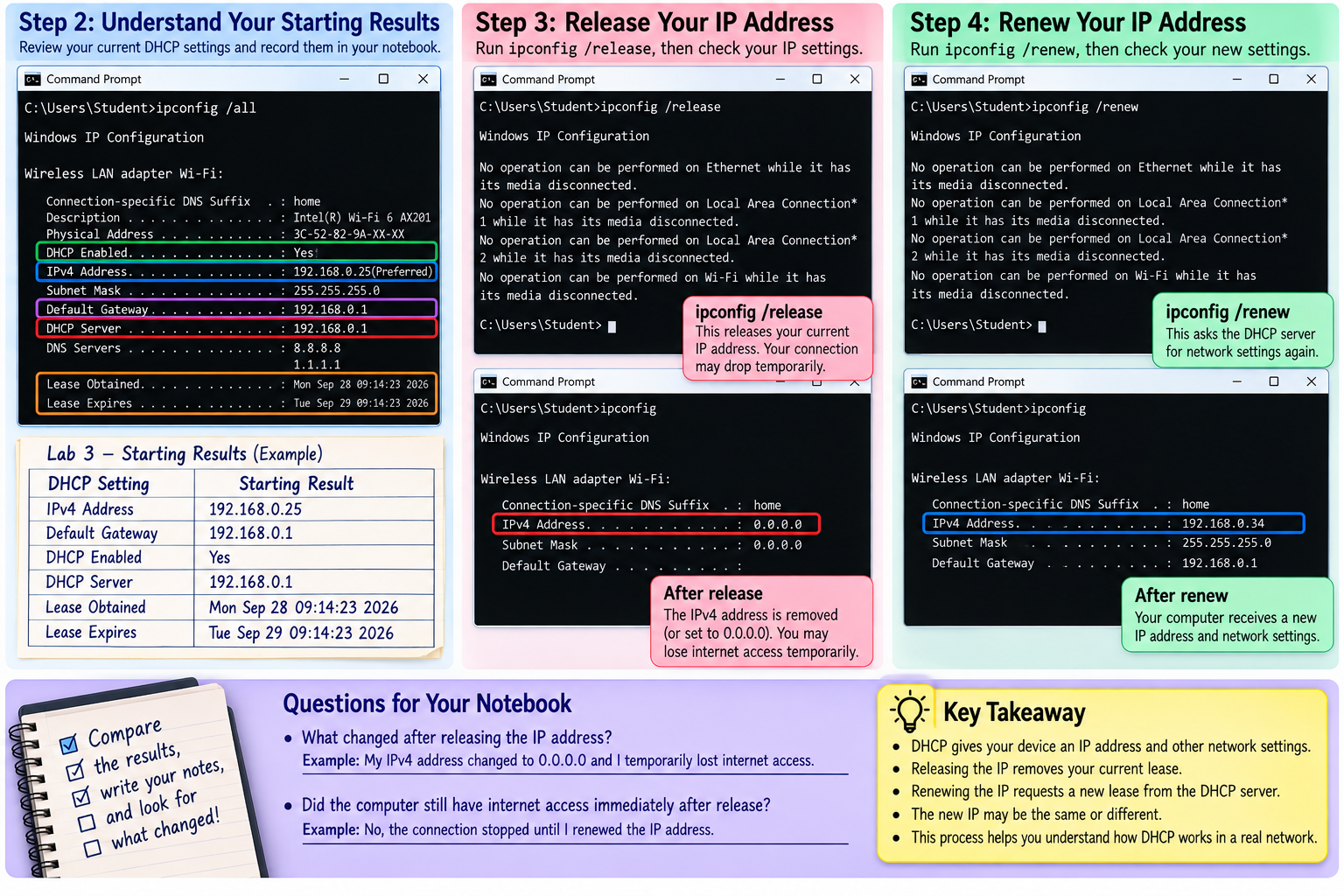
Step 2: Understand Your Starting Results
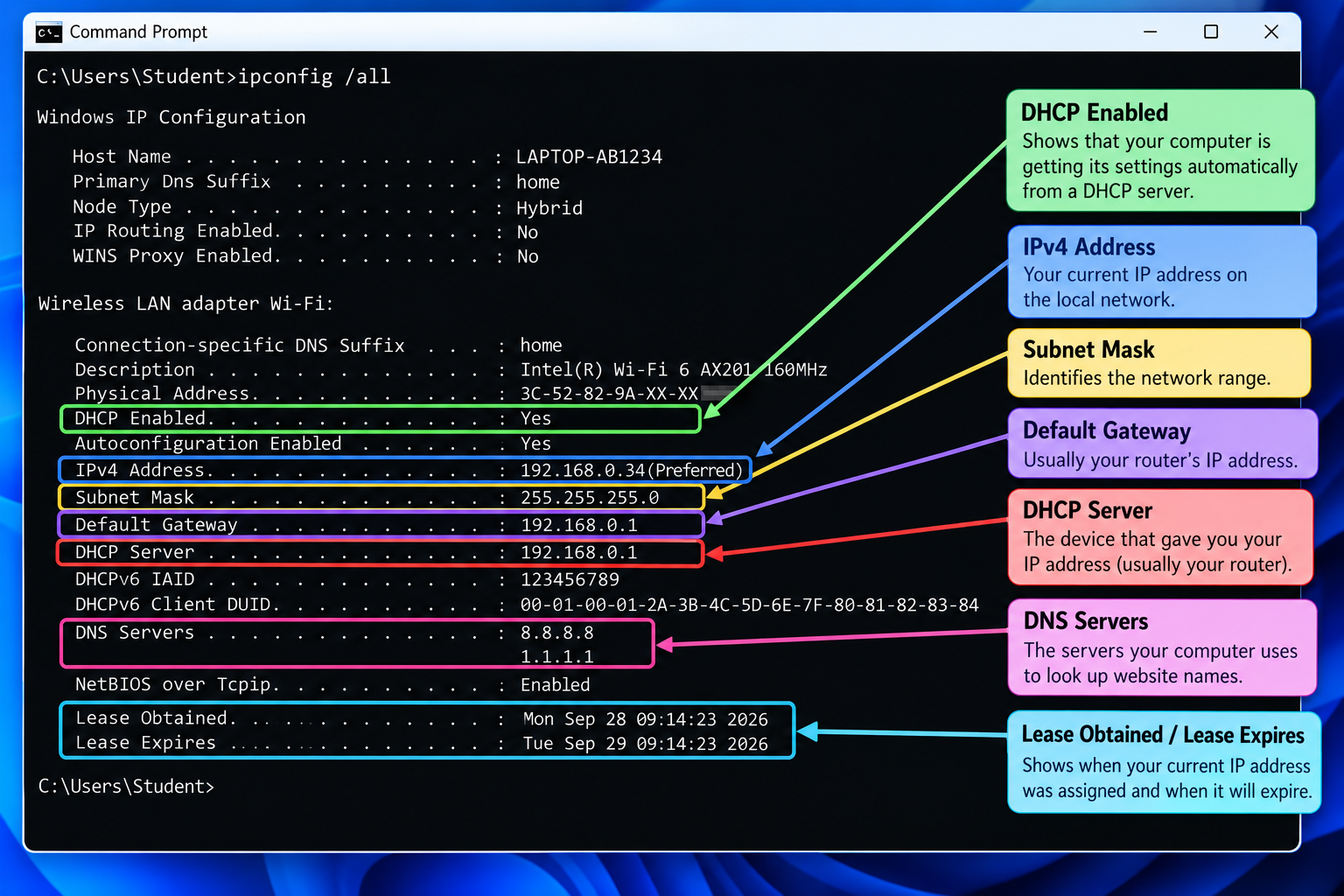
Before changing anything, pause and read the output.
If DHCP Enabled says Yes, your device is receiving network settings automatically. That is normal for most home networks.
The DHCP Server address is usually your router’s local IP address. For example, if your router is 192.168.1.1, the DHCP server may also show as 192.168.1.1. This means your router is likely assigning IP addresses to devices on your network.
The lease obtained time shows when your computer received its current IP address. The lease expiration time shows when that lease is set to expire if it is not renewed.
In your notebook, create a simple table:
| DHCP Setting | Starting Result |
|---|---|
| IPv4 Address | [Insert result] |
| Default Gateway | [Insert result] |
| DHCP Enabled | [Yes/No] |
| DHCP Server | [Insert result] |
| Lease Obtained | [Insert result] |
| Lease Expires | [Insert result] |
This is your baseline. You need this before running release and renew so you can compare the results afterward.
Step 3: Release Your IP Address
Now you will tell Windows to release its current IP configuration.
Run this command:
ipconfig /release
Your internet connection may drop temporarily. That is expected.
After the command finishes, run:
ipconfig
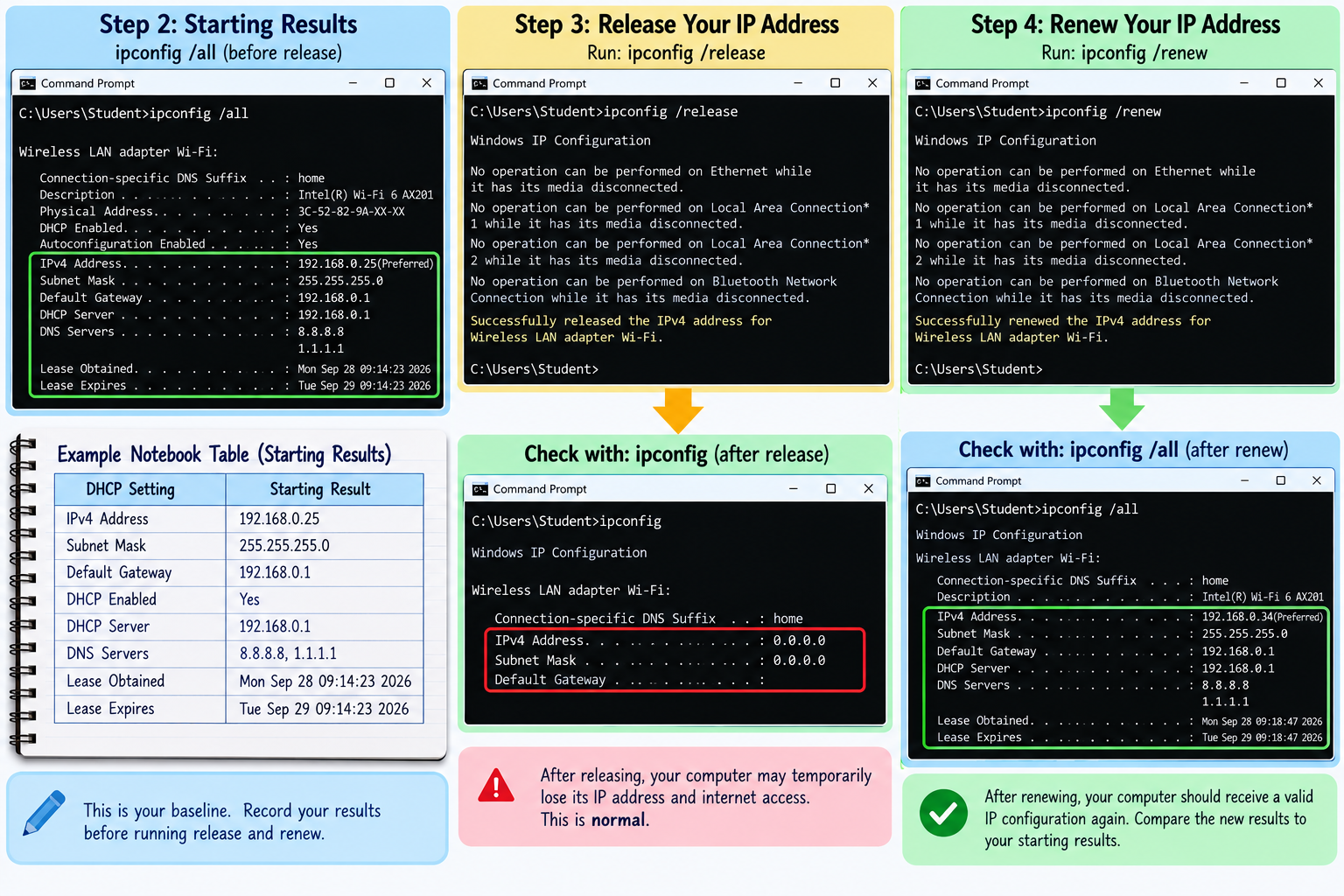
Look at your active adapter again. You may see that the IPv4 address is missing, changed, or no longer useful. The exact result can vary depending on the adapter and network.
Write down what happened.
[Insert screenshot here: ipconfig /release command output or ipconfig result after release.]
In your notebook, answer this:
What changed after releasing the IP address?
[Insert your answer]
Did the computer still have internet access immediately after release?
[Insert your answer]
Step 4: Renew Your IP Address
Now you will ask the DHCP server for network settings again.
Run this command:
ipconfig /renew
This may take a few seconds. If it works, Windows should receive a valid IP configuration again.
After the command completes, run:
ipconfig
Then run:
ipconfig /all
Record your renewed settings.
Step 5: Compare Before and After
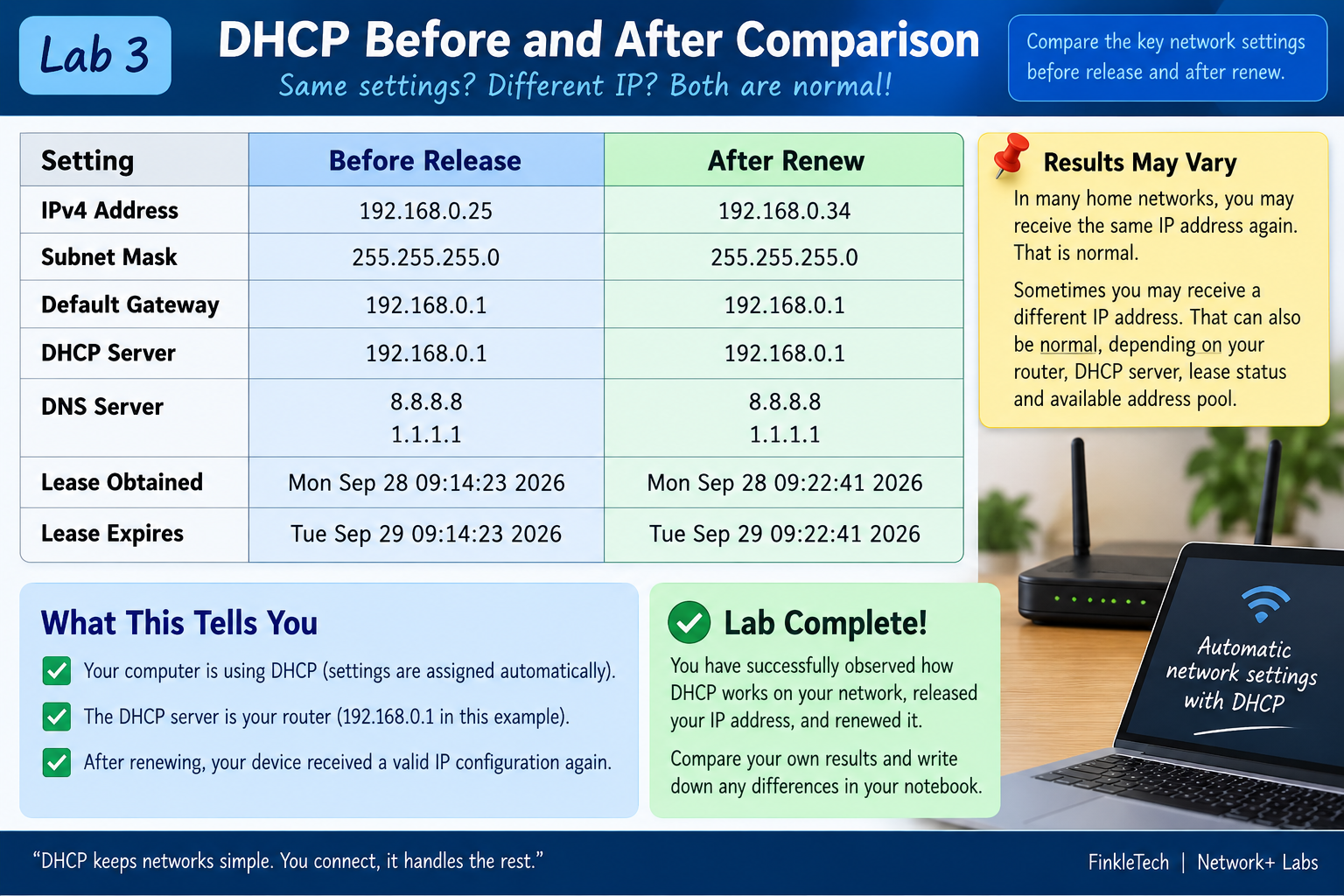
Now compare your starting IP address with your renewed IP address.
In many home networks, you may receive the same IP address again. That is normal. DHCP often gives the same device the same address again, especially if the lease is still remembered by the router.
Sometimes you may receive a different IP address. That can also be normal, depending on the DHCP server, lease status, available address pool, and router behavior.
Create this table in your notebook or on the page:
| Setting | Before Release | After Renew |
|---|---|---|
| IPv4 Address | [Insert result] | [Insert result] |
| Subnet Mask | [Insert result] | [Insert result] |
| Default Gateway | [Insert result] | [Insert result] |
| DHCP Server | [Insert result] | [Insert result] |
| DNS Server | [Insert result] | [Insert result] |
| Lease Obtained | [Insert result] | [Insert result] |
| Lease Expires | [Insert result] | [Insert result] |
Step 6: Optional Router Check
If you can log into your router, open the router admin page and look for a section such as:
- DHCP Clients
- Connected Devices
- Attached Devices
- LAN Devices
- Client List
- Network Map
Look for your computer in the list. It may show your device name, IP address, MAC address, and connection type.
Do not publish the full router page without reviewing it first. Router pages can show private network details. Crop or blur anything sensitive.
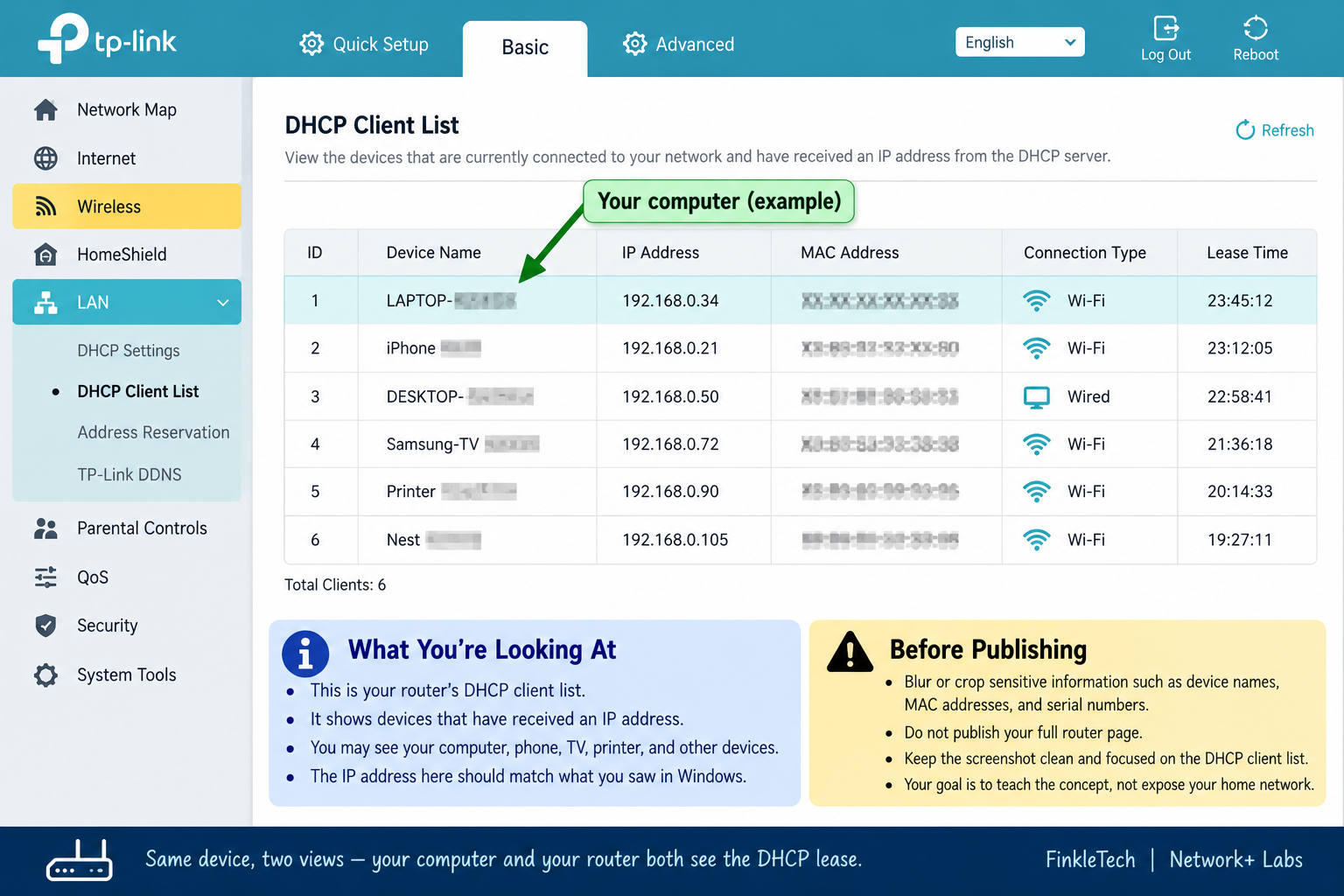
This optional step helps connect what Windows sees with what the router sees. Your computer sees itself as a DHCP client. Your router sees your computer as a client that received a leased address.
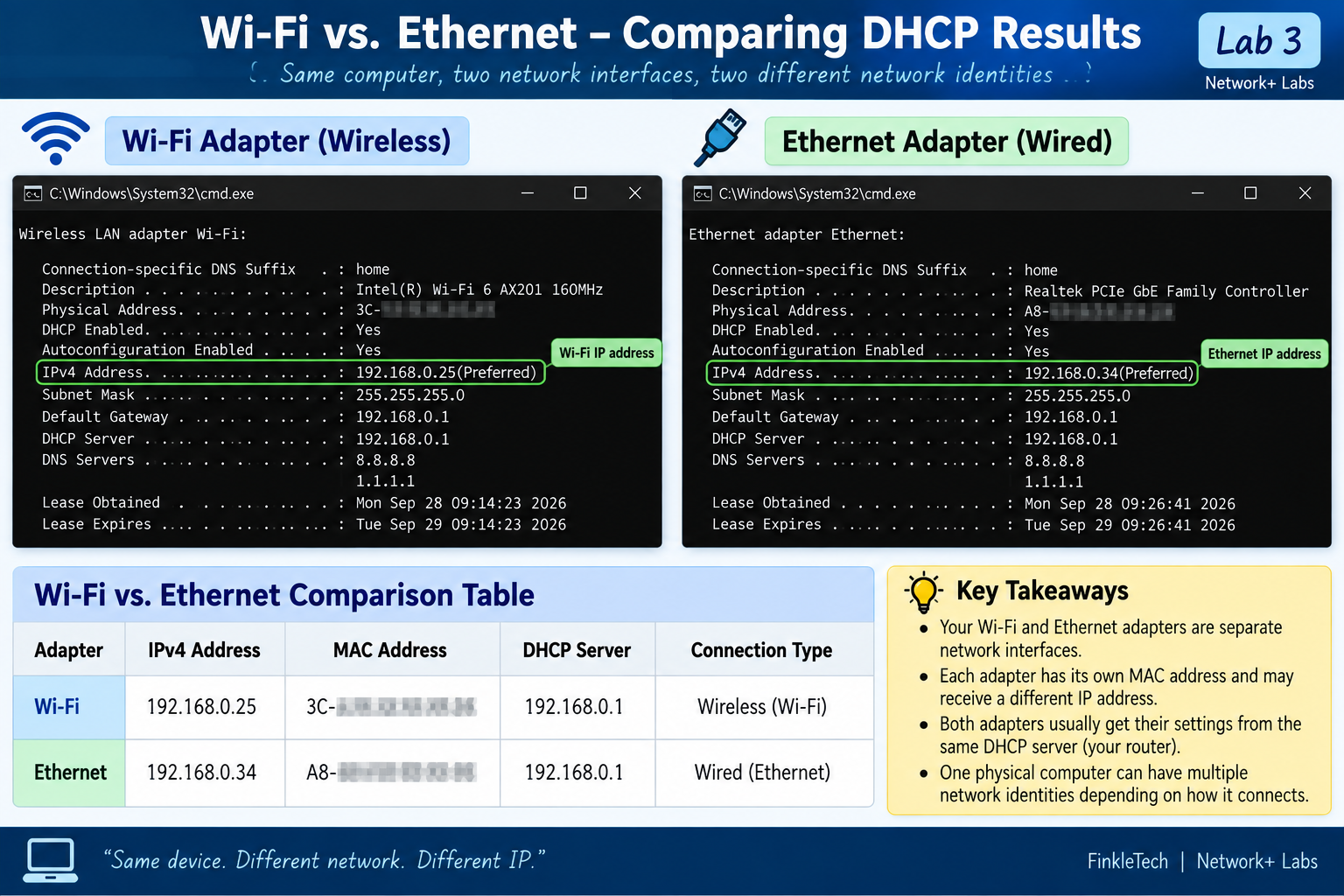
Step 7: Optional Test with Wi-Fi vs Ethernet
For extra practice, try the lab once on Wi-Fi and once on Ethernet if your computer supports both.
Your Wi-Fi adapter and Ethernet adapter are separate network interfaces. They usually have different MAC addresses and may receive different IP addresses. This is a great way to understand why one physical computer can have more than one network identity.
If you do this, record both results:
| Adapter | IPv4 Address | MAC Address | DHCP Server | Connection Type |
|---|---|---|---|---|
| Wi-Fi | [Insert result] | [Blur before publishing] | [Insert result] | Wireless |
| Ethernet | [Insert result] | [Blur before publishing] | [Insert result] | Wired |
Step 8: Write Your Lab Notes
This is the part that turns the draft page into original FinkleTech content after you complete the exercise.
Use this structure:
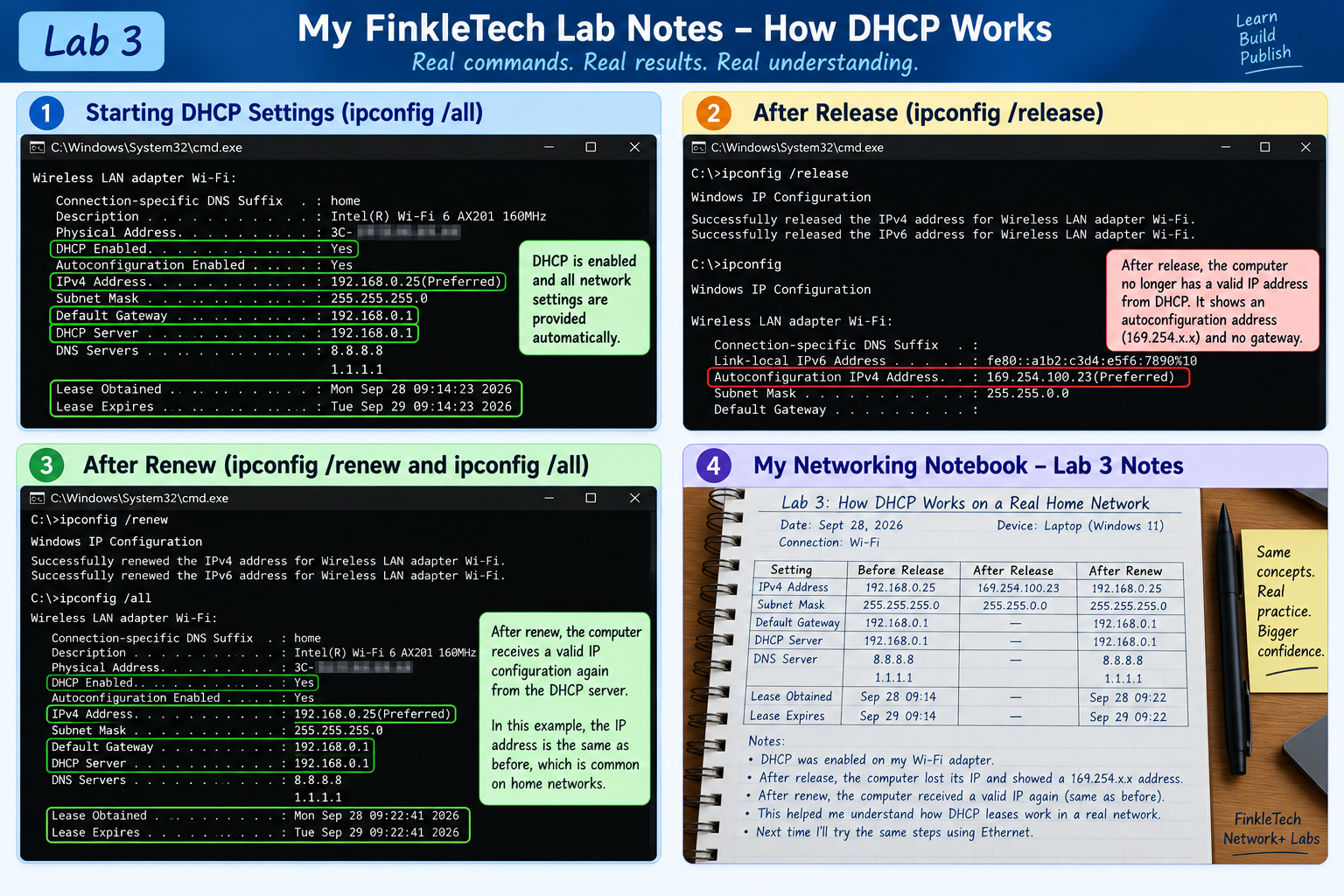
My FinkleTech Lab Notes
For this lab, I used my [laptop/desktop] connected through [Wi-Fi/Ethernet]. I checked my network settings with ipconfig /all and confirmed that DHCP was [enabled/disabled] on my active adapter.
Before releasing the IP address, my computer had a valid IPv4 address, default gateway, DNS server, and DHCP lease information. After running ipconfig /release, my connection temporarily changed because the computer gave up its current network settings. After running ipconfig /renew, the computer requested network settings again and received a valid configuration from the DHCP server.
One thing I noticed was that [insert what happened]. This helped me understand DHCP as a real process instead of just a definition from a textbook.
What Your Results Mean
If your computer successfully renewed its IP address, DHCP is working on your network. Your device was able to contact the DHCP server, request network settings, and receive a valid configuration.
If your renewed IP address was the same as your starting IP address, that does not mean the lab failed. DHCP servers often reassign the same address to the same device, especially if the lease is still active or the DHCP server remembers the client.
If your renewed IP address changed, that shows DHCP can assign a different available address from the address pool. This can happen depending on lease timing, router settings, and available addresses.
If renewal failed, that is a troubleshooting clue. It could point to Wi-Fi problems, Ethernet problems, router issues, DHCP server issues, firewall problems, or adapter configuration problems.
Common Problems
If ipconfig /renew takes a while, give it time. The computer is trying to contact the DHCP server and receive network settings.
If renewal fails, disconnect and reconnect Wi-Fi or unplug and reconnect the Ethernet cable. You can also restart the computer if needed.
If you see a 169.254 address, your computer likely did not receive a valid address from DHCP. This is often called an APIPA address in Windows environments. For troubleshooting, that points your attention toward DHCP, connection, adapter, or router issues.
If DHCP Enabled says No, your device may be using a static IP address. That is not automatically wrong, but it means this lab may behave differently. If you are not sure why DHCP is disabled, do not randomly change settings without writing down the original configuration first.
If you lose internet access after release and renew does not fix it, restart the computer or router. In most normal home setups, this resolves the issue.
Network+ Concepts Practiced
This lab practices several Network+ concepts:
- DHCP
- DHCP clients
- DHCP servers
- DHCP leases
- IPv4 addressing
- Subnet masks
- Default gateways
- DNS assignment
- Command-line troubleshooting
- Network adapter configuration
- APIPA /
169.254addressing - Basic network documentation
The main lesson is that DHCP is not just a background service. It is one of the key systems that allows devices to join a network quickly and communicate properly.
Mini Review Questions
Use these questions after the lab to check your understanding.
- What does DHCP stand for?
- What does DHCP assign to client devices?
- What command releases a Windows computer’s current IP address?
- What command asks DHCP for a new or renewed IP address?
- What is a DHCP lease?
- Why might a computer receive a
169.254address? - Why is it useful to compare settings before and after renewing an IP address?
Short Answers
- DHCP stands for Dynamic Host Configuration Protocol.
- DHCP can assign an IP address, subnet mask, default gateway, DNS servers, and lease information.
- The command is
ipconfig /release. - The command is
ipconfig /renew. - A DHCP lease is the amount of time a device is allowed to use a specific IP address.
- A
169.254address usually means the computer failed to receive a valid DHCP address. - Comparing before and after results helps you see what changed and confirms whether DHCP is working.