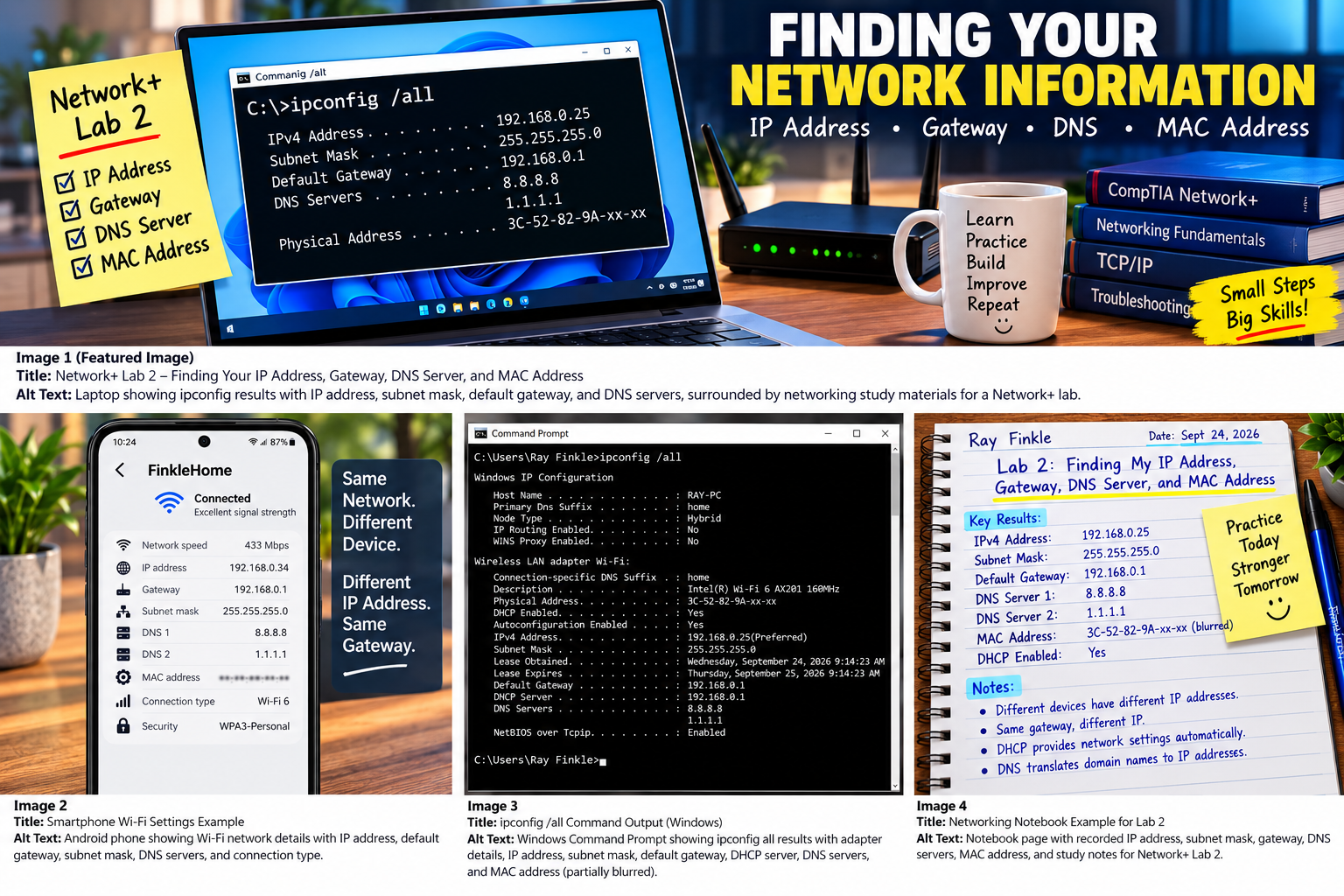
Lab 2: How to Find Your IP Address, Gateway, DNS Server, and MAC Address
Lab Goal
In this lab, you will find and record the basic network identity of your computer. You will locate your IPv4 address, subnet mask, default gateway, DNS servers, MAC address, DHCP status, and network adapter details.
This is one of the most important beginner networking labs because these values show up constantly in real troubleshooting. When a computer cannot connect to the internet, one of the first things a technician checks is whether the device has valid network settings.
By the end of this lab, you should understand what each of these settings means, where to find them, and why they matter for Network+ study and real IT work.
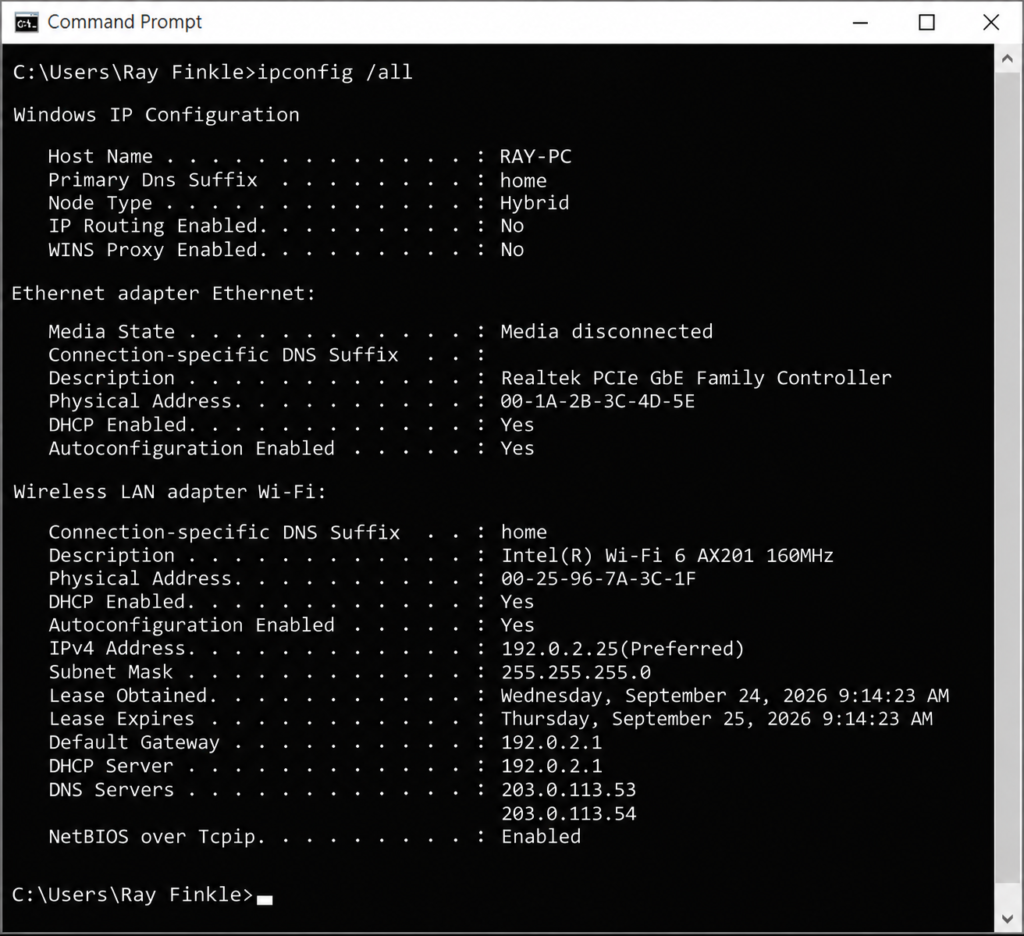
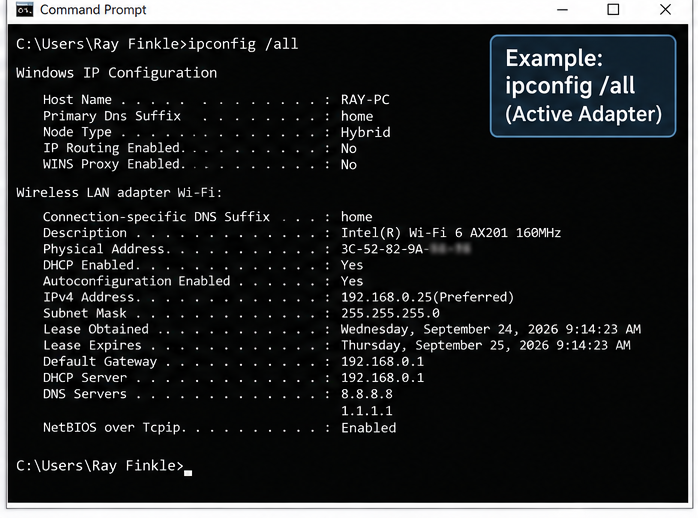
[Insert screenshot here: Command Prompt showing ipconfig /all results with sensitive details blurred.]
Before You Start: Use a Networking Notebook
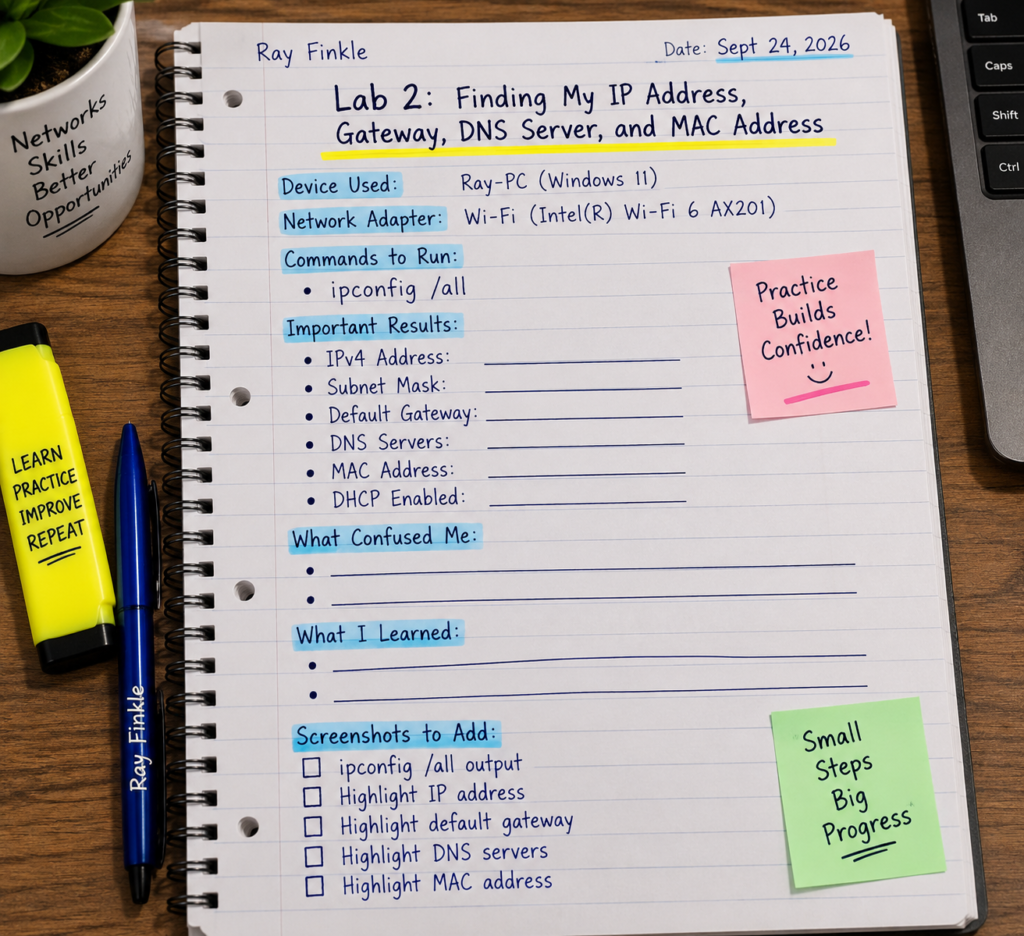
Before running the commands, grab a notebook, spiral notebook, binder, or dedicated digital notes file. Ideally, this becomes your personal networking lab book.
Write the lab title at the top of a fresh page:
Lab 2: Finding My IP Address, Gateway, DNS Server, and MAC Address
Under that, leave space for your command results, definitions, screenshots, and personal notes. This small habit matters. If you are studying for Network+, your notebook becomes more than random notes — it becomes your proof that you are actually practicing the concepts.
A good networking notebook should include:
- the date of the lab
- the device you used
- the network adapter you tested
- commands you ran
- important results
- what confused you
- what you learned
- screenshots you plan to add to the page
Do not worry about making the notebook pretty. Make it useful. A messy but honest lab notebook is better than a perfect-looking page with no real practice behind it.
Why This Lab Matters
Every device on a TCP/IP network needs addressing information. Without it, the device may be connected physically or wirelessly, but it still may not be able to communicate properly.
Think of your IP settings as the basic identity and directions your computer uses on the network. The IP address identifies your device. The subnet mask helps define the local network. The default gateway tells your device where to send traffic that needs to leave the local network. DNS servers help turn website names into IP addresses. The MAC address identifies the network adapter at the hardware level.
For Network+ study, these are not optional concepts. They are core building blocks. You will see them in troubleshooting questions, configuration questions, wireless scenarios, DHCP questions, DNS questions, and command-line tool questions.
This lab is simple, but it is not small. If you truly understand the output of ipconfig /all, you already understand a major part of beginner networking.
What You Will Learn
In this lab, you will learn how to inspect the network configuration of your own computer. You will identify the active network adapter and record the values that matter most.
You will also learn how to avoid a common beginner mistake: looking at the wrong adapter. Many computers show several adapters, including Wi-Fi, Ethernet, Bluetooth, VPN adapters, virtual adapters, or disconnected adapters. The goal is to find the adapter that is actually being used for your current network connection.
By the end, you should be able to look at command output and answer basic troubleshooting questions like:
- Does this computer have a valid IP address?
- Is DHCP enabled?
- What router is this computer using?
- What DNS servers is it using?
- Is this adapter wired or wireless?
- Does anything look obviously wrong?
Tools Needed
You do not need any special hardware for this lab.
You will need:
- A Windows laptop or desktop
- Access to Wi-Fi or Ethernet
- Command Prompt or PowerShell
- Your networking notebook
- Optional: a phone or second computer for comparison
- Optional: screenshot tool such as Snipping Tool
If you are using Windows, Command Prompt is enough. PowerShell also works for the commands in this lab.
Safety and Privacy Note Before You Publish Screenshots
Before uploading screenshots to your website, review them carefully.
Do not publicly share your full MAC address, public IP address, router serial number, Wi-Fi password, or any information that could identify your exact device or home network. Local private IP addresses such as 192.168.x.x, 10.x.x.x, and 172.16.x.x are commonly used in home and private networks, but you should still avoid showing unnecessary detail.
For screenshots, you can blur or crop:
- full MAC address / physical address
- connection-specific DNS suffix
- device names if they reveal personal info
- router/admin details
- any unrelated private information
[Insert screenshot here: Example of a cropped or blurred command output screenshot.]
Quick Concept Refresher: What Are We Looking For?
Before running the command, it helps to know what the terms mean.
Your IPv4 address is your computer’s local network address. On a home network, it usually looks like 192.168.1.23, 192.168.0.45, or 10.0.0.32. This address lets other devices on the local network identify your computer.
Your subnet mask helps your computer determine which IP addresses are on the local network. A common home subnet mask is 255.255.255.0. You do not need to master subnetting in this lab, but you should recognize that the subnet mask helps define the local network boundary.
Your default gateway is usually your router. When your computer wants to reach something outside the local network, it sends that traffic to the default gateway. If the default gateway is missing or wrong, the computer may connect to the local network but fail to reach the internet.
Your DNS server helps translate names into IP addresses. People use names like example.com, but computers communicate using IP addresses. If DNS is broken, the internet may seem broken even when basic IP connectivity still works.
Your MAC address, also called the physical address in Windows, is a hardware address associated with your network adapter. It is used at Layer 2 of the networking model, while IP addresses operate at Layer 3. For now, just remember that MAC addresses are used for local network communication, while IP addresses are used for logical addressing across networks.
Step 1: Open Command Prompt
On Windows, press the Windows key and type:
cmd
Open Command Prompt.
You can also use PowerShell if you prefer. For this beginner lab, Command Prompt is simple and clear.
In your networking notebook, write:
Command used: ipconfig
Then leave room to record your results.
Step 2: Run the Basic IPConfig Command
Type this command:
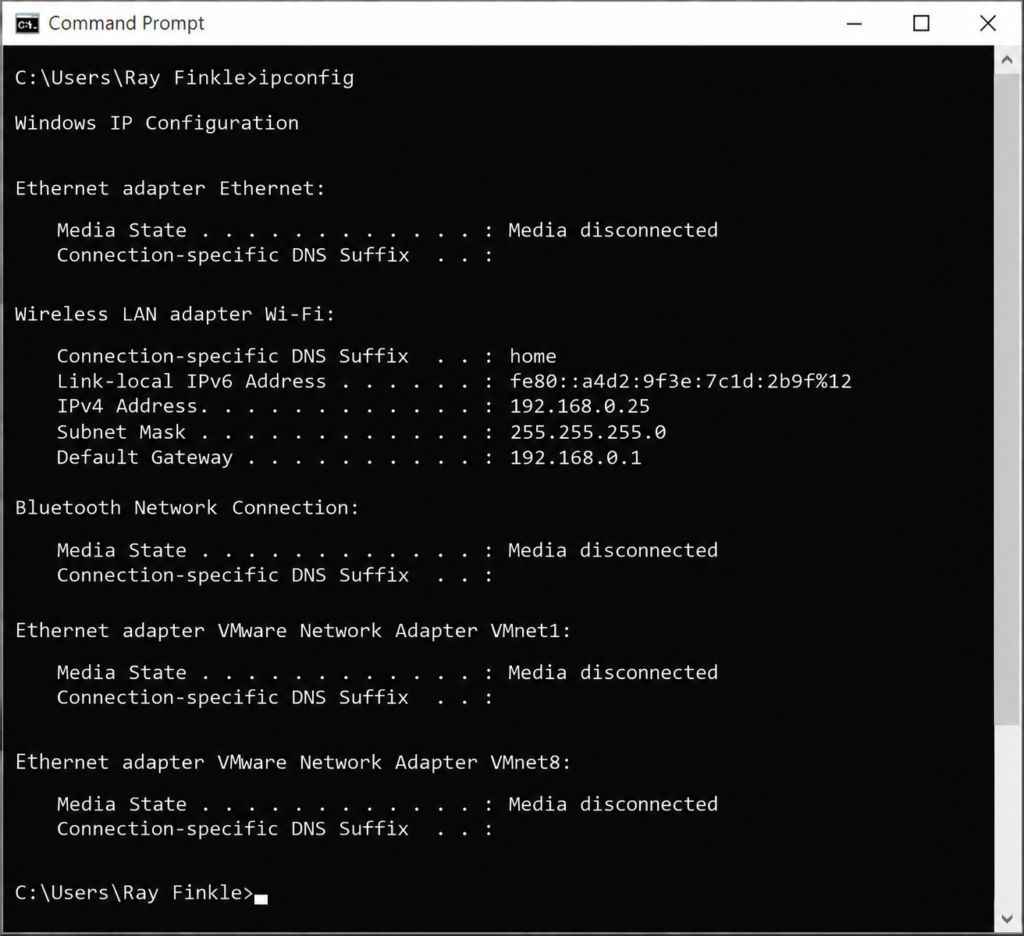
ipconfig
Press Enter.
You may see multiple adapters. Look for the one that matches your current connection. If you are using Wi-Fi, look for something like:
Wireless LAN adapter Wi-Fi
If you are using Ethernet, look for something like:
Ethernet adapter Ethernet
Under the active adapter, look for:
- IPv4 Address
- Subnet Mask
- Default Gateway
Write these into your networking notebook.
Step 3: Record Your Basic Results
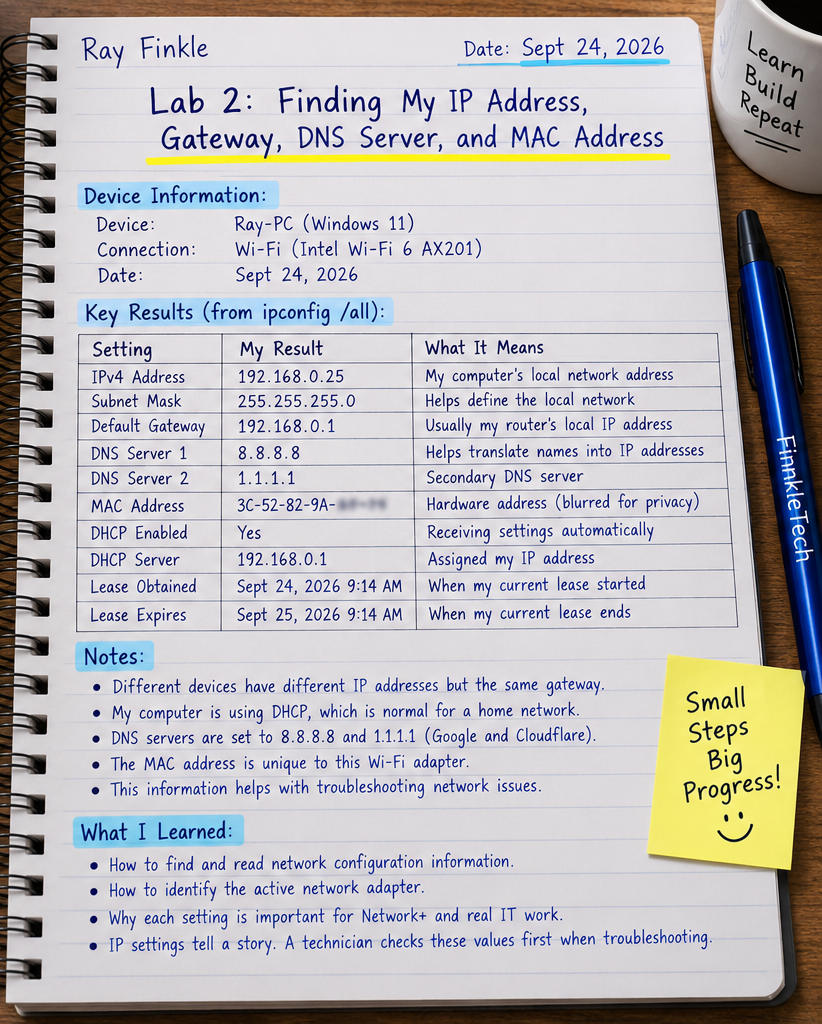
Create a simple table in your notebook or on the page.
| Setting | My Result | What It Means |
|---|---|---|
| IPv4 Address | [Insert your result] | My computer’s local network address |
| Subnet Mask | [Insert your result] | Helps define the local network |
| Default Gateway | [Insert your result] | Usually my router’s local IP address |
Do not just copy the values. Read them carefully.
If your IPv4 address starts with 192.168, 10, or 172.16 through 172.31, it is likely a private IP address. That is normal on a home network. If your IPv4 address starts with 169.254, that usually means your computer did not receive a proper DHCP address.
That 169.254 situation is important for Network+ troubleshooting. It usually points to a DHCP problem, connection problem, or network configuration issue.
Step 4: Run IPConfig All
Now run the more detailed command:
ipconfig /all
This command gives more complete information about your network adapters.
Look again for your active adapter. Do not accidentally copy information from a disconnected Ethernet adapter, Bluetooth adapter, VPN adapter, or virtual adapter.
Under the active adapter, look for:
- Description
- Physical Address
- DHCP Enabled
- IPv4 Address
- Subnet Mask
- Lease Obtained
- Lease Expires
- Default Gateway
- DHCP Server
- DNS Servers
Step 5: Find Your MAC Address
In Windows, your MAC address appears as:
Physical Address
It may look something like this:
A1-B2-C3-D4-E5-F6
This is the hardware address of your network adapter. Your Wi-Fi adapter and Ethernet adapter will usually have different MAC addresses because they are different interfaces.
In your notebook, write:
| Setting | My Result |
|---|---|
| Adapter Name | [Insert adapter name] |
| Physical Address / MAC Address | [Blur before publishing] |
| Wired or Wireless? | [Wi-Fi or Ethernet] |
Do not publish your full MAC address on the final page. For your public version, you can write something like:
MAC Address: blurred for privacy
That shows readers what you found without exposing unnecessary device details.
Step 6: Check Whether DHCP Is Enabled
In the ipconfig /all output, look for:
DHCP Enabled
It will usually say:
Yes
If DHCP is enabled, your computer is receiving network settings automatically. This usually means your router or another DHCP server assigned your IP address, subnet mask, default gateway, and DNS information.
If DHCP is disabled, your computer may be using a static IP address. Static IP addressing is not automatically bad, but it should be intentional. In home networks, most client devices use DHCP because it is easier to manage.
Write this in your notebook:
| DHCP Setting | My Result |
|---|---|
| DHCP Enabled | [Yes or No] |
| DHCP Server | [Insert result] |
| Lease Obtained | [Insert result] |
| Lease Expires | [Insert result] |
The lease times matter because DHCP addresses are not always permanent. A DHCP lease means the device has permission to use that IP address for a certain period.
Step 7: Find Your DNS Servers
Still inside ipconfig /all, look for:
DNS Servers
You may see one DNS server or several. Sometimes the DNS server is your router’s local IP address. Sometimes you may see public DNS services or ISP-provided DNS servers.
DNS is one of the most important troubleshooting areas for beginners. A computer can have working internet connectivity but still fail to load websites by name if DNS is broken.
For example, if you can ping an IP address but cannot open websites by name, DNS may be the problem. That is why recording DNS settings matters.
Write this in your notebook:
| DNS Setting | My Result |
|---|---|
| Primary DNS Server | [Insert result] |
| Secondary DNS Server | [Insert result if shown] |
Step 8: Identify the Active Adapter Correctly
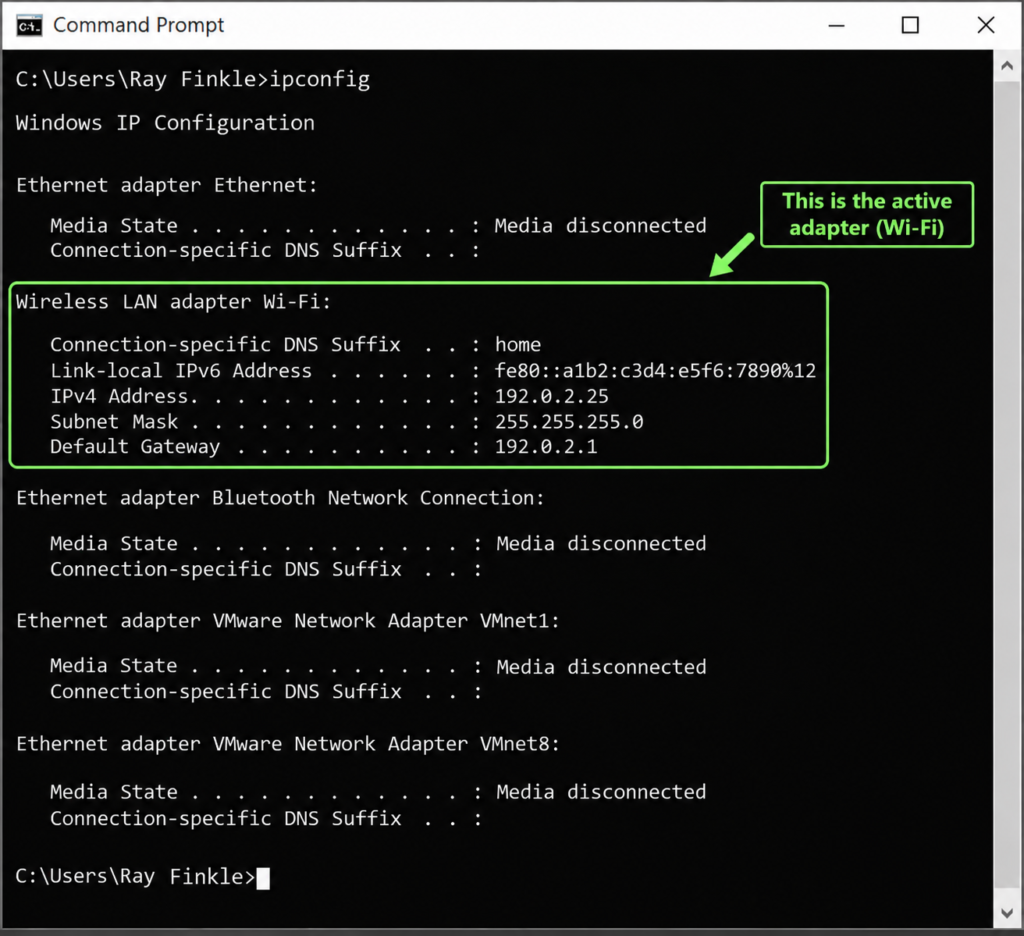
Take a minute to confirm that you recorded the right adapter.
If you are connected over Wi-Fi, your active adapter should show Wi-Fi-related information. If you are connected with an Ethernet cable, your active adapter should show Ethernet-related information.
Disconnected adapters may say:
Media disconnected
Ignore those for this lab unless you are specifically investigating them.
This is a real-world troubleshooting habit. Many beginners get confused because their computer shows several adapters. A technician has to slow down and identify which adapter is actually active.
In your notebook, answer:
Which adapter am I using for this lab?
[Insert answer]
How do I know it is the active adapter?
[Insert answer]
Step 9: Optional Comparison with Another Device
If you want extra practice, repeat the basic check on another device.
For example, check your phone’s Wi-Fi details or run ipconfig on another Windows computer. Compare the results.
You will probably notice that the devices have different IP addresses but the same or similar default gateway. That makes sense. Each client needs its own local IP address, but they usually share the same router as the gateway.
Record this comparison:
| Device | IP Address | Default Gateway | Connection Type |
|---|---|---|---|
| Main Computer | [Insert result] | [Insert result] | [Wi-Fi/Ethernet] |
| Second Device | [Insert result] | [Insert result] | [Wi-Fi/Ethernet] |
[Insert screenshot here: Optional second device network settings, with private details blurred.]
Step 10: Write Your Lab Notes
This is the section that makes the page original after you complete the lab.
Use this structure:
My FinkleTech Lab Notes
For this lab, I used my [laptop/desktop] connected through [Wi-Fi/Ethernet]. I ran ipconfig and ipconfig /all to find my IPv4 address, subnet mask, default gateway, DNS servers, DHCP status, and MAC address.
My computer was using DHCP, which means it received its network settings automatically. The default gateway pointed to my router, which makes sense because the router is the device my computer uses to reach outside networks.
One thing I noticed during this lab was [insert something you noticed]. This helped me understand that IP settings are not just exam terms. They are the actual values a technician checks when diagnosing a network problem.
[Insert screenshot here: Your main ipconfig /all screenshot.]
What Your Results Mean
If your computer has a valid IPv4 address, subnet mask, default gateway, and DNS server, it has the basic settings needed for normal network communication.
If the IPv4 address looks normal but websites do not load, the issue may involve DNS, internet connectivity, firewall settings, or the destination website. If the default gateway is missing, the computer may not know where to send traffic outside the local network. If DHCP is not enabled, the computer may be using a static address that was manually configured.
If your address starts with 169.254, that is a major clue. It usually means the device failed to get an address through DHCP. In real troubleshooting, that would make you check the Wi-Fi connection, Ethernet cable, router, DHCP server, or adapter settings.
The big lesson is this: IP information tells a story. A technician needs to read that story before randomly changing settings.
Common Problems
If you cannot find your active adapter, look for the adapter that does not say “media disconnected.” Your active adapter should usually show an IPv4 address, subnet mask, and default gateway.
If your screen shows too much information, do not panic. ipconfig /all can look messy because Windows lists multiple adapters. Focus only on the adapter currently being used.
If there is no default gateway, your computer may not have received complete network settings. This can cause internet access problems.
If DNS servers are missing, websites may fail to load by name. You might still have some network connectivity, but name resolution may be broken.
If DHCP says “No,” your device may have a static IP address. That is not automatically wrong, but it should be intentional and documented.
Network+ Concepts Practiced
This lab touches several important Network+ concepts:
- IPv4 addressing
- Subnet masks
- Default gateway
- DNS servers
- DHCP
- DHCP leases
- MAC addresses
- Network adapters
- Wired vs wireless interfaces
- Command-line troubleshooting
- Basic network documentation
The main skill is learning how to inspect a device’s network configuration. Before you can fix a connection problem, you need to know what settings the device actually has.
Mini Review Questions
Use these questions to check your understanding after the lab.
- What command shows basic IP information on a Windows computer?
- What does the default gateway usually represent in a home network?
- What does DNS help your computer do?
- What does DHCP do?
- Why should you avoid publishing your full MAC address?
- What does it often mean if your IPv4 address starts with
169.254? - Why is it important to identify the active adapter?
Short Answers
- The
ipconfigcommand shows basic IP information. - The default gateway usually represents the router that forwards traffic outside the local network.
- DNS helps translate domain names into IP addresses.
- DHCP automatically assigns network settings such as IP address, subnet mask, gateway, and DNS server.
- A MAC address identifies a network adapter and should be treated as private device information when publishing screenshots.
- A
169.254address usually means the computer did not receive a proper DHCP address. - Computers may have multiple adapters, so you need to inspect the one actually being used for the current connection.