
Networking Labs: 10 Hands-On Labs for Network+ Practice
Networking makes a lot more sense when you can actually see it working.
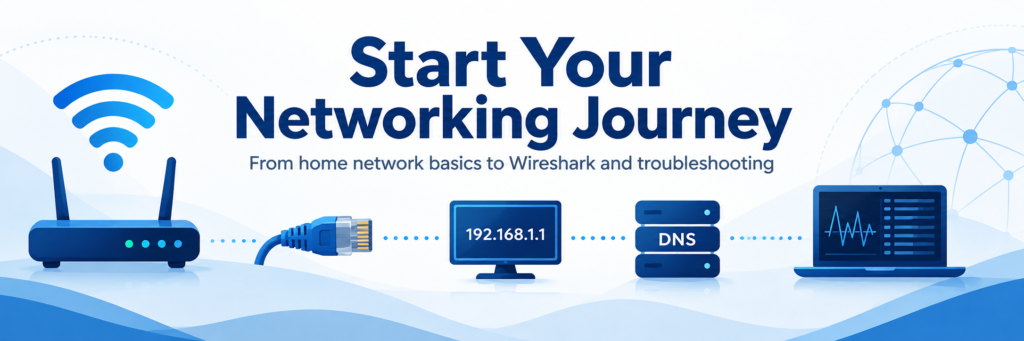
This hands-on networking lab series is designed to help beginners practice real Network+ concepts using equipment and tools they may already have at home. You do not need an expensive server rack or enterprise lab. A Windows computer, home router, Ethernet cable, Wi-Fi connection, Command Prompt, PowerShell, and a few free tools can teach you a lot.
The labs build on each other, but you can also jump directly to a topic you want to practice.
Foundations
Lab 1: Map Your Home Network
Learn how the devices on your home network connect together. Identify your router, computers, phones, Wi-Fi devices, wired connections, and basic network layout.
You’ll practice: network diagrams, routers, clients, Wi-Fi, Ethernet, and basic topology.
Lab 2: Find Your IP Address, Gateway, DNS, and MAC Address
Use built-in Windows tools to identify the core network information your computer uses to communicate.
You’ll practice: IPv4 addresses, subnet masks, default gateways, DNS servers, MAC addresses, and ipconfig.
Lab 3: See How DHCP Works
Explore how your computer automatically receives its network configuration from a DHCP server.
You’ll practice: DHCP leases, automatic IP addressing, DHCP servers, lease renewal, and Windows network configuration.
Networking Tools and Troubleshooting
Lab 4: Practice Essential Network Troubleshooting Commands
Use common Windows commands to test your own network and understand what each result tells you.
You’ll practice: ipconfig, ping, nslookup, tracert, gateways, DNS testing, and troubleshooting methodology.
Lab 5: Capture Basic Network Packets with Wireshark
Start your first packet capture and see real network traffic moving through your computer.
You’ll practice: Wireshark, packet captures, DNS traffic, TCP traffic, ICMP traffic, filters, and packet inspection.
Lab 6: See How DNS Works on a Home Network
Follow the process your computer uses to turn domain names into IP addresses.
You’ll practice: DNS servers, nslookup, DNS caching, ipconfig /displaydns, ipconfig /flushdns, and name-resolution troubleshooting.
Lab 7: Understand TCP, UDP, Ports, and Protocols
See how your computer uses ports and transport protocols during real network connections.
You’ll practice: TCP, UDP, ports, netstat, process IDs, PowerShell Test-NetConnection, HTTPS port 443, and common Network+ ports.
Hands-On Networking and Capstone Labs
Lab 8: Test an Ethernet Cable and Understand Link Lights
Move into the physical side of networking by inspecting and testing a wired Ethernet connection.
You’ll practice: Ethernet cables, RJ45 connectors, link lights, wired adapters, cable testers, physical-layer troubleshooting, and connectivity testing.
Lab 9: Build a Simple Home Networking Lab
Bring the earlier lessons together by creating a reusable networking practice environment at home.
You’ll practice: home lab design, routers, switches, wired and wireless clients, IP address tables, network diagrams, troubleshooting commands, and Wireshark baselines.
Lab 10: Troubleshoot “Connected but No Internet”
Put everything together in a structured troubleshooting workflow for one of the most common network problems.
You’ll practice: physical checks, DHCP, IP configuration, gateways, DNS, ping, traceroute, port testing, troubleshooting decisions, and identifying where a network problem is occurring.
How to Use These Networking Labs
You do not need to rush through all 10 labs at once.
Complete one lab, take your own notes, save your screenshots, and make sure you understand what the results mean before moving on. The goal is not simply to type commands. The goal is to understand what each test proves and what it does not prove.
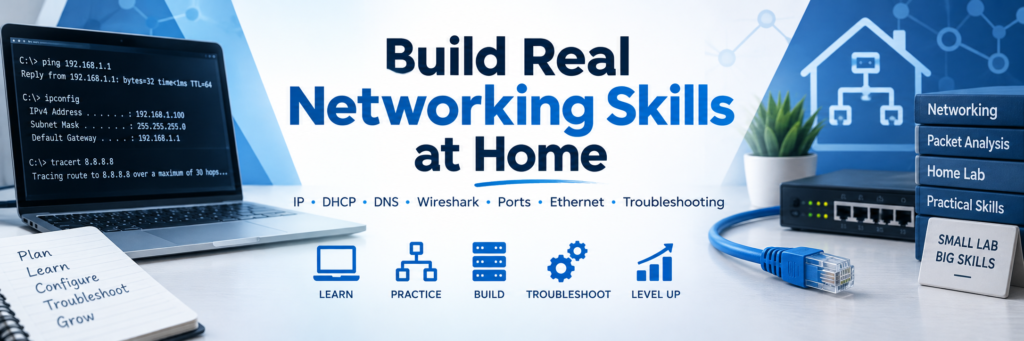
Keep a networking notebook beside you as you work. Record your IP information, test results, questions, and observations. Over time, your notes become your own troubleshooting field manual.
What You Will Practice
Across these 10 labs, you will work with:
- IPv4 addressing and subnet masks
- default gateways
- DHCP
- DNS
- MAC addresses
- Ethernet and Wi-Fi
- TCP and UDP
- common network ports
- Command Prompt
- PowerShell
- Wireshark
- ping and traceroute
- packet captures
- physical-layer troubleshooting
- structured Network+ troubleshooting
These are beginner labs, but they are designed to build real habits you can carry into Network+ study, home networking, help desk work, field technician work, and future networking certifications.
Start Building Your Networking Skills
You do not need a perfect lab.
Start with the equipment you already have, learn what each result means, and build your knowledge one test at a time.