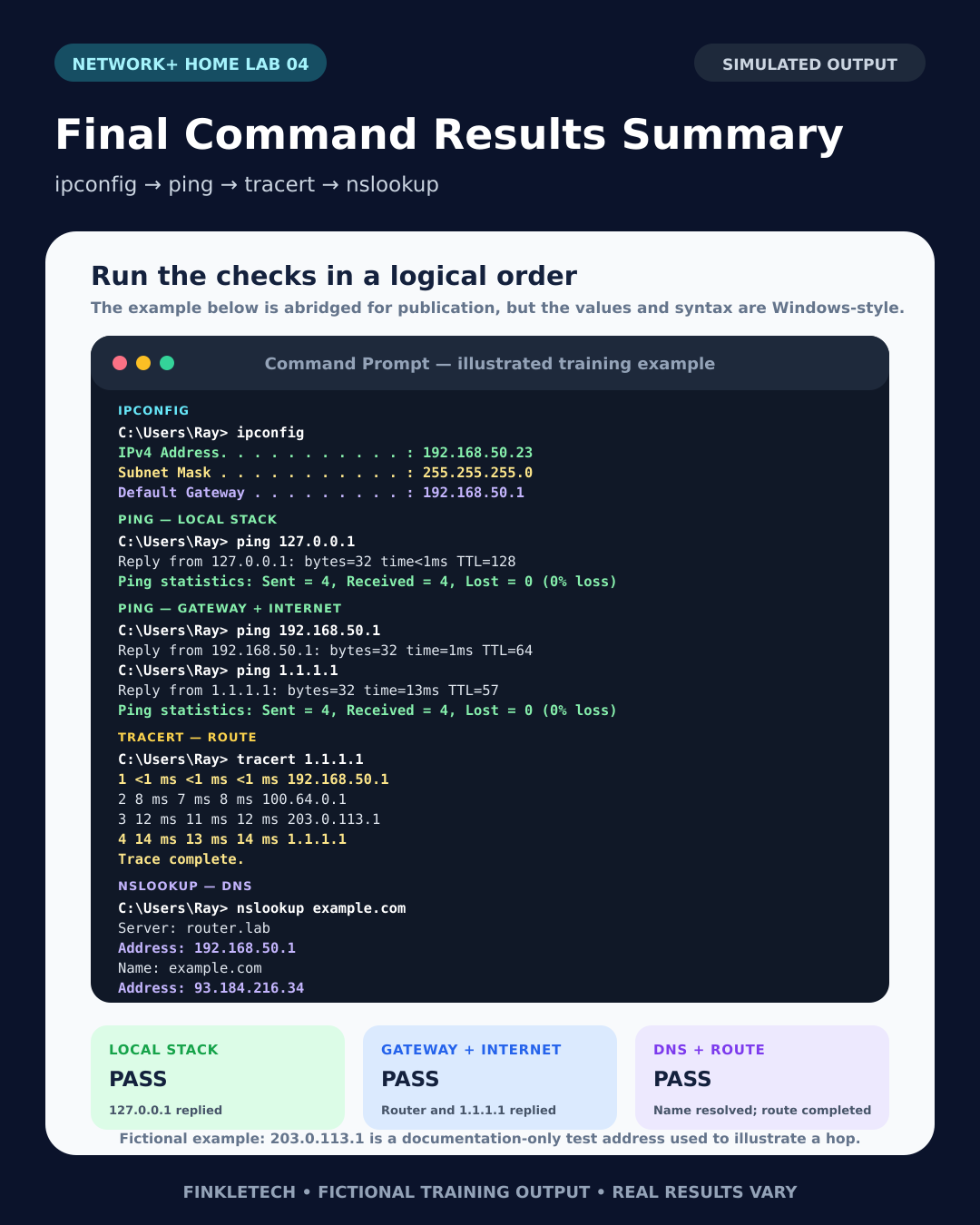
Lab 4: Basic Network Troubleshooting with Ping, Tracert, IPConfig, and NSLookup
Lab Goal
In this lab, you will practice basic network troubleshooting using four important Windows command-line tools: ipconfig, ping, tracert, and nslookup.
The goal is to test your connection in a logical order. You will check your IP settings, test your own computer, test your router, test internet connectivity by IP address, test DNS by domain name, and trace the route your traffic takes to reach an outside destination.
This is one of the most practical labs in the series. These commands are simple, but they are extremely useful. If someone says, “My internet is not working,” these are the kinds of tools that help you stop guessing and start narrowing down the problem.
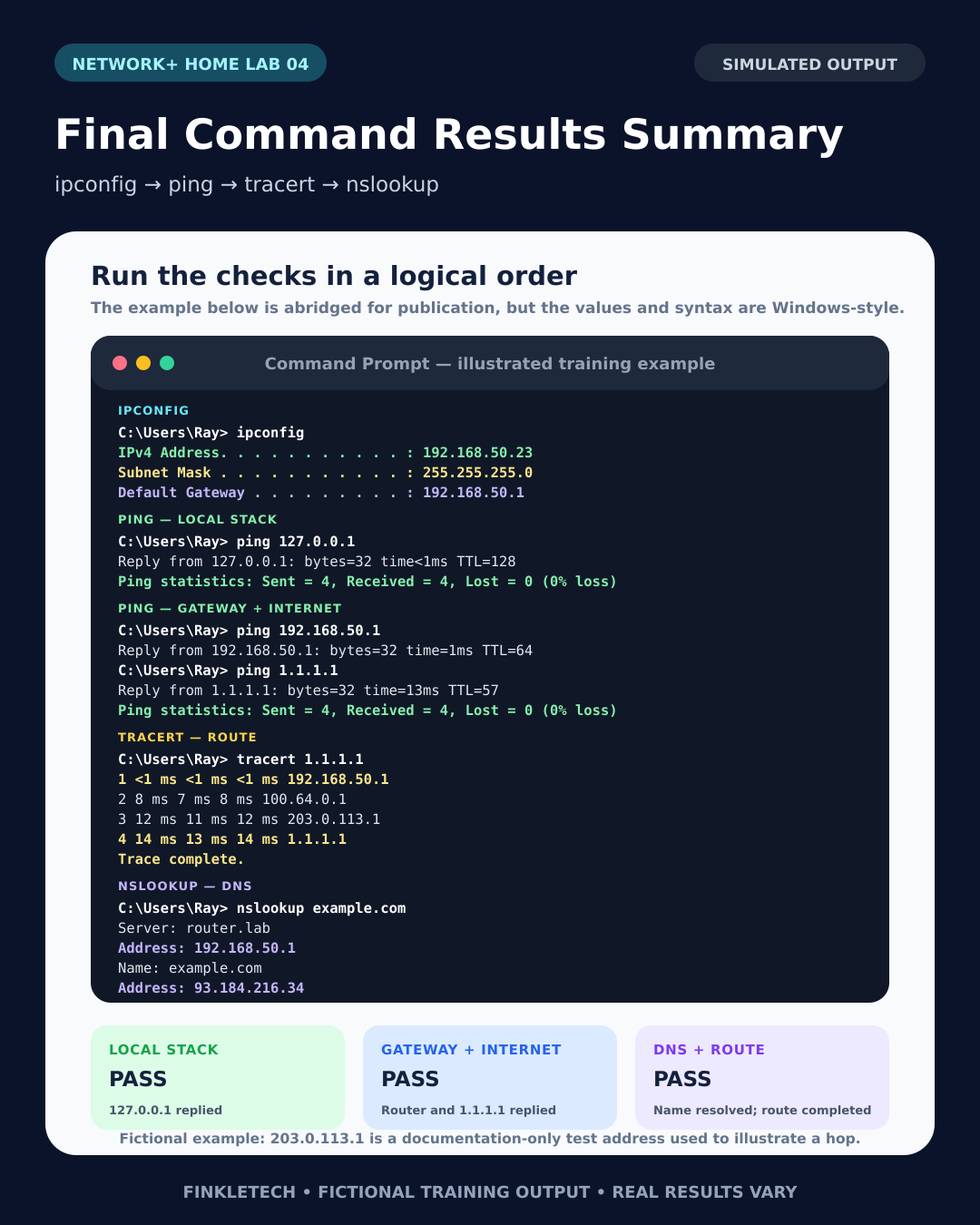
Before You Start: Use Your Networking Notebook
Open your networking notebook to a fresh page and write:
Lab 4: Basic Network Troubleshooting Commands
Under that title, create four sections:
ipconfigpingtracertnslookup
For each command, leave room to write what the command does, what result you got, and what the result means. This is important because the goal is not just to type commands. The goal is to understand what each result tells you.
Your notebook should include:
- the date of the lab
- the device you used
- whether you used Wi-Fi or Ethernet
- your default gateway
- ping results
- DNS results
- tracert results
- anything that failed or looked strange
- your interpretation of the results
This is where the learning sticks. A command you only run once is easy to forget. A command you run, write down, explain, and screenshot becomes part of your working knowledge.
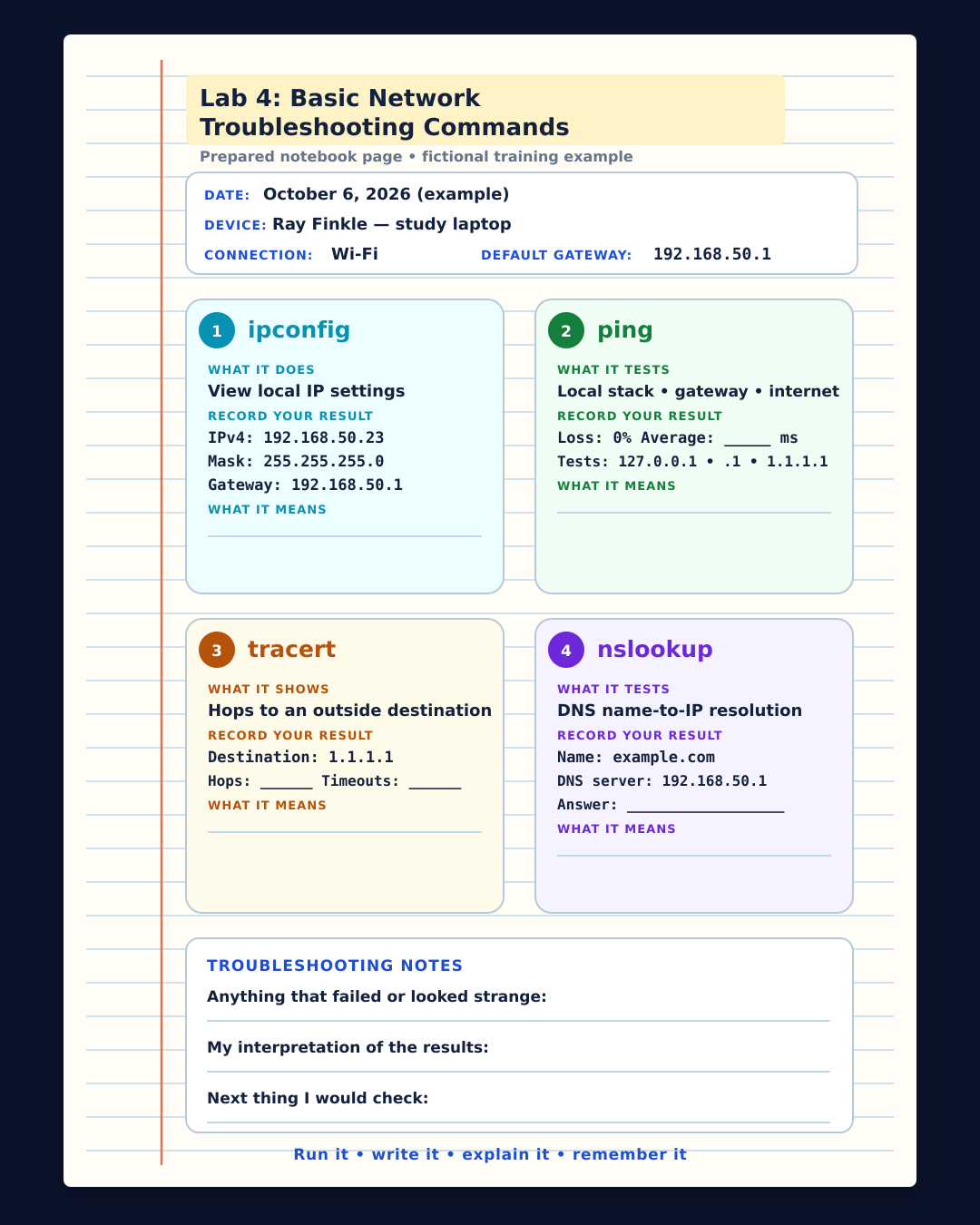
Why This Lab Matters
Network troubleshooting is not about randomly clicking buttons until something works. Good troubleshooting follows a path. You check one layer at a time, moving from the local computer outward toward the router, the internet, DNS, and the destination.
This lab teaches that habit.
If your computer cannot reach a website, the problem could be local or remote. Your Wi-Fi adapter may be disconnected. Your computer may not have a valid IP address. Your default gateway may be missing. Your router may be unreachable. DNS may be failing. The website may be down. Your ISP may be having trouble. Without a method, all of those possibilities blur together.
Commands like ipconfig, ping, tracert, and nslookup help you separate those possibilities. Each tool answers a slightly different question. ipconfig shows your local network settings. ping tests reachability. tracert shows the path traffic takes. nslookup tests DNS name resolution.
For Network+ study, this lab helps you connect troubleshooting methodology with real command output. That is exactly the kind of skill that helps with performance-based thinking, not just memorization.
Quick Concept Refresher: What Each Command Does
The ipconfig command shows your computer’s IP configuration. It helps you find your IPv4 address, subnet mask, default gateway, and basic adapter details. If you use ipconfig /all, you get more information, including DNS servers, DHCP status, lease details, and MAC address.
The ping command tests whether one device can reach another using ICMP echo requests and replies. If you ping your router and get replies, your computer can likely communicate with the router. If you ping a public IP address and get replies, you likely have internet connectivity at the IP level.
The tracert command shows the route traffic takes to a destination. It displays hops between your computer and the target. This helps you see whether traffic leaves your network and where delays or failures may appear.
The nslookup command tests DNS. DNS translates names like website domains into IP addresses. If DNS fails, users may say “the internet is broken,” even though basic IP connectivity may still work.
These commands are not magic. They are clues. Your job is to read the clues in the right order.
Tools Needed
You will need:
- a Windows laptop or desktop
- Wi-Fi or Ethernet connection
- Command Prompt or PowerShell
- your networking notebook
- screenshot tool such as Snipping Tool
- optional second device for comparison
You do not need router admin access for this lab. You only need your computer and an internet connection.
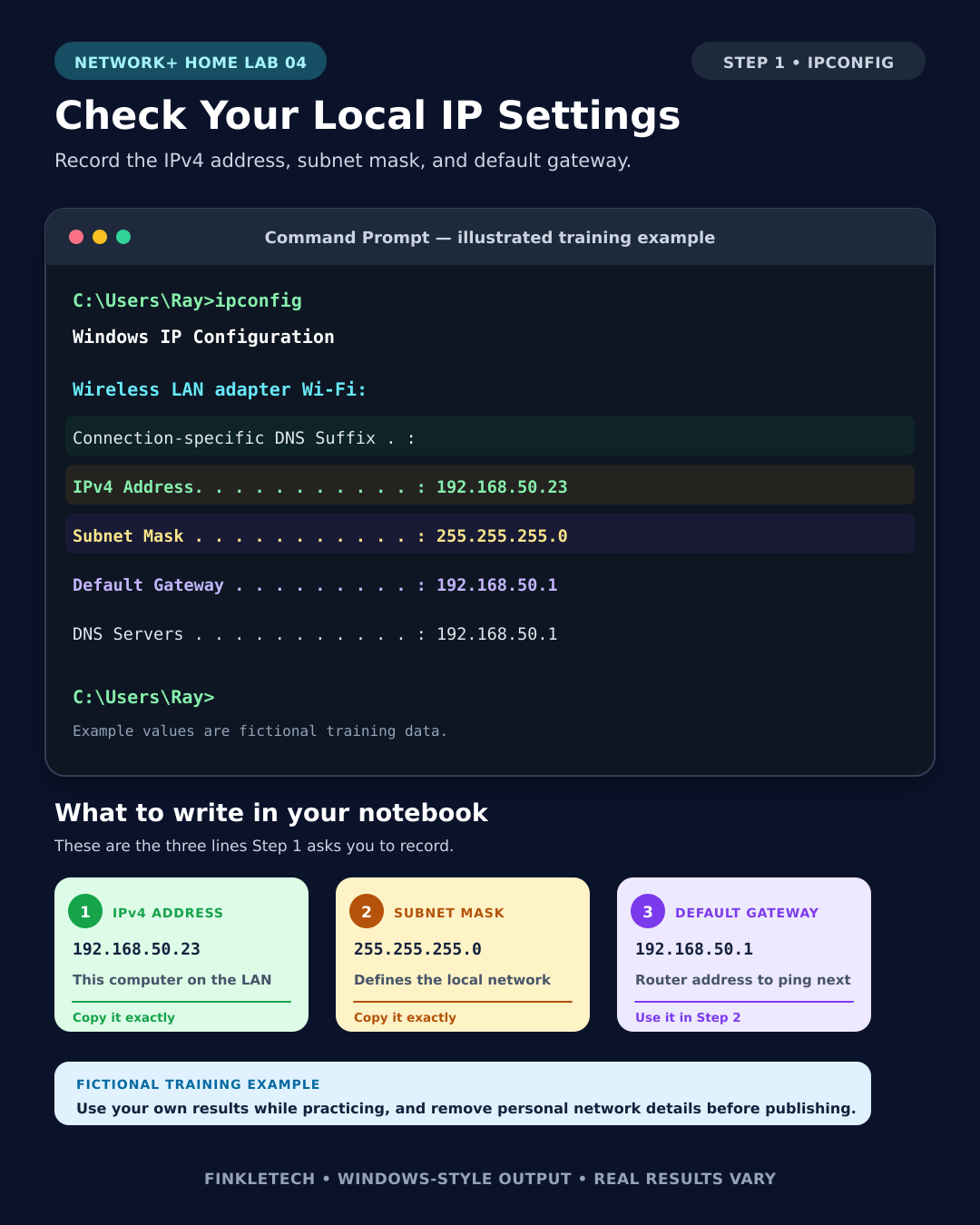
Step 1: Check Your Local IP Settings with IPConfig
Open Command Prompt.
Run:
ipconfig
Find your active adapter. If you are using Wi-Fi, look for your wireless adapter. If you are using Ethernet, look for the Ethernet adapter.
Write down:
- IPv4 Address
- Subnet Mask
- Default Gateway
Your default gateway is especially important for this lab because you will ping it in a later step.
Step 2: Record Your Starting Network Information
In your notebook, create a table like this:
| Setting | My Result |
|---|---|
| Connection Type | [Wi-Fi or Ethernet] |
| IPv4 Address | [Insert result] |
| Subnet Mask | [Insert result] |
| Default Gateway | [Insert result] |
Before you test anything else, pause and look at these values.
If your computer does not have an IPv4 address, default gateway, or valid-looking network settings, that is already a major clue. There is no point troubleshooting a website if the computer itself does not have proper network configuration.
This is one of the most important troubleshooting habits: start close to the device, then move outward.
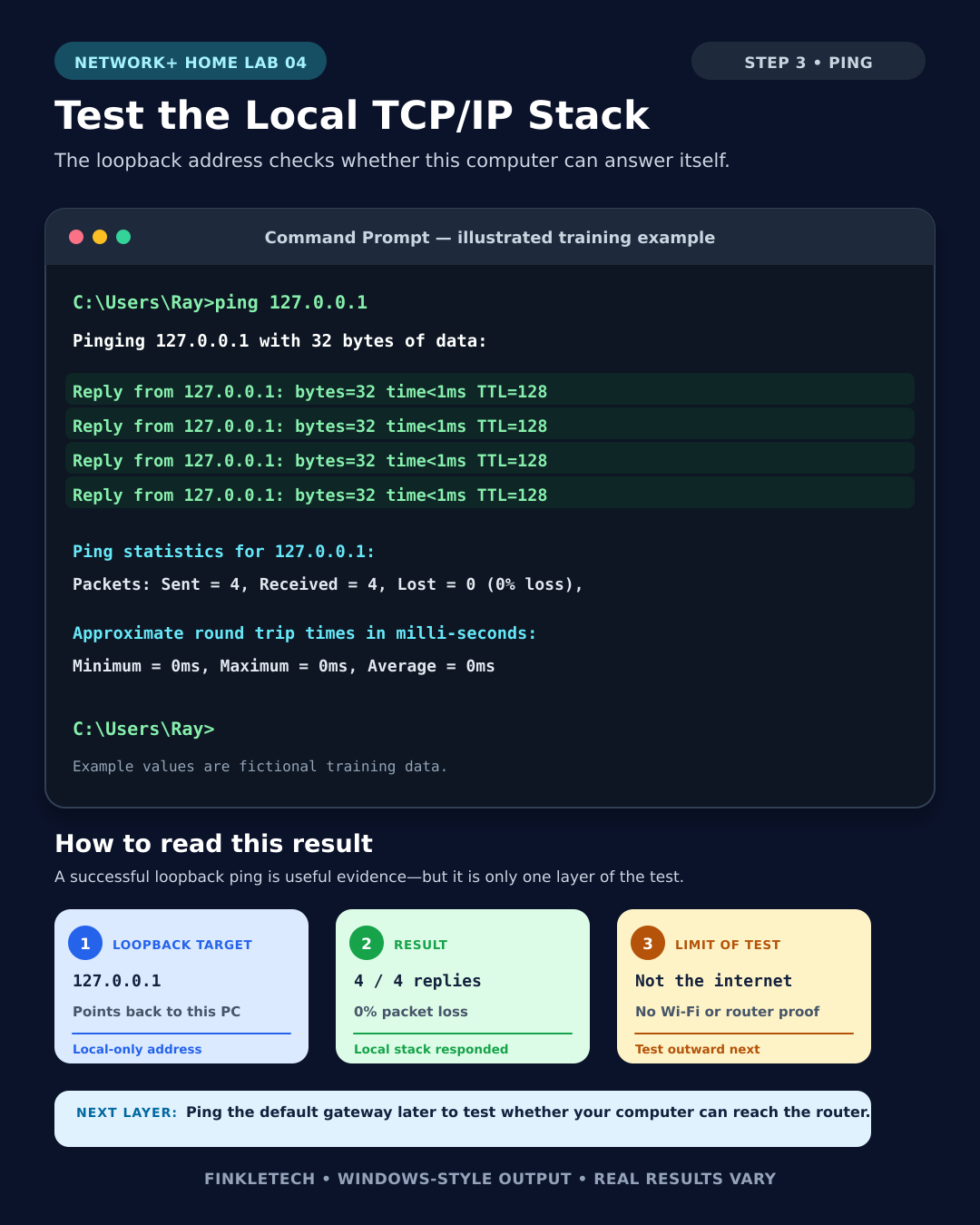
Step 3: Ping the Loopback Address
Now test your own computer’s TCP/IP stack.
Run:
ping 127.0.0.1
The address 127.0.0.1 is the loopback address. It points back to your own computer. This test does not prove the internet works. It does not prove Wi-Fi works. It only helps confirm that the local TCP/IP stack is responding.
If this fails, the problem is very local. That would be unusual, but it would point toward the computer’s own networking stack or configuration.
In your notebook, write:
| Test | Result | What It Means |
|---|---|---|
| Ping 127.0.0.1 | [Success/Fail] | Tests local TCP/IP stack |
Step 4: Ping Your Default Gateway
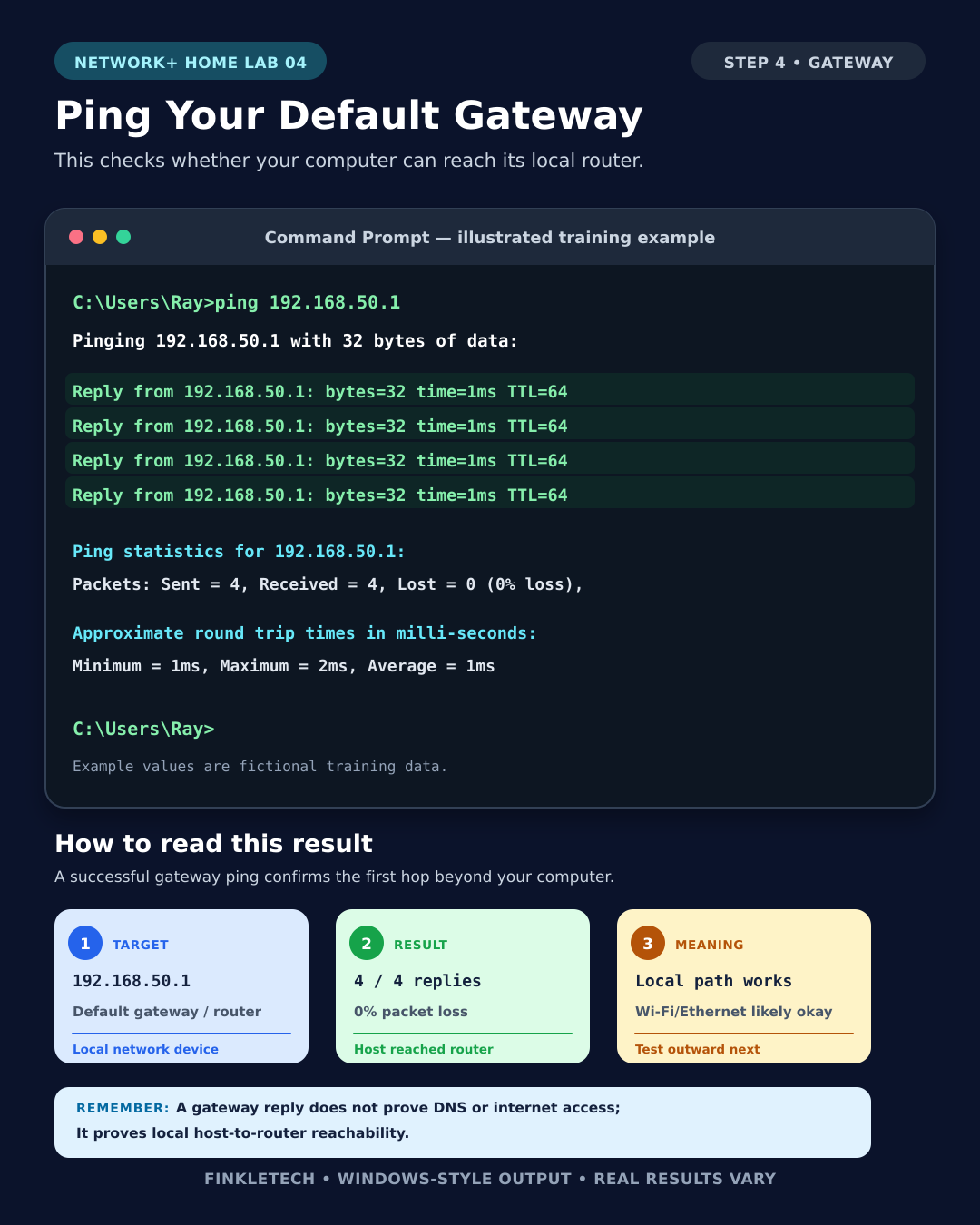
Now ping your router.
Use the default gateway address you found with ipconfig.
Example:
ping 192.168.1.1
Your actual gateway may be different. Use your own result.
If this ping succeeds, your computer can communicate with the router. That usually means your local connection is working at a basic level.
If this ping fails, the problem may be closer to home. It could involve Wi-Fi, Ethernet, the router, your adapter, firewall rules, or local network settings.
In your notebook, write:
| Test | Result | What It Means |
|---|---|---|
| Ping Default Gateway | [Success/Fail] | Tests communication with router |
This step is huge. If you cannot reach the gateway, do not jump ahead and blame DNS or a website. Fix the local connection first.
Step 5: Ping a Public IP Address
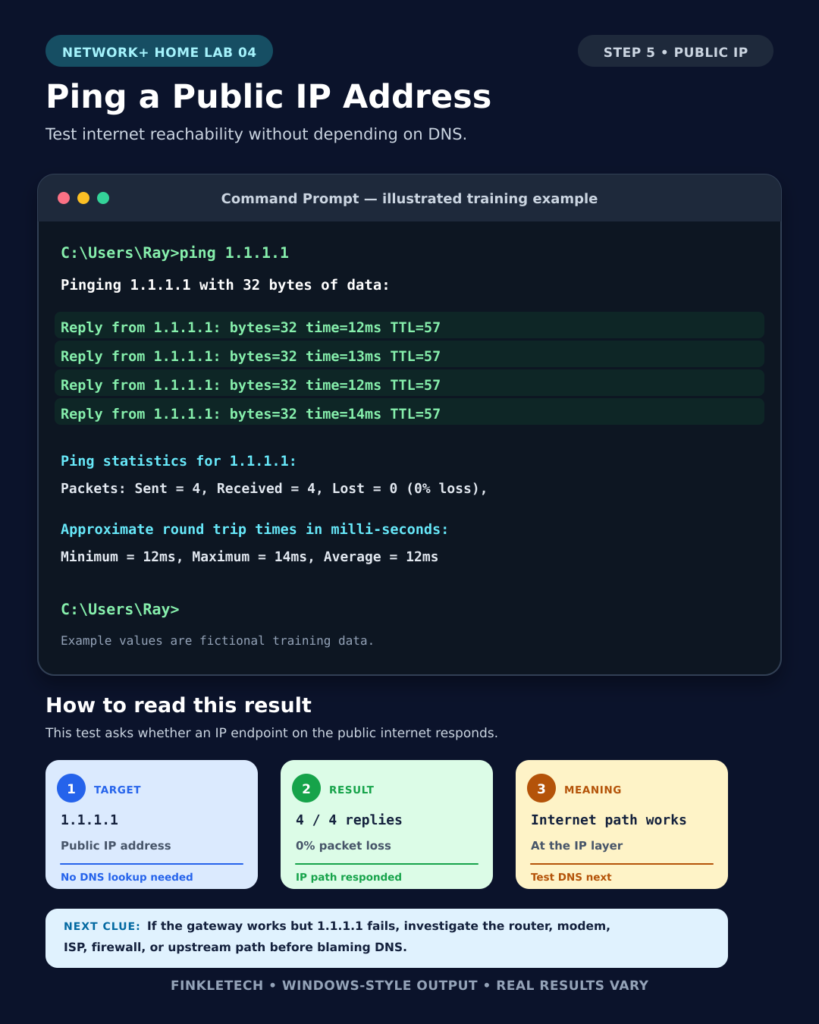
Now test internet connectivity without depending on DNS.
Run:
ping 1.1.1.1
You can also test another well-known public IP address if preferred.
This test helps answer a specific question: can your computer reach the outside internet using an IP address?
If pinging your gateway works but pinging a public IP fails, the problem may be beyond your local device. It could involve the router, modem, ISP, firewall settings, or upstream connectivity.
In your notebook, write:
| Test | Result | What It Means |
|---|---|---|
| Ping Public IP | [Success/Fail] | Tests internet connectivity without DNS |
Step 6: Ping a Domain Name
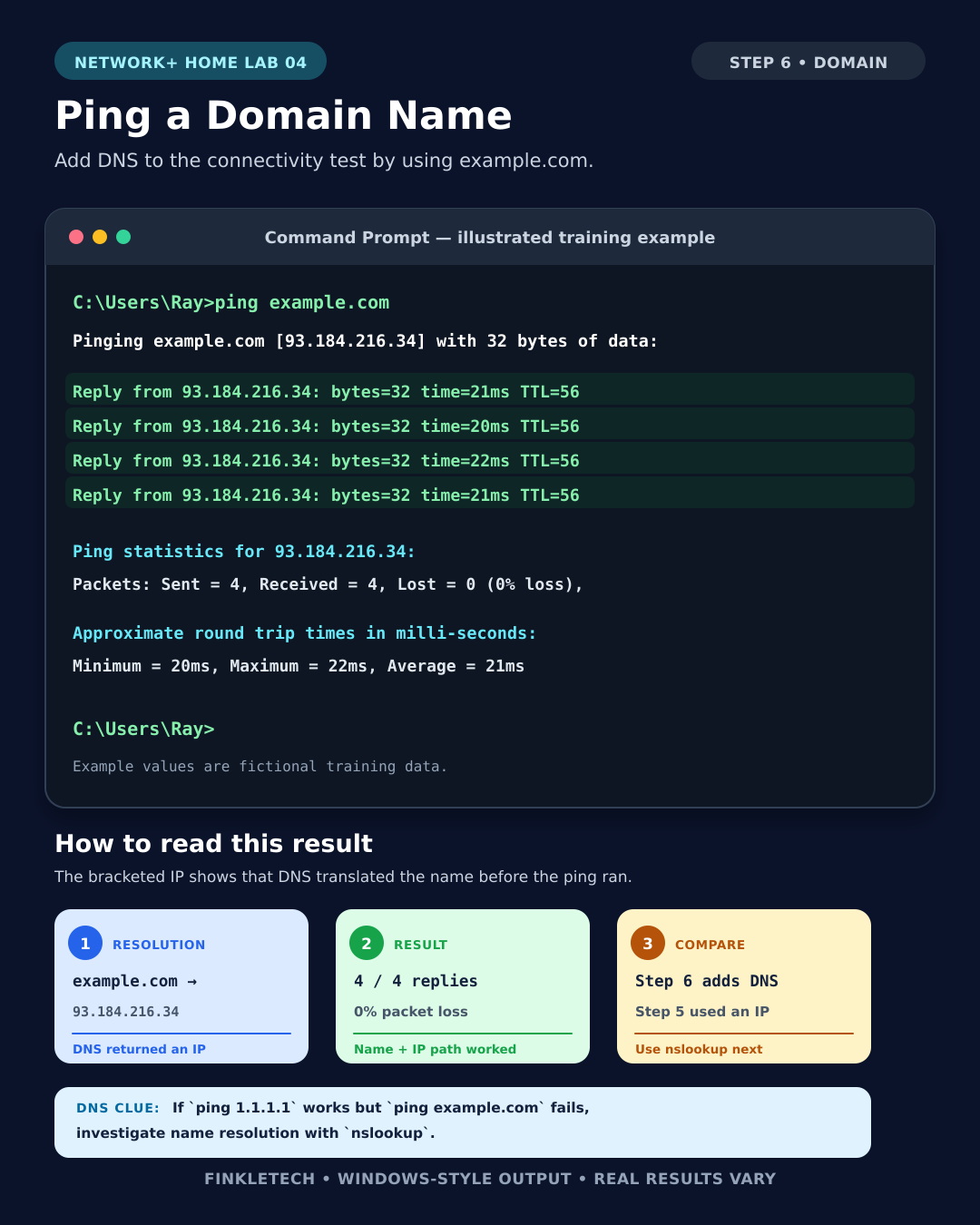
Now test connectivity using a name.
Run:
ping example.com
This test uses DNS because your computer must translate the domain name into an IP address before sending traffic.
If pinging a public IP works but pinging a domain name fails, DNS may be the issue. That is an important troubleshooting pattern.
This is why people sometimes say, “The internet is down,” when the real problem is DNS. Their device can still reach IP addresses, but it cannot resolve human-readable names.
In your notebook, write:
| Test | Result | What It Means |
|---|---|---|
| Ping Domain Name | [Success/Fail] | Tests DNS plus connectivity |
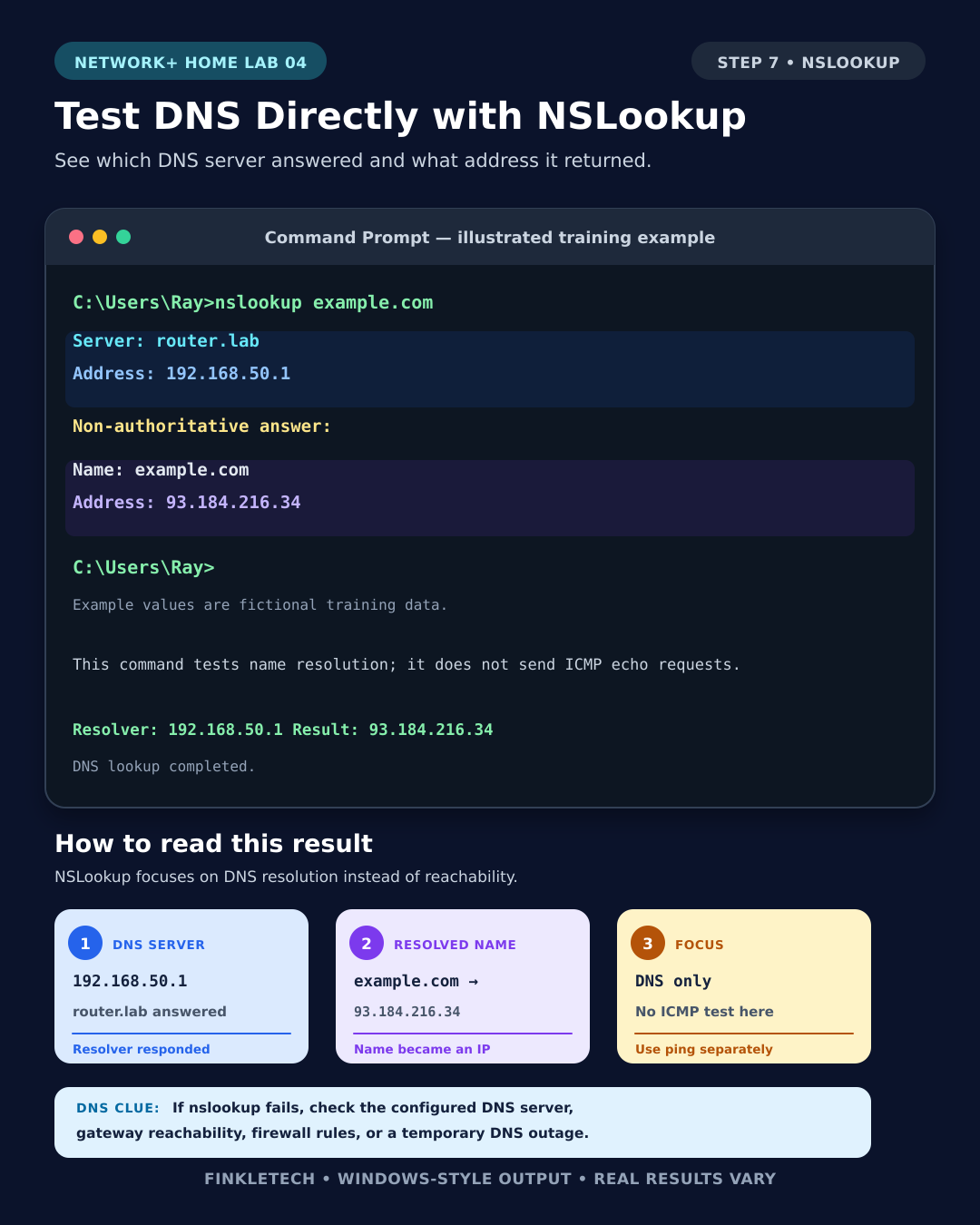
Step 7: Use NSLookup to Test DNS Directly
Now run:
nslookup example.com
This command asks DNS to resolve the domain name into an IP address. The result should show which DNS server answered and what address or addresses were returned.
This is more specific than pinging a domain name. Ping tests reachability and name resolution together. NSLookup focuses on DNS resolution.
If nslookup works, DNS is responding. If it fails, DNS may be misconfigured, unreachable, blocked, or temporarily down.
In your notebook, write:
| DNS Test | Result |
|---|---|
| Domain Tested | example.com |
| DNS Server Used | [Insert result] |
| Address Returned | [Insert result] |
| Did DNS Work? | [Yes/No] |
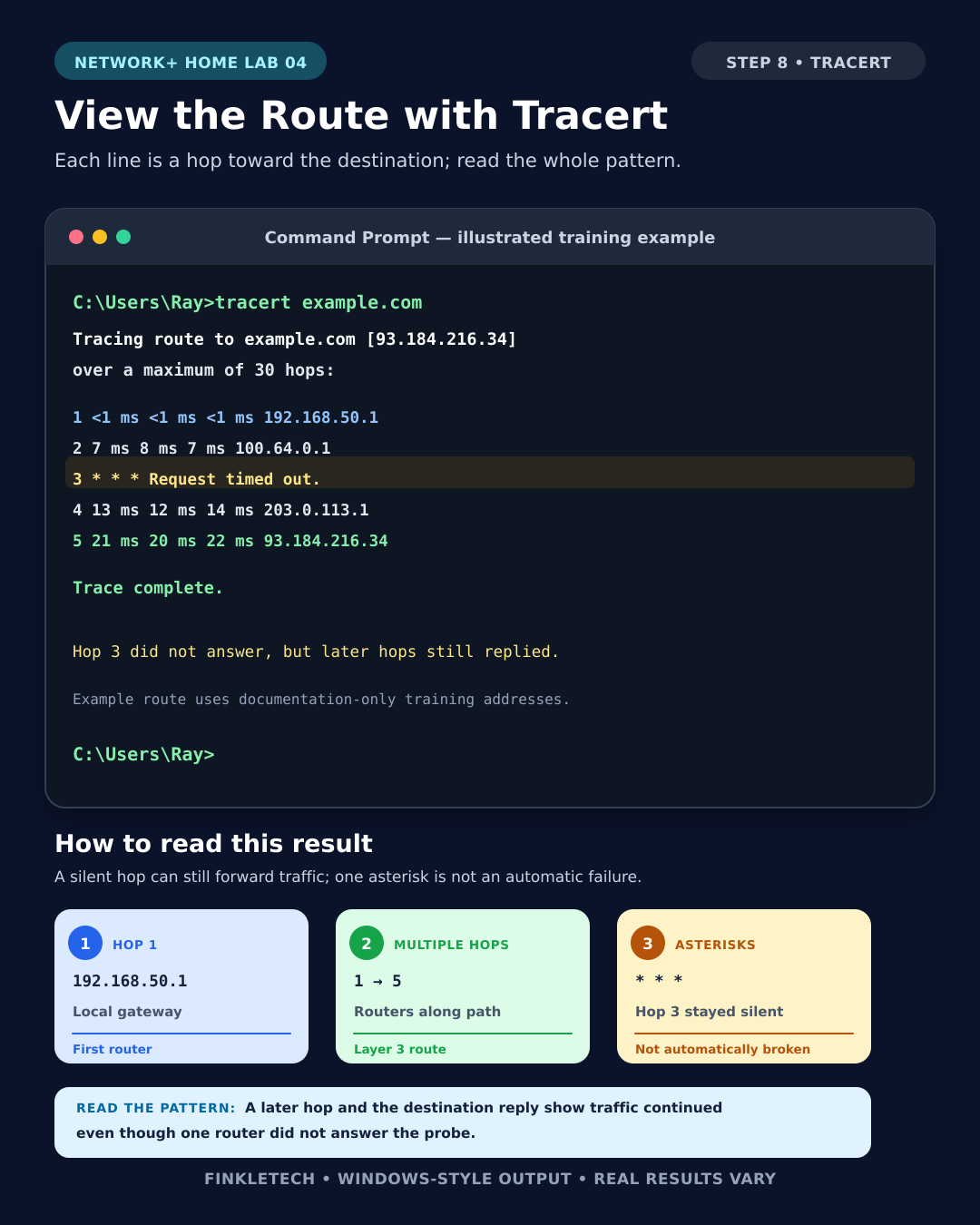
Step 8: Use Tracert to View the Route
Now run:
tracert example.com
This command shows the path your traffic takes toward the destination. Each line is a hop. A hop is usually a router or network device along the path.
The first hop is often your router. After that, you may see ISP routers and other upstream network paths.
Some hops may show asterisks. That does not always mean the route is broken. Some routers do not respond to traceroute-style probes, even though they still forward traffic. Look at the full pattern instead of panicking over one missing hop.
In your notebook, write:
| Tracert Detail | My Result |
|---|---|
| Destination Tested | example.com |
| First Hop | [Insert result] |
| Number of Hops Shown | [Insert result] |
| Any Timeouts? | [Yes/No] |
| Did the route complete? | [Yes/No] |
Step 9: Interpret Your Troubleshooting Pattern
Now compare all your results together.
Use this table:
| Test | Success or Fail | What It Suggests |
|---|---|---|
ipconfig shows valid IP settings | [Success/Fail] | Device has basic network configuration |
ping 127.0.0.1 | [Success/Fail] | Local TCP/IP stack works |
ping default gateway | [Success/Fail] | Computer can reach router |
ping public IP | [Success/Fail] | Internet works at IP level |
ping domain name | [Success/Fail] | DNS and connectivity may work |
nslookup domain | [Success/Fail] | DNS resolution works |
tracert domain | [Success/Fail] | Shows route/path behavior |
This is the real lab. The commands matter, but the interpretation matters more.
A good technician does not just say, “Ping failed.” A good technician asks, “Which ping failed? Loopback? Gateway? Public IP? Domain name?” Each answer points to a different part of the network.
Step 10: Common Troubleshooting Patterns
Here are some patterns to remember.
If ping 127.0.0.1 fails, the problem is very local. You may be dealing with a local TCP/IP stack or system issue.
If ping 127.0.0.1 works but ping default gateway fails, your computer may have a local connection problem. Check Wi-Fi, Ethernet, adapter status, local IP settings, or router connectivity.
If ping default gateway works but ping 1.1.1.1 fails, your local network may be working, but there may be a router, modem, ISP, or upstream connectivity problem.
If ping 1.1.1.1 works but ping example.com fails, DNS may be the problem.
If nslookup example.com fails, DNS is a strong suspect.
If tracert stops after the first hop or near your ISP, the issue may be beyond your local computer. Be careful though: traceroute results are clues, not perfect proof.
Step 11: Optional Challenge — Test a “Broken” Scenario Safely
For extra learning, you can create a harmless temporary problem and observe the result.
For example, disconnect from Wi-Fi and run:
ipconfig
Then try:
ping 1.1.1.1
You should see different results because your computer is no longer connected normally.
Reconnect Wi-Fi afterward.
Do not change advanced settings unless you know how to undo them. The point is to observe, not wreck your setup.
[Insert screenshot here: Optional failed ping or disconnected adapter result.]
Step 12: Write Your Lab Notes
Use this section after you complete the lab.
My FinkleTech Lab Notes
For this lab, I used my [laptop/desktop] connected through [Wi-Fi/Ethernet]. I started by running ipconfig to find my IPv4 address, subnet mask, and default gateway. Then I used ping, tracert, and nslookup to test different parts of my network connection.
My loopback ping [worked/did not work], which showed that [insert what you learned]. My default gateway ping [worked/did not work], which showed that my computer [could/could not] reach the router. I also tested a public IP address and a domain name to compare basic internet connectivity with DNS-based connectivity.
What Your Results Mean
If all tests worked, your computer likely has valid local network settings, can reach your router, can reach the internet, can resolve domain names, and can trace a path to an outside destination.
If some tests worked and others failed, the pattern tells you where to focus. That is the point of this lab. You are not just checking whether the internet works. You are learning how to isolate the failure area.
The biggest lesson is this: troubleshooting is a sequence. Start with local settings, then test local communication, then test external IP connectivity, then test DNS, then examine the route.
That approach is much stronger than random guessing.
Common Problems
If ping results fail, remember that some systems block ICMP traffic. A failed ping does not always mean a device is completely down. It means that ICMP replies did not come back.
If tracert shows asterisks, do not panic. Some routers do not respond to traceroute probes. Look for the overall pattern.
If nslookup fails but pinging a public IP works, DNS is likely worth investigating.
If all commands fail, check whether Wi-Fi or Ethernet is connected first. Do not troubleshoot DNS when the computer is not even connected to the network.
If your command output looks messy, slow down and focus on one result at a time.
Network+ Concepts Practiced
This lab practices several important Network+ concepts:
- command-line troubleshooting
- IP configuration
- default gateway testing
- loopback testing
- ICMP
- DNS resolution
- route tracing
- latency
- packet loss
- local vs remote troubleshooting
- troubleshooting methodology
- network documentation
The most important skill is learning how to interpret the pattern of results. One command gives you a clue. Several commands in the right order give you a troubleshooting story.
Mini Review Questions
Use these questions after the lab to check your understanding.
- What does
ipconfigshow? - What does
ping 127.0.0.1test? - Why should you ping the default gateway?
- Why would you ping a public IP address before blaming DNS?
- What does
nslookuptest? - What does
tracertshow? - If you can ping
1.1.1.1but cannot ping a domain name, what is a likely issue? - Why should you follow a troubleshooting sequence instead of guessing?
Short Answers
ipconfigshows IP configuration information such as IPv4 address, subnet mask, and default gateway.ping 127.0.0.1tests the local TCP/IP stack on your own computer.- Pinging the default gateway tests whether your computer can reach the router.
- A public IP test checks internet connectivity without relying on DNS.
nslookuptests DNS name resolution.tracertshows the route or hops traffic takes toward a destination.- DNS is a likely issue.
- A sequence helps isolate the problem area and prevents random troubleshooting.